Introduction
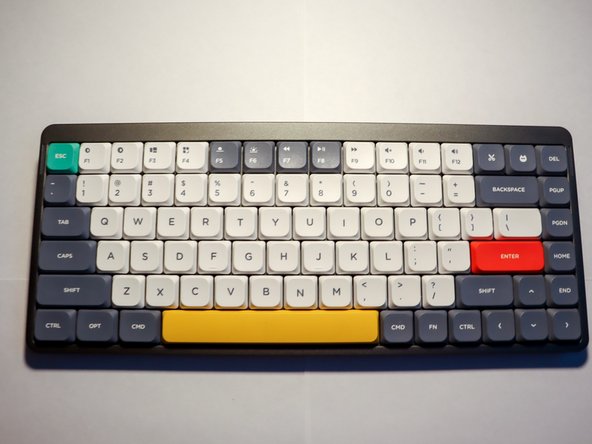
If your Nuphy Air75 Keyboard has faulty keys that are not transmitting to your computer, replace the faulty keys using this guide.
A faulty key will not transmit a signal to your keyboard when pressed and require a switch replacement.
There are no special skills required for this replacement.
The Nuphy Air75 comes with a keyboard switch puller and three replacement switches. Purchase replacement switches matching the weights of your keyboard. If you are unsure of your switch weight information, consult the user manual or the Nuphy Air75 product page.
What you need
-
-
-
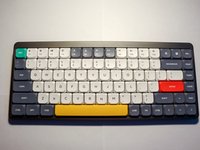
Place your keyboard on a clean, well-lit surface.
-
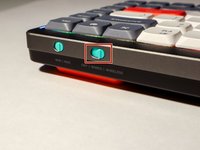
Slide the keyboard power switch to the "off" position.
 Ask FixBot
-
-
-
Find the wire side of the keycap puller. Slide each wire around opposite sides of the key you are replacing.
-
Pull gently until the key cap comes off.
-
-
-
-
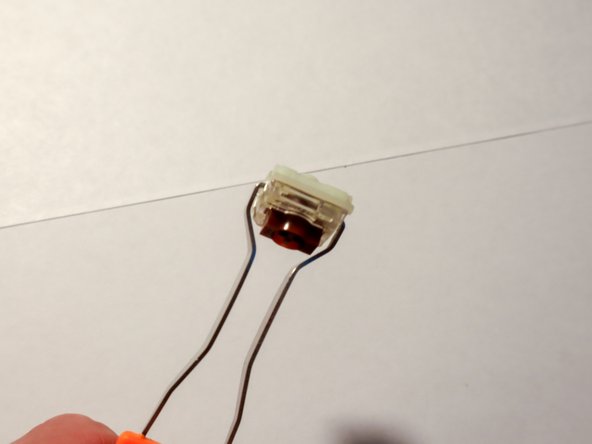
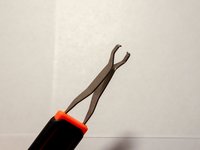
Use the other side of the switch puller, with two large metal prongs. Fit the prongs onto either side of the switch.
-
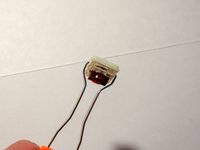
Pull the switch out using a side-to-side motion. When one side of the switch lifts up with an audible click, gently lift the other side to fully remove the switch.
-
-
-
Orient the replacement switch so that the colored, circular module is facing up.
-
Gently press down until you hear an audible click.
-
Place the keycap over the newly installed switch and gently press down.
-
-
-
Turn the power switch to the "wired" or "wireless" position depending on your setup.
-
Test your keyboard and new key switch.
-
-









Cancel: I did not complete this guide.
One other person completed this guide.

Team

Northern Arizona University, Team 1-5, Konrad Spring 2024 Member of Northern Arizona University, Team 1-5, Konrad Spring 2024
NAU-KONRAD-S24S1G5
4 Members
12 Guides authored
