Nortel Millennium Provisioning Setup Guide

Sean-e and one other contributor
Last updated on Aug 27, 2025
Views: 484
View statistics:
- Past 24 Hours:
- 1
- Past 7 Days:
- 15
- Past 30 Days:
- 68
- All Time:
- 484
Comments: 0
No one has left comments on this guide. Will you be first?
Go to guide commentsCompleted: 0 1
No one has marked this guide "completed." Will you be the first?
1 person has marked this guide "completed." It's you — great job!
Favorites: 0 1
No one has favorited (and subscribed to) this guide. Will you be the first?
1 person has favorited (and subscribed to) this guide — and that's you!
Community-Contributed Guide
An awesome member of our community made this guide. It was not created by iFixit staff.
Introduction
Go to step 1 ↓This guide is for provisioning and setting up the Nortel Millennium with the community-made backend, mm_manager.
This guide assumes you already have wiring for the 24V power and a landline cable.
This guide will be using the Grandstream HT802 and a Dell/Lenovo Conexant Modem.
What you need
-
-
-
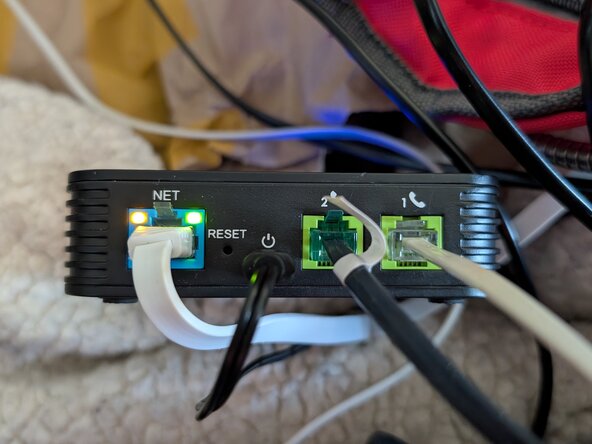
Connect your Nortel Millennium to Port 1 on the Grandstream.
-
Connect your USB Modem to Port 2 on the Grandstream and plug in the USB end to your computer of choice.
 Ask FixBot
-
-
-
Temporarily unplug the modem in Port 2 and plug in another landline phone.
-
On the phone, dial ***. Once you hear "Enter a menu option", type 02. Enter the IP it gives you into your browser.
-
-
-
Under Port 1, enter the details for your VoIP provider.
-
Next, go to Port Settings > FXS Port 1 > Analog Signal Line Configuration and enable Polarity Reversal & disable Line Echo Canceller.
-
Additionally, set Jitter Buffer Type to "Fixed" and Jitter Buffer Length to "Low" or "Medium".
-
Note the Port number for Port 2 from the Port Status screen (usually 6060). This number can change when making changes but rebooting the ATA will set it back to 6060.
-
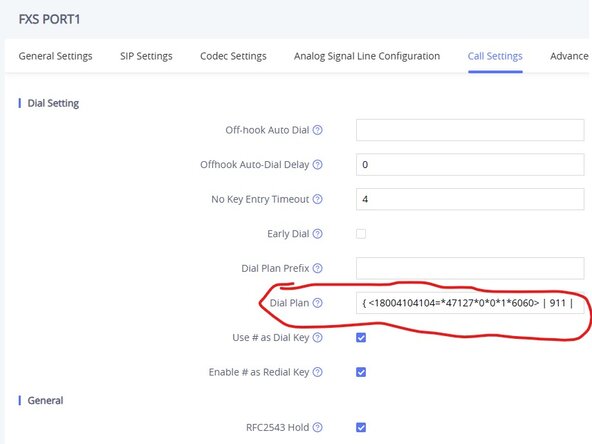
Now go to Port Settings > FXS Port 1 > Call Settings. Under Dial Plan, enter the following: { <18004104104=*47127*0*0*1*6060> | 911 | 411 | 611 | 988 | 1xxxxxxxxxx | [2-9]xxxxxxxxx | 011x+ | x+ | \+x+ | *x+ | *xx*x+ } (This assumes you're using 1-800-410-4104 as your manager number, you can change this)
-
-
-
Download mm_manager from this link and compile it using the provided instructions.
-
Next, find the COM number your modem is on (Usually COM3 or COM4). On Windows, you can find it in Device Manager.
-
Create a shortcut to mm_manager like this:
-
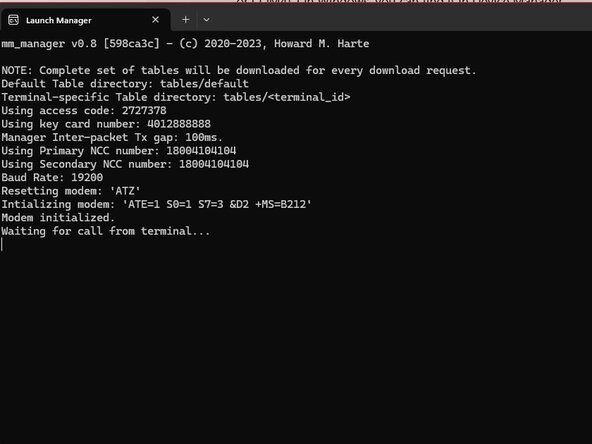
<path_to_mm_manager.exe> -m -n 18004104104 -f \\.\COM# -vv -l install.dlog -p install.pcap
-
Now start up mm_manager. If everything goes right, you should see "Waiting for call from terminal..." at the bottom of the console window.
-
-
-
-
When you plug in your phone for the first time, you should see "* out of service *" printed on the bottom line.
-
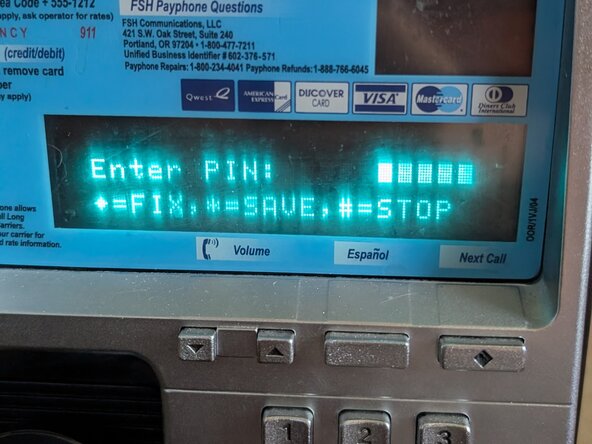
On the phone's keypad, type 2727378 (CRASERV). When the phone prompts for a PIN, enter any above 50000 and press *.
-
When the phone prompts, unlock the terminal with the T-Key near the top left of the housing. If you're using a desk terminal, specify a card number in mm_manager and insert that card when prompted.
-
On the next screen, press # to install.
-
-
-
First, the phone will ask you to preform a C.O. connection check. Take the receiver off hook and put it back on hook once "Completed: 00" is displayed.
-
Next, the phone will ask for the line number. Enter the phone number for the terminal and press *.
-
Next, the phone will ask for a serial number. 1234567890 will work fine.
-
Next, the phone will ask for the NCC number. Enter the number you are using for mm_manager, which is the one you specified in mm_manager's launch options and in the ATA dial plan.
-
The phone will then preform an answer detection check. If this fails, make sure you enabled Polarity Reversal on the ATA in Step 3.
-
Once "Press * to start NCC download" appears, wait 15 seconds, and then press * to download the configuration. This can take around 5 minutes.
-
Afterwards, complete the various tests the phone has you do. Once completed, lock the terminal to put it in service (standard millenniums) or press # to put it in service (desk millenniums).
-
-