
Nook Simple Touch with GlowLight Screen Replacement

Sydney Segear and 2 other contributors
Last updated on Jun 2, 2023
Views: 1.6K
View statistics:
- Past 24 Hours:
- 3
- Past 7 Days:
- 18
- Past 30 Days:
- 85
- All Time:
- 1,634
Comments: 2
2 comments on steps.
Completed: 0 1
No one has marked this guide "completed." Will you be the first?
1 person has marked this guide "completed." It's you — great job!
Favorites: 0 1
No one has favorited (and subscribed to) this guide. Will you be the first?
1 person has favorited (and subscribed to) this guide — and that's you!
Introduction
Go to step 1 ↓Does your Nook Simple Touch with GlowLight have problems with its screen? Is the screen cracked, frozen, or won’t turn on? You may need to replace the screen.
Before using this guide make sure you check out our trouble shooting page to rule out other issues.
Never work on a device that is plugged into a power outlet. Before starting this guide, ensure that the Nook is powered off and the power adapter is disconnected.
What you need
Tools


-
-
-
Wedge the opening tool between the power button and the upper edge of the device.
-
Push the opening tool down to pry the power button up.
-
-
-
-
-
Detach the white cable connector from the motherboard.
-
Remove the battery from the device.
-
-
-
-
-
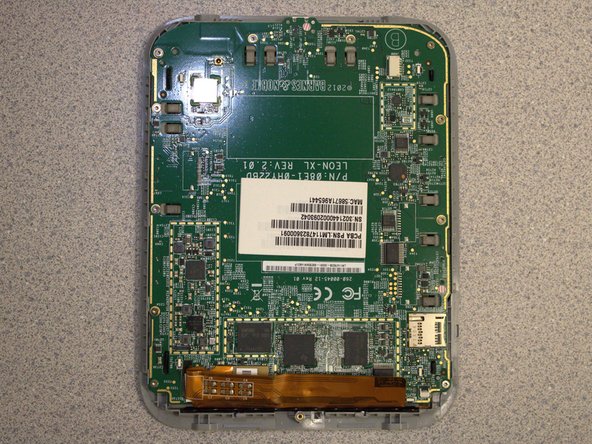
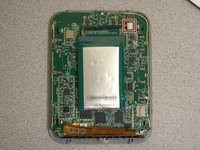
Remove eleven screws from the motherboard using the T4 screwdriver.
-
-
-
-
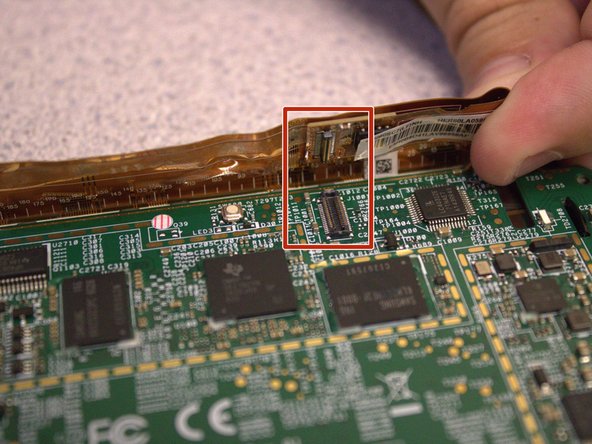
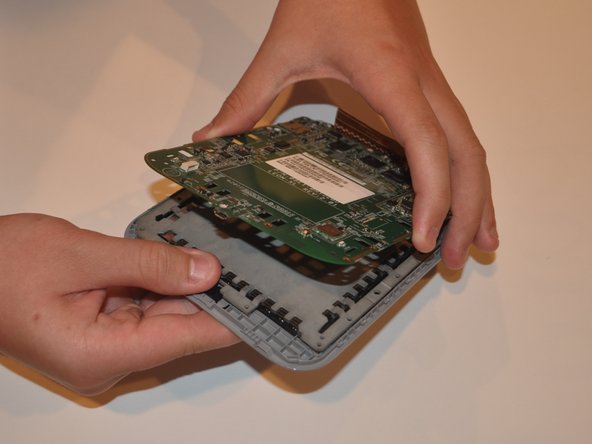
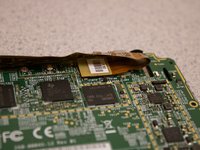
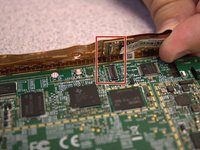
Disconnect the orange ribbon cable from the motherboard.
-
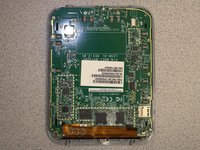
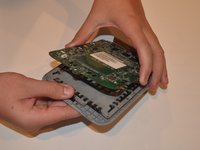
Using your fingers, gently lift the motherboard from the display.
-
-
-
-
-
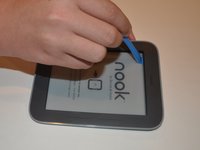
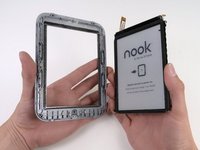
Insert the iFixit opening tool between the display and the front case.
-
Gently move to iFixit opening tool around the perimeter to release the set of tape strips.
-
-
-
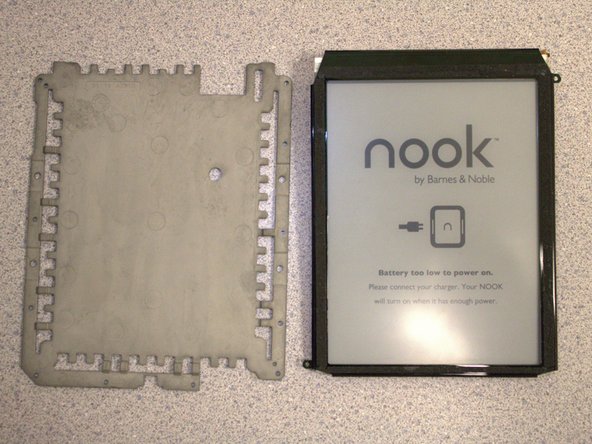
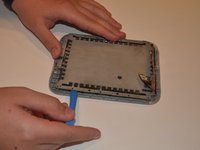
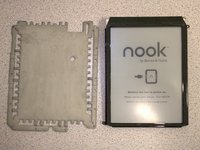
Turn the display over. Pry the display bezel from the display assembly with the iFixit opening tool.
-
-

 Ask FixBot







To reassemble your device, follow these instructions in reverse order.
Team

University of Delaware, Team 12-3, McGuire Spring 2023 Member of University of Delaware, Team 12-3, McGuire Spring 2023
UD-MCGUIRE-S23S12G3
5 Members
60 Guides authored
