
Nikon D80 Motherboard Replacement

Sara Martin and 5 other contributors
Last updated on May 31, 2018
Views: 5K
View statistics:
- Past 24 Hours:
- 4
- Past 7 Days:
- 22
- Past 30 Days:
- 121
- All Time:
- 5,039
Comments: 1
1 comment on steps.
Completed: 3 4
3 people have marked this guide "completed." Will you be next?
4 people have marked this guide "completed." Including you — great job!
Favorites: 0 1
No one has favorited (and subscribed to) this guide. Will you be the first?
1 person has favorited (and subscribed to) this guide — and that's you!
Featured Student Guide
This guide has been the hard work of our awesome students and is found to be exceptionally cool by the iFixit staff.
Introduction
Go to step 1 ↓After extended use, the motherboard of a camera can often stop working. This guide explains how to replace the motherboard of a Nikon D80 camera. For safety purposes, please remove the battery before working with any electronic components.
Please note that this guide requires soldering. For more information on how to solder and desolder connections, please visit this guide.
What you need
Tools


-
-
-
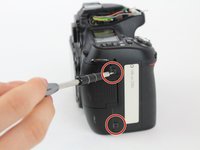
Using a Phillips #00 screwdriver, remove the four 6.2 mm screws from the left and right sides of the outer cover.
 Ask FixBot
-
-
Tool used on this step:Tweezers$4.99
-
Use tweezers to gently flip the small locking flap of the zero force insertion connector up.
-
Pull the orange connector cable out of the zero force insertion connector using the tweezers.
-
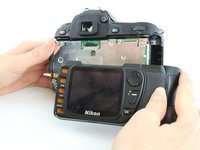
Remove the back cover.
-
-
-
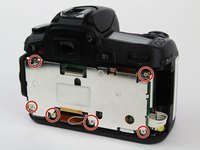
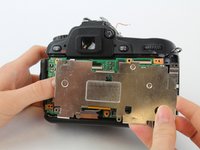
Use a Phillips #00 screwdriver to remove the six 3.7 mm screws.
-
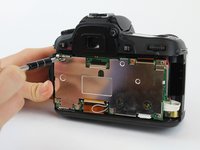
Remove the back plate that covers the main board.
-
-
-
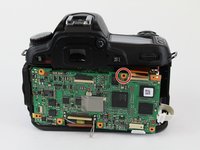
Use tweezers to gently flip the small locking flaps of the zero force insertion connectors up.
-
Pull the bottom orange connector cable out of the zero force insertion connector using the tweezers.
-
Pull the top orange connector cable out of the zero force insertion connector using the tweezers.
-
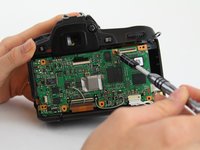
Remove the ribbon cables by gently pulling them away from the no-fuss ribbon cable connectors.
-
Remove the ribbon cables by gently pulling them away from the no-fuss ribbon cable connectors.
-
Disconnect the main board from the two ports on the left by pulling the main board to the right.
-
-
-
-
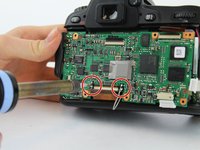
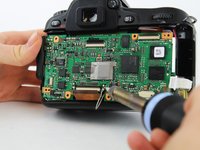
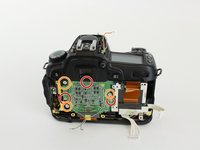
Using the soldering iron, disconnect the four wires soldered to the main board.
-
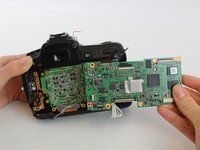
Remove the main board.
-
-
-
-
-
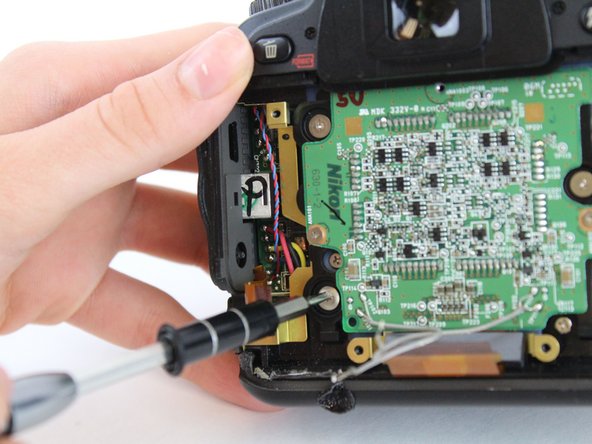
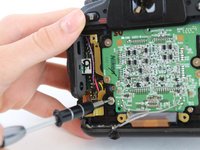
Unscrew the three 2.3 mm screws using a Phillips #00 screwdriver.
-
Use the Phillips #00 screwdriver to unscrew the three 4.7 mm screws.
-
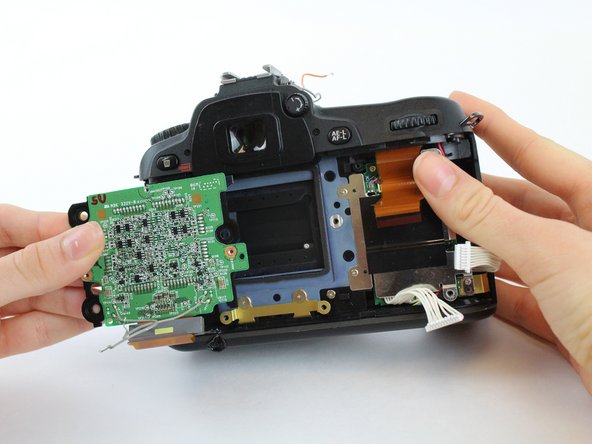
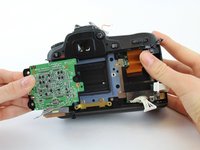
Gently remove the motherboard.
-
-











To reassemble your device, follow these instructions in reverse order.
Cancel: I did not complete this guide.
3 other people completed this guide.

Team

USF Tampa, Team S1-G1, Leahy Fall 2017 Member of USF Tampa, Team S1-G1, Leahy Fall 2017
USFT-LEAHY-F17S1G1
4 Members
60 Guides authored
