
Nikon Coolpix S9700 Memory Card Replacement

Matt Staubus and one other contributor
Last updated on Dec 24, 2016
Views: 1.2K
View statistics:
- Past 24 Hours:
- 3
- Past 7 Days:
- 16
- Past 30 Days:
- 95
- All Time:
- 1,183
Comments: 0
No one has left comments on this guide. Will you be first?
Go to guide commentsCompleted: 0 1
No one has marked this guide "completed." Will you be the first?
1 person has marked this guide "completed." It's you — great job!
Favorites: 0 1
No one has favorited (and subscribed to) this guide. Will you be the first?
1 person has favorited (and subscribed to) this guide — and that's you!
Introduction
Go to step 1 ↓Removing your memory card will allow you to replace it with a new one, access the S9700's internal memory, or remove the current data from it. It does not require extensive knowledge or special tools.
-
-
-
Power off the S9700 and situate it so that it is upside down.
-
Place your finger on the compartment door.
-
Gently push toward the front of the S9700.
-
The compartment door should spring open by itself.
 Ask FixBot
-
-
-
Locate the memory card. Be careful not to mistake it for the battery.
-
Push down on the memory card until it won't go down further. Don't push too hard to avoid damaging your camera
-
Release your finger and the card will pop up out of its compartment.
-
-
-
-
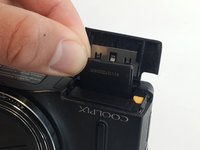
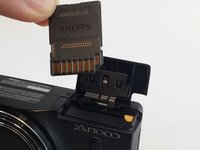
Grab your memory card with two fingers.
-
Gently pull up and your memory card will come out.
-
-


To reassemble your device, follow these instructions in reverse order.

Team

USF Tampa, Team 9-5, Lacy Fall 2016 Member of USF Tampa, Team 9-5, Lacy Fall 2016
USFT-LACY-F16S9G5
4 Members
60 Guides authored
