Free Shipping on Domestic Orders $75+

Nikon Coolpix S5300 Image Sensor Replacement

Views: 787

View statistics:

Past 24 Hours:
3
Past 7 Days:
14
Past 30 Days:
71
All Time:
787
Comments: 0

No one has left comments on this guide. Will you be first?

Go to guide comments
Completed: 0

No one has marked this guide "completed." Will you be the first?

Favorites: 0

No one has favorited (and subscribed to) this guide. Will you be the first?

Time Required: 25 minutes
Difficulty: Moderate
Nikon Coolpix S5300 Image Sensor Replacement

Introduction

Go to step 1 ↓

This guide will allow the reader to understand how to disassemble the Nikon Coolpix S5300 and get to its image sensor.

What you need

Tools

    1. Nikon Coolpix S5300 Image Sensor Replacement, Battery: step 1, image 1 of 1
      • Turn the camera upside down and locate the battery compartment.

      • Slide the compartment open following the direction of the arrow.

      Ask FixBot

      Add Comment

    2. Nikon Coolpix S5300 Image Sensor Replacement: step 2, image 1 of 1
      • Press the orange release button to release and remove the battery.

      • Replace or insert battery in it's respective terminals

      Ask FixBot

      Add Comment

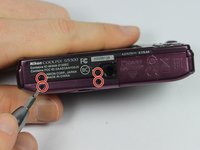
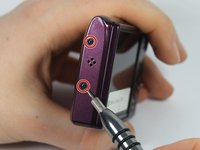
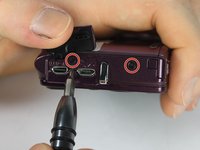
    1. Nikon Coolpix S5300 Image Sensor Replacement, Outer Casing: step 3, image 1 of 3 Nikon Coolpix S5300 Image Sensor Replacement, Outer Casing: step 3, image 2 of 3 Nikon Coolpix S5300 Image Sensor Replacement, Outer Casing: step 3, image 3 of 3
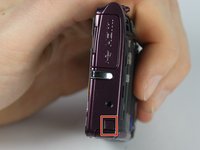
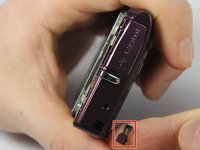
      • Remove the four 0.1mm screws from the bottom of the camera using the phillips head screwdriver

      • Using the same screwdriver, remove the 2 screws on the side of the camera.

      • Remove the 2 screws from the other side of the camera.

      • One of the screws is under the I/O port cover.

      Ask FixBot

      Add Comment

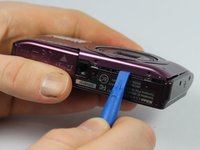
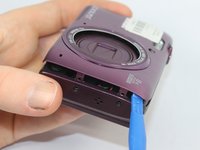
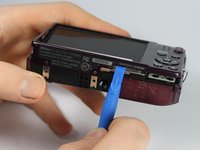
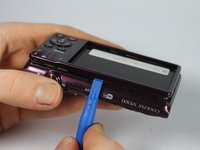
    2. Nikon Coolpix S5300 Image Sensor Replacement: step 4, image 1 of 3 Nikon Coolpix S5300 Image Sensor Replacement: step 4, image 2 of 3 Nikon Coolpix S5300 Image Sensor Replacement: step 4, image 3 of 3
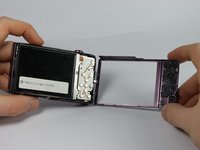
      • Use the plastic opening tool to carefully separate the cover from the camera.

      • Work the plastic opening tool around all the edges of the front plate.

      • Pull the purple plastic cover off gently from the screen.

      Ask FixBot

      Add Comment

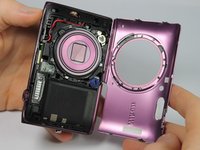
    3. Nikon Coolpix S5300 Image Sensor Replacement: step 5, image 1 of 3 Nikon Coolpix S5300 Image Sensor Replacement: step 5, image 2 of 3 Nikon Coolpix S5300 Image Sensor Replacement: step 5, image 3 of 3
      • Turn the camera over so the LCD screen is facing you.

      • Carefully remove the front shell by gently prying around the corners with the plastic opening tool until it releases.

      Ask FixBot

      Add Comment

    4. Nikon Coolpix S5300 Image Sensor Replacement: step 6, image 1 of 2 Nikon Coolpix S5300 Image Sensor Replacement: step 6, image 2 of 2
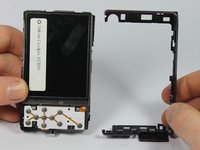
      • Be careful to keep track of little pieces of the outside casing.

      Ask FixBot

      Add Comment

    5. Nikon Coolpix S5300 Image Sensor Replacement: step 7, image 1 of 2 Nikon Coolpix S5300 Image Sensor Replacement: step 7, image 2 of 2
      • Carefully remove the top button casing by pulling it away from main camera.

      Ask FixBot

      Add Comment

    1. Nikon Coolpix S5300 Image Sensor Replacement, Button Panel: step 8, image 1 of 1
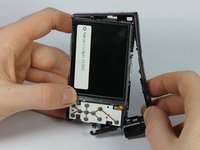
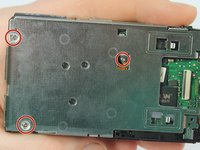
      • Remove the 2 screws on the silver plate

      • Gently lift the screen and silver plate away from the internal components.

      • Do not separate the plate and screen from the camera

      Ask FixBot

      Add Comment

    2. Nikon Coolpix S5300 Image Sensor Replacement: step 9, image 1 of 2 Nikon Coolpix S5300 Image Sensor Replacement: step 9, image 2 of 2
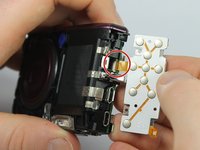
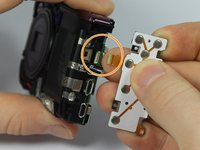
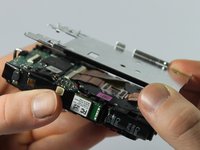
      • Carefully move the button panel away from the silver plate.

      • To disconnect the ribbon cable, use the tip of a plastic opening tool or your fingernail to flip up the small retaining flap.

      • Safely pull the ribbon cable out and then remove the button panel.

      • Be sure you are prying up on the hinged retaining flap, not the connector itself.

      Ask FixBot

      Add Comment

    1. Nikon Coolpix S5300 Image Sensor Replacement, LCD Display Screen: step 10, image 1 of 2 Nikon Coolpix S5300 Image Sensor Replacement, LCD Display Screen: step 10, image 2 of 2
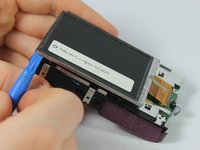
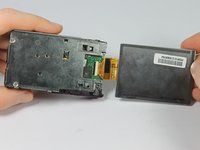
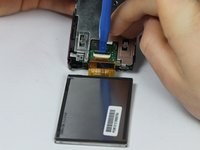
      • Carefully remove the screen away from the silver plate.

      • Carefully fold the screen over exposing the latch for the ribbon cable.

      Ask FixBot

      Add Comment

    2. Nikon Coolpix S5300 Image Sensor Replacement: step 11, image 1 of 3 Nikon Coolpix S5300 Image Sensor Replacement: step 11, image 2 of 3 Nikon Coolpix S5300 Image Sensor Replacement: step 11, image 3 of 3
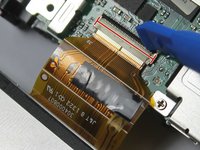
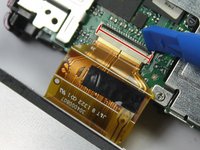
      • To disconnect the ribbon cable, use the tip of a plastic opening tool or your fingernail to flip up the small retaining flap. Then, you can safely pull the ribbon cable out.

      • Be sure you are prying up on the hinged retaining flap, not the connector itself.

      Ask FixBot

      Add Comment

    3. Nikon Coolpix S5300 Image Sensor Replacement: step 12, image 1 of 1
      • Once the ribbon cable is disconnected, remove the LCD screen.

      Ask FixBot

      Add Comment

    1. Nikon Coolpix S5300 Image Sensor Replacement, Image Sensor: step 13, image 1 of 2 Nikon Coolpix S5300 Image Sensor Replacement, Image Sensor: step 13, image 2 of 2
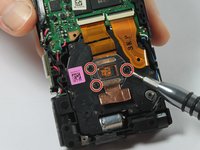
      • Using the phillips head screwdriver, remove the three 0.1mm screws on the metal plate.

      • Carefully remove metal plate from the camera.

      Ask FixBot

      Add Comment

    2. Nikon Coolpix S5300 Image Sensor Replacement: step 14, image 1 of 3 Nikon Coolpix S5300 Image Sensor Replacement: step 14, image 2 of 3 Nikon Coolpix S5300 Image Sensor Replacement: step 14, image 3 of 3
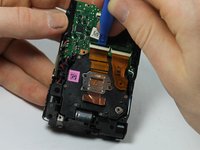
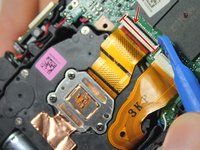
      • Use the plastic opening tool or your finger nail to carefully flip up the ribbon cable retaining flap.

      • Use the same screwdriver to remove the three 3mm screws that were revealed after removing the metal plate.

      Ask FixBot

      Add Comment

    3. Nikon Coolpix S5300 Image Sensor Replacement: step 15, image 1 of 1
      • Gently pull the ribbon cable to remove the image sensor.

      Ask FixBot

      Add Comment

Conclusion

To reassemble your device, follow these instructions in reverse order.

Cancel: I did not complete this guide.

Riordan McCole

Member since: 03/04/16

307 Reputation

3 Guides authored

Team

0 Guide Comments

Add Comment

View Statistics:

Past 24 Hours: 3

Past 7 Days: 14

Past 30 Days: 71

All Time: 787