
Nikon Coolpix S5300 Button Panel Replacement

Waleed Chakir and 3 other contributors
Last updated on May 18, 2016
Views: 722
View statistics:
- Past 24 Hours:
- 2
- Past 7 Days:
- 19
- Past 30 Days:
- 78
- All Time:
- 722
Comments: 0
No one has left comments on this guide. Will you be first?
Go to guide commentsCompleted: 0 1
No one has marked this guide "completed." Will you be the first?
1 person has marked this guide "completed." It's you — great job!
Favorites: 0 1
No one has favorited (and subscribed to) this guide. Will you be the first?
1 person has favorited (and subscribed to) this guide — and that's you!
Introduction
Go to step 1 ↓This guide will allow the reader to how to disassemble the Nikon Coolpix S5300 and get to its button panel.
- Make sure to be gentle when removing ribbon cables.
- Be sure to keep track of all your screws.
What you need
Tools


-
-
-
Turn the camera upside down and locate the battery compartment.
-
Slide the compartment open following the direction of the arrow.
 Ask FixBot
-
-
-
Press the orange release button to release and remove the battery.
-
Replace or insert battery in it's respective terminals
-
-
-
-
-
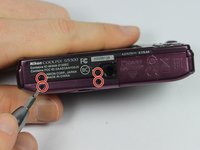
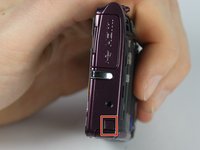
Remove the four 0.1mm screws from the bottom of the camera using the phillips head screwdriver
-
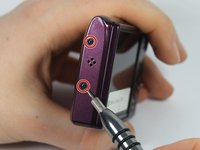
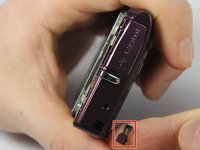
Using the same screwdriver, remove the 2 screws on the side of the camera.
-
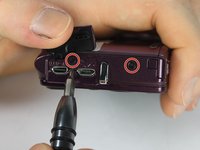
Remove the 2 screws from the other side of the camera.
-
-
-
-
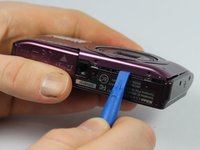
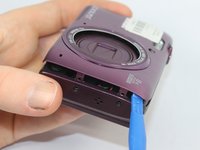
Use the plastic opening tool to carefully separate the cover from the camera.
-
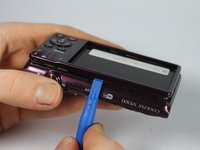
Work the plastic opening tool around all the edges of the front plate.
-
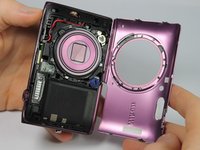
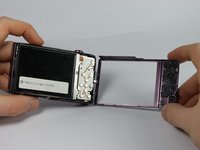
Pull the purple plastic cover off gently from the screen.
-
-
-
Turn the camera over so the LCD screen is facing you.
-
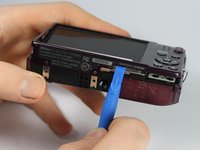
Carefully remove the front shell by gently prying around the corners with the plastic opening tool until it releases.
-
-
-
-
-
Remove the 2 screws on the silver plate
-
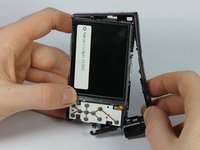
Gently lift the screen and silver plate away from the internal components.
-
-
-
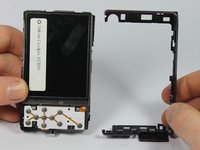
Carefully move the button panel away from the silver plate.
-
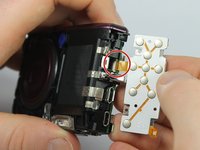
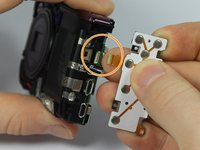
To disconnect the ribbon cable, use the tip of a plastic opening tool or your fingernail to flip up the small retaining flap.
-
Safely pull the ribbon cable out and then remove the button panel.
-
-












To reassemble your device, follow these instructions in reverse order.

Team

UMass Dartmouth, Team 6-1, Bhusal Spring 2016 Member of UMass Dartmouth, Team 6-1, Bhusal Spring 2016
UMASSD-BHUSAL-S16S6G1
3 Members
72 Guides authored
