Introduction
A bit of a fumble can result in a screen shattered beyond use, especially with a device this fragile. Or maybe the screen has some internal damage that has made it unresponsive to touch. Either way, this guide will help you replace the screen with minimal adjustment to the other parts.
What you need
-
-
-
Slide the battery door open with a finger or thumb and release it so the door opens.
 Ask FixBot
-
-
-
-
-
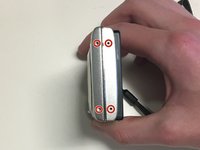
Remove four 2mm Phillips #000 screws.
-
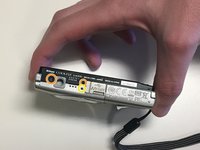
Remove two black 3mm Phillips #000 screws.
-
Remove one 4mm Phillips #000 screws.
-
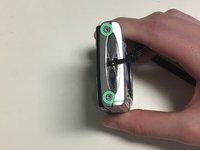
Remove two silver 3mm Phillips #000 screws.
-
-
-
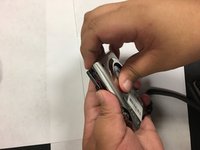
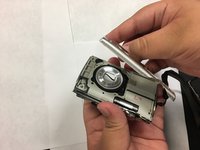
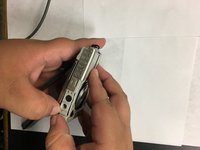
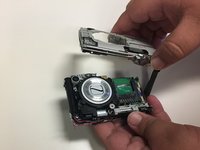
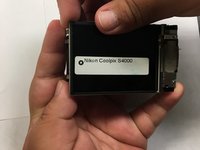
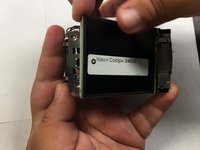
Use your fingers, or a spudger, to lift up one end of the casing and then pry the two pieces apart.
-
-
-
-
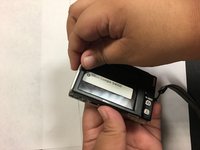
Turn the camera over.
-
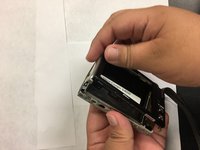
Use your fingers, or spudger, to lift one end of the back casing and pry it apart from back of the camera.
-
-
-
-
-
Remove the single 3mm Phillips #000 screw from the back of the camera.
-
-
-
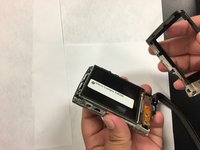
Turn the camera over and pry the lens casing off by slipping your fingers, or spudger, under the lip of the casing.
-
Desolder the two wires connecting the casing to the motherboard.
-
-
-
-
-
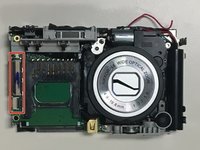
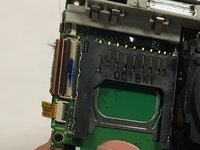
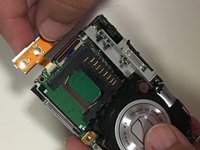
Use the flat end of a spudger to lift up the black tabs on the ZIF connectors.
-
Pull the ribbon cables out of the ZIF connectors.
-
-
-
Grabbing the top left corner of the screen, pull it up until the screen comes completely off.
-












To reassemble your device, follow these instructions in reverse order.

Team

University of North Texas, Team S4-G1, Thompson Spring 2018 Member of University of North Texas, Team S4-G1, Thompson Spring 2018
UNT-THOMPSON-S18S4G1
5 Members
96 Guides authored
