
Nikon Coolpix L32 LCD Replacement

Sherika Jacobs and 4 other contributors
Last updated on Dec 25, 2016
Views: 1.5K
View statistics:
- Past 24 Hours:
- 2
- Past 7 Days:
- 17
- Past 30 Days:
- 95
- All Time:
- 1,535
Comments: 0
No one has left comments on this guide. Will you be first?
Go to guide commentsCompleted: 1 2
1 person has marked this guide "completed." Will you be next?
2 people have marked this guide "completed." Including you — great job!
Favorites: 0 1
No one has favorited (and subscribed to) this guide. Will you be the first?
1 person has favorited (and subscribed to) this guide — and that's you!
Introduction
Go to step 1 ↓If the Nikon Coolpix L32 suffered from physical damages and it remains dark after trying to power it on, consider replacing the LCD Screen. No hazards are associated with this replacement.
What you need
Tools
-
Spudger4.9


-
-
-
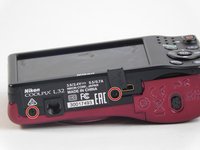
Remove the six(3.93mm screws) on the outside of the camera using a Phillips 00 screwdriver.
 Ask FixBot
-
-
-
Open the battery compartment door and pull the black back face apart from the front red face.
-
-
-
-
-
Use the spudger to lift up the small white retaining flap on the motherboard that is connected to the LCD screen's ribbon cable.
-
-
-
-
With the small retaining white flap up, remove the LCD screen ribbon cable from the motherboard by sliding it out.
-




To reassemble your device, follow these instructions in reverse order.
Cancel: I did not complete this guide.
One other person completed this guide.

Team

USF Tampa, Team 2-4, Blackwell Fall 2016 Member of USF Tampa, Team 2-4, Blackwell Fall 2016
USFT-BLACKWELL-F16S2G4
4 Members
60 Guides authored
