Free Shipping on Domestic Orders $75+

Nikon Coolpix AW130 LCD Screen Replacement

What you need

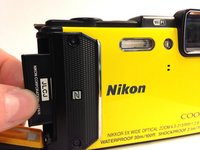
  1. Nikon Coolpix AW130 LCD Screen Replacement, Battery: step 1, image 1 of 2 Nikon Coolpix AW130 LCD Screen Replacement, Battery: step 1, image 2 of 2
    • Using your thumb and pointer finger, open the card/battery hatch by pressing the center button of the wheel and turning the entire wheel to the left.

    • When reassembling, you must turn this wheel to the right until it clicks.

    Ask FixBot

    Add Comment

  2. Nikon Coolpix AW130 LCD Screen Replacement: step 2, image 1 of 2 Nikon Coolpix AW130 LCD Screen Replacement: step 2, image 2 of 2
    • You should feel the door begin to loosen. Carefully pull the hatch open.

    Ask FixBot

    Add Comment

  3. Nikon Coolpix AW130 LCD Screen Replacement: step 3, image 1 of 1
    • Push the yellow battery/charger compartment tab up using your thumb nail.

    Ask FixBot

    Add Comment

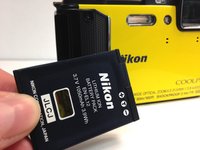
  4. Nikon Coolpix AW130 LCD Screen Replacement: step 4, image 1 of 2 Nikon Coolpix AW130 LCD Screen Replacement: step 4, image 2 of 2
    • After pressing the yellow tab, the battery should loosen.

    • Slowly pull the battery completely out.

    Ask FixBot

    Add Comment

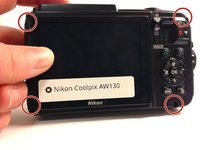
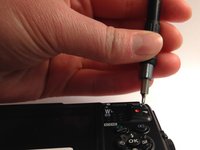
  5. Nikon Coolpix AW130 LCD Screen Replacement, Back Panel: step 5, image 1 of 2 Nikon Coolpix AW130 LCD Screen Replacement, Back Panel: step 5, image 2 of 2
    • Using the T5 Torx screwdriver, remove all four 4mm screws.

    Ask FixBot

    Add Comment

  6. Nikon Coolpix AW130 LCD Screen Replacement: step 6, image 1 of 1
    • Using a Phillips #000 screwdriver, remove the single 3mm screw found inside the battery/charging compartment.

    Ask FixBot

    Add Comment

  7. Nikon Coolpix AW130 LCD Screen Replacement: step 7, image 1 of 1
    • Remove the upper cover (connected by glue) and unscrew the single Philips screw.

    Ask FixBot

    Add Comment

  8. Nikon Coolpix AW130 LCD Screen Replacement: step 8, image 1 of 2 Nikon Coolpix AW130 LCD Screen Replacement: step 8, image 2 of 2
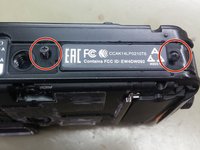
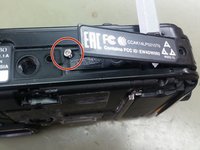
    • Remove two Philips screws from the bottom cover, lift gently the cover and remove the single Philips screw under it.

    Ask FixBot

    Add Comment

  9. Nikon Coolpix AW130 LCD Screen Replacement: step 9, image 1 of 1
    • Carefully remove the back cover from the camera body.

    Ask FixBot

    Add Comment

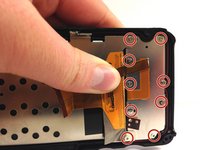
  10. Nikon Coolpix AW130 LCD Screen Replacement, LCD Screen: step 10, image 1 of 3 Nikon Coolpix AW130 LCD Screen Replacement, LCD Screen: step 10, image 2 of 3 Nikon Coolpix AW130 LCD Screen Replacement, LCD Screen: step 10, image 3 of 3
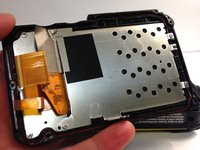
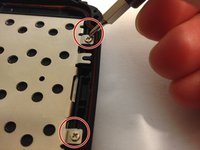
    • Using a Phillips #000 screwdriver, remove all 11, 4mm screws on the LCD screen cover.

    • Two screws are located on the right.

    • The remaining screws are hidden behind a connector ribbon on the left.

    Ask FixBot

    Add Comment

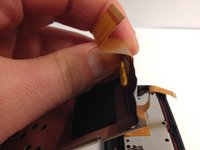
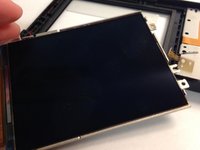
  11. Nikon Coolpix AW130 LCD Screen Replacement: step 11, image 1 of 2 Nikon Coolpix AW130 LCD Screen Replacement: step 11, image 2 of 2
    • Pull the LCD screen from the plastic frame after removing all of the screws.

    Ask FixBot

    Add Comment

  12. Nikon Coolpix AW130 LCD Screen Replacement: step 12, image 1 of 1
    Tool used on this step:
    Tweezers
    $4.99
    Buy
    • Using a pair of tweezers from the precision tweezer set, carefully remove the screen from the metal frame.

    • Since the tweezers could shatter the screen, causing for broken glass, exercise extreme caution.

    Ask FixBot

    Add Comment

Conclusion

To reassemble your device, follow these instructions in reverse order.

Cancel: I did not complete this guide.

9 Guide Comments

Hi.

Where can you buy a replacement screen?

Ben - Reply Share

Hi.

Where can you buy a replacement screen?

my contact is josem6073@gmail.com

Thank you .

Jose Martins - Reply Share

Please add Torx T5 screwdriver at the tool needed, required at step 5

macreateur - Reply Share

Hi.

Where can you buy a replacement screen?

my contact is cpapacon@gmail.com

Thank you .

Costis Papaconstantinou - Reply Share

Hi.

Where can you buy a replacement screen?

my contact is Keithdurkan@gmail.com

Thank you .

Keith Durkan - Reply Share

Add Comment

View Statistics:

Past 24 Hours: 2

Past 7 Days: 9

Past 30 Days: 43

All Time: 3,814