Free Shipping on Domestic Orders $75+

Nexus 7 Motherboard Replacement

What you need

  1. Nexus 7 Motherboard Replacement, Rear Panel: step 1, image 1 of 1
    • In the following steps you will release the clips (highlighted in red) along the perimeter of the Nexus 7's rear panel.

    • Do not use excessive force while prying the clips. They can be easily broken.

    Ask FixBot

    Add Comment

  2. Nexus 7 Motherboard Replacement: step 2, image 1 of 2 Nexus 7 Motherboard Replacement: step 2, image 2 of 2
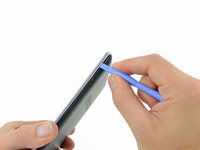
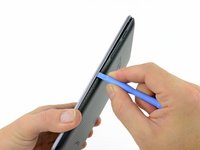
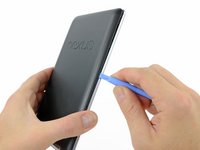
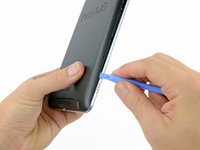
    • Gently insert a plastic opening tool near the top of the Nexus 7 between the rear panel and the front panel assembly.

    • Carefully run the plastic opening tool along the top edge to pry the rear panel away from the front panel assembly of the Nexus 7.

    Ask FixBot

    Add Comment

  3. Nexus 7 Motherboard Replacement: step 3, image 1 of 3 Nexus 7 Motherboard Replacement: step 3, image 2 of 3 Nexus 7 Motherboard Replacement: step 3, image 3 of 3
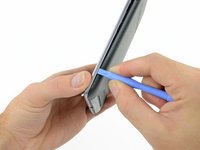
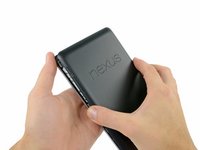
    • Insert the plastic opening tool between the rear panel and the front panel assembly near the power button and pry up at several points along the right edge of the Nexus 7.

    Ask FixBot

    Add Comment

  4. Nexus 7 Motherboard Replacement: step 4, image 1 of 3 Nexus 7 Motherboard Replacement: step 4, image 2 of 3 Nexus 7 Motherboard Replacement: step 4, image 3 of 3
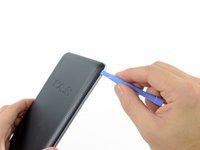
    • Pry up the rear panel along the left edge using the method described in previous steps.

    Ask FixBot

    Add Comment

  5. Nexus 7 Motherboard Replacement: step 5, image 1 of 2 Nexus 7 Motherboard Replacement: step 5, image 2 of 2
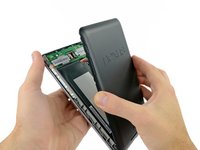
    • Gently lift and remove the rear panel up off the front panel assembly.

    Ask FixBot

    Add Comment

  6. Nexus 7 Motherboard Replacement, Battery Cable: step 6, image 1 of 2 Nexus 7 Motherboard Replacement, Battery Cable: step 6, image 2 of 2
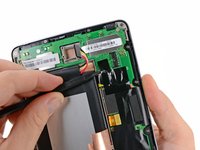
    • Using the tip of a spudger, push first on one side then the other to "walk" the battery cable straight out of its socket on the motherboard.

    Ask FixBot
    Add Comment

  7. Nexus 7 Motherboard Replacement, Speaker Cable: step 7, image 1 of 1
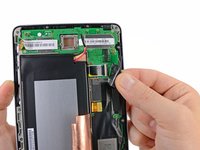
    • Peel back the copper ESD shielding covering the bottom of the motherboard.

    • Do not try to remove the copper shielding, as it is still attached underneath the battery.

    • If you're just replacing the micro usb charge port, there is no need to peel back the copper heatsink like in the photo, the speaker assembly can simply be moved out of the way once unscrewed. If the speakers are to be replaced simply peel back the bottom corner to expose the speaker connection. Leave the rest of the heatsink shield alone.

    Ask FixBot
    Add Comment

  8. Nexus 7 Motherboard Replacement: step 8, image 1 of 1
    • Using the tip of a spudger, push the speaker cable straight out of its socket on the motherboard.

    Ask FixBot

    Add Comment

  9. Nexus 7 Motherboard Replacement, Power & Volume ZIF Connector: step 9, image 1 of 1
    • Peel back the label covering the power and volume button ZIF connector.

    Ask FixBot

    Add Comment

  10. Nexus 7 Motherboard Replacement: step 10, image 1 of 2 Nexus 7 Motherboard Replacement: step 10, image 2 of 2
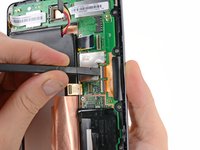
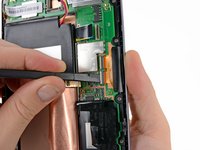
    • Use the tip of a spudger to carefully flip up the retaining flap on the power and volume button ribbon cable ZIF socket.

    • Make sure you are flipping up the retaining flap, not the socket itself.
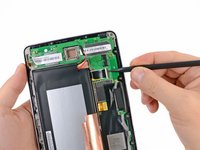
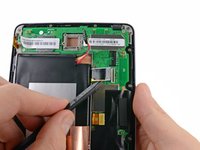
    • Use the tip of a spudger to pull the power and volume button ribbon cable straight out of its socket.

    Ask FixBot

    Add Comment

  11. Nexus 7 Motherboard Replacement, Motherboard Assembly: step 11, image 1 of 2 Nexus 7 Motherboard Replacement, Motherboard Assembly: step 11, image 2 of 2
    • Carefully peel back the adhesive tape covering the I/O board ribbon cable socket on the motherboard.

    Ask FixBot

    Add Comment

  12. Nexus 7 Motherboard Replacement: step 12, image 1 of 2 Nexus 7 Motherboard Replacement: step 12, image 2 of 2
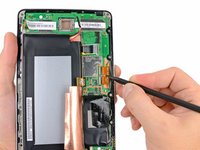
    • Use the tip of a spudger to carefully flip up the retaining flap on the I/O data ribbon cable ZIF socket.

    • Make sure you are flipping up the retaining flap, not the socket itself.

    • Use the tip of a spudger to pull the I/O data ribbon cable straight out of its socket.

    Ask FixBot

    Add Comment

  13. Nexus 7 Motherboard Replacement: step 13, image 1 of 1
    • Peel back the adhesive tape covering the display and digitizer cable sockets.

    • It is not necessary to completely remove the adhesive, but it is helpful to fold it back on itself to get it out of the way.

    Ask FixBot

    Add Comment

  14. Nexus 7 Motherboard Replacement: step 14, image 1 of 1
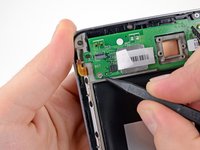
    • Use the flat end of a spudger to pry the display data cable straight up off its socket on the motherboard.

    Ask FixBot

    Add Comment

  15. Nexus 7 Motherboard Replacement: step 15, image 1 of 3 Nexus 7 Motherboard Replacement: step 15, image 2 of 3 Nexus 7 Motherboard Replacement: step 15, image 3 of 3
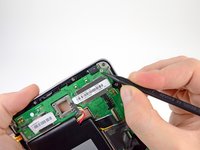
    • Use the flat end of a spudger to carefully flip up the retaining flaps on the digitizer ribbon cable ZIF sockets.

    • Make sure you are flipping up the retaining flaps, not the sockets themselves.

    • Use the tip of a spudger to pull the digitizer ribbon cable straight out of its socket.

    Ask FixBot

    Add Comment

  16. Nexus 7 Motherboard Replacement: step 16, image 1 of 2 Nexus 7 Motherboard Replacement: step 16, image 2 of 2
    • Use the tip of a spudger to remove the warranty seal stickers.

    Ask FixBot

    Add Comment

  17. Nexus 7 Motherboard Replacement: step 17, image 1 of 1
    • Remove the following screws securing the motherboard to the metal frame:

    • Six 3.25 mm silver Phillips screws

    • One 2.23 mm black Phillips screw

    Ask FixBot

    Add Comment

  18. Nexus 7 Motherboard Replacement: step 18, image 1 of 2 Nexus 7 Motherboard Replacement: step 18, image 2 of 2
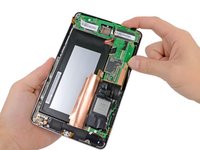
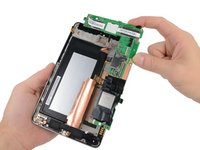
    • Carefully lift the motherboard assembly out of the Nexus 7, minding any cables that may get caught.

    Ask FixBot

    Add Comment

  19. Nexus 7 Motherboard Replacement, Motherboard: step 19, image 1 of 1
    • Use the flat end of a spudger to pry the front-facing camera straight off of its socket on the motherboard.

    Ask FixBot

    Add Comment

  20. Nexus 7 Motherboard Replacement: step 20, image 1 of 2 Nexus 7 Motherboard Replacement: step 20, image 2 of 2
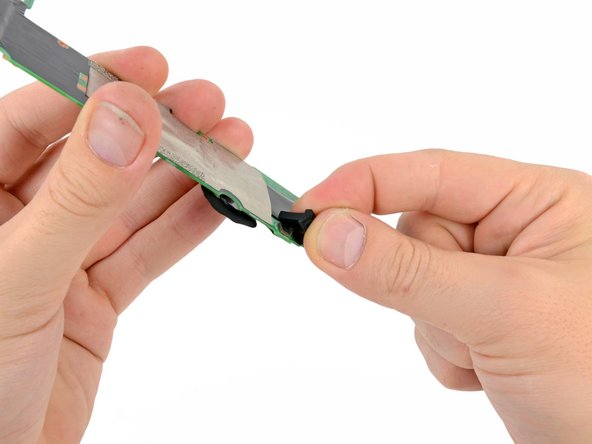
    • Carefully pull the upper microphone straight up off its socket.

    • In a similar fashion, remove the rubber lower microphone gasket from the motherboard.

    Ask FixBot

    Add Comment

  21. Nexus 7 Motherboard Replacement: step 21, image 1 of 1
    • Motherboard remains.

    Ask FixBot

    Add Comment

Conclusion

To reassemble your device, follow these instructions in reverse order.

Cancel: I did not complete this guide.

40 other people completed this guide.

Brett Hartt

Member since: 04/12/10

132,200 Reputation

144 Guides authored

Team

iFixit Member of iFixit

Staff

122 Members

26,593 Guides authored

16 Guide Comments

Very helpful and 100% accurate. Thanks

PC452 - Reply Share

I agree - very good guide, and perfect to have all those high-res photos! For reassembly, make sure you insert the ZIF cables all the way before locking them - at first try my touch-screen did not work. Another attempt at inserting the digitizer ribbon cable did the trick.

Lars L - Reply Share

Very good guide.

When peeling back the tape in various steps, it's quite easy to tear it and the replacement motherboard I had didn't come with any new tape. I used electrical tape to secure the cables and components as they were originally and it seemed to work fine.

Additionally, since my broken unit had been unused for a while, the battery was totally dead. It took a while for it to show signs of life (left it plugged in for 30+ minutes) and I found that holding the power button and pressing the volume down button together for a few minutes also helped to bring it back into action.

Tariq Khokhar - Reply Share

How long did you need to hold down the power buttons? Literally minutes, or was it 1 min or 20 sec or something like that?

My Nexus 7 2012 sat unused for probably 6+ months. I replaced the motherboard following these directions, and have triple-checked that everything is connected correctly. The battery is getting charge--the wall plug and device feel warm when it's plugged in. However, unable to get any response out of the device. I've held all combinations of buttons (I seem to remember getting into boot mode with volume up + power) but nothing happens.

jesvanv - Reply Share

Worked for me guys. Awesome guide! What do you do with the old motherboard- trash basically?

cfclay - Reply Share

Add Comment

View Statistics:

Past 24 Hours: 5

Past 7 Days: 23

Past 30 Days: 87

All Time: 47,008