Free Shipping on Domestic Orders $75+

Nextbook NXA8QC116B Battery Replacement

What you need

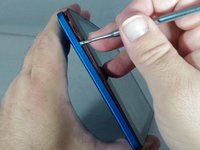
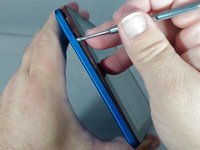
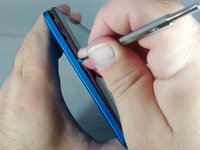
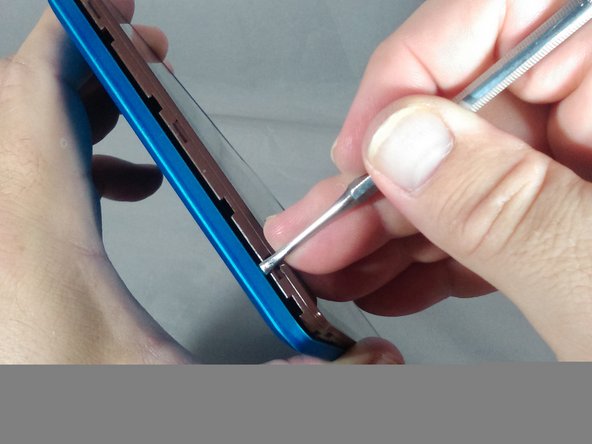
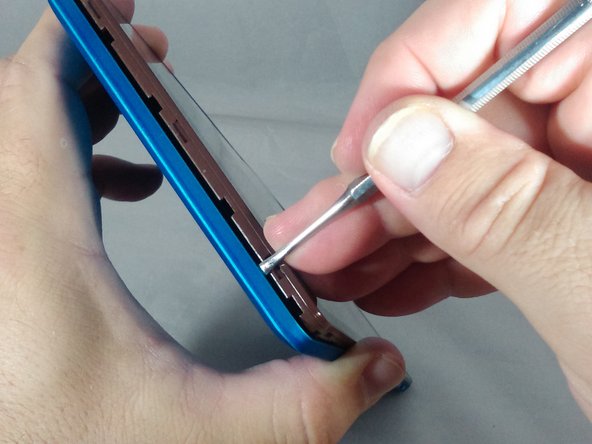
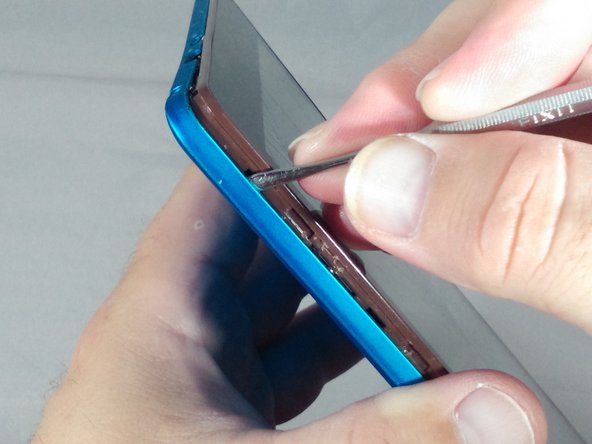
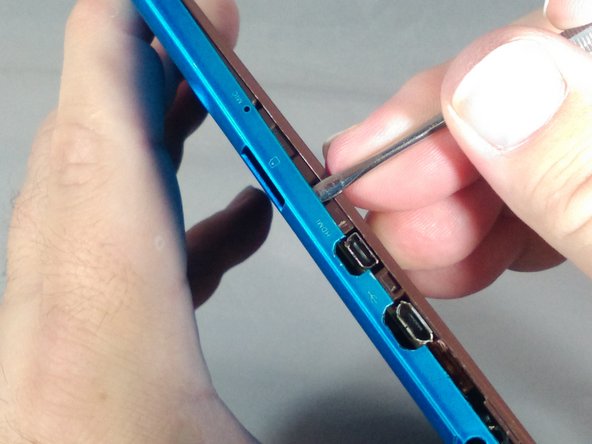
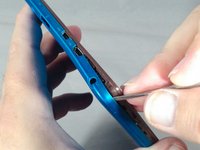
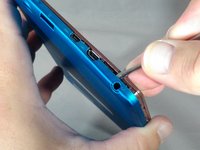
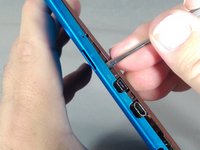
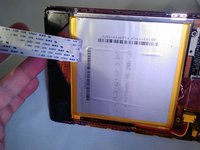
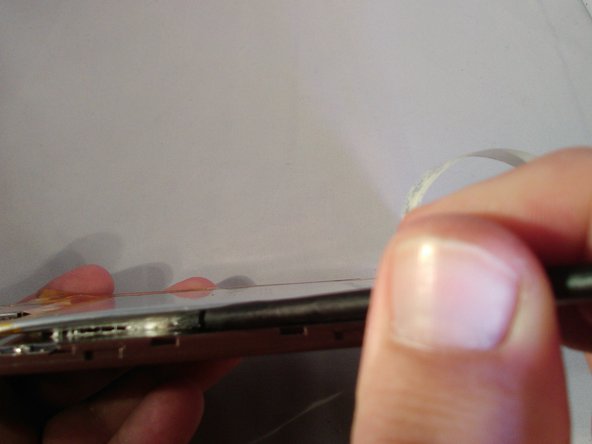
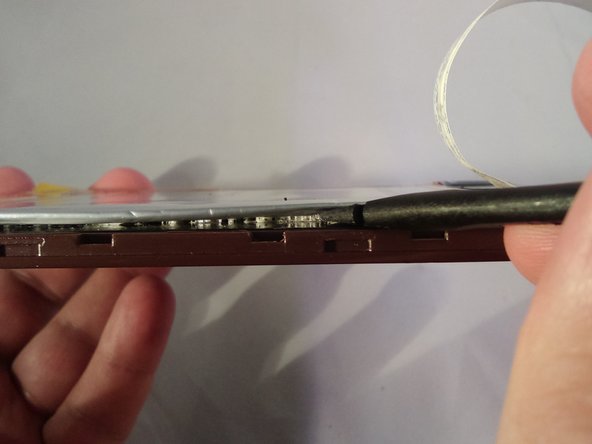
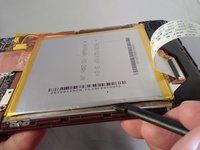
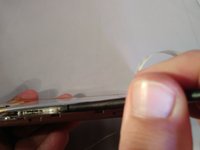
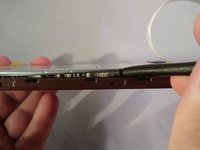
  1. Nextbook NXA8QC116B Battery Replacement, Battery: step 1, image 1 of 3 Nextbook NXA8QC116B Battery Replacement, Battery: step 1, image 2 of 3 Nextbook NXA8QC116B Battery Replacement, Battery: step 1, image 3 of 3
    • If you see any leakage coming from the tablet do not open the back cover!

    • Ensure you do not pry around the buttons. This could result in damage and render them inoperable.

    • •With the tip of the thin metal spudger in place, use a prying motion to work the spudger down the side to the corner of the device.

    Ask FixBot

    Add Comment

  2. Nextbook NXA8QC116B Battery Replacement: step 2, image 1 of 2 Nextbook NXA8QC116B Battery Replacement: step 2, image 2 of 2
    • Continue working the spudger downward and pry with the spudger until the bottom left-hand corner of the tablet is reached.

    Ask FixBot

    Add Comment

  3. Nextbook NXA8QC116B Battery Replacement: step 3, image 1 of 3 Nextbook NXA8QC116B Battery Replacement: step 3, image 2 of 3 Nextbook NXA8QC116B Battery Replacement: step 3, image 3 of 3
    • Along the bottom of the tablet, keep using a working and prying motion with the spudger to loosen the cover.

    Ask FixBot

    Add Comment

  4. Nextbook NXA8QC116B Battery Replacement: step 4, image 1 of 3 Nextbook NXA8QC116B Battery Replacement: step 4, image 2 of 3 Nextbook NXA8QC116B Battery Replacement: step 4, image 3 of 3
    • Continue prying motion until the bottom right-hand corner of the tablet is reached.

    Ask FixBot

    Add Comment

  5. Nextbook NXA8QC116B Battery Replacement: step 5, image 1 of 2 Nextbook NXA8QC116B Battery Replacement: step 5, image 2 of 2
    • Work the spudger to the upper left-hand corner of the tablet.

    Ask FixBot

    Add Comment

  6. Nextbook NXA8QC116B Battery Replacement: step 6, image 1 of 3 Nextbook NXA8QC116B Battery Replacement: step 6, image 2 of 3 Nextbook NXA8QC116B Battery Replacement: step 6, image 3 of 3
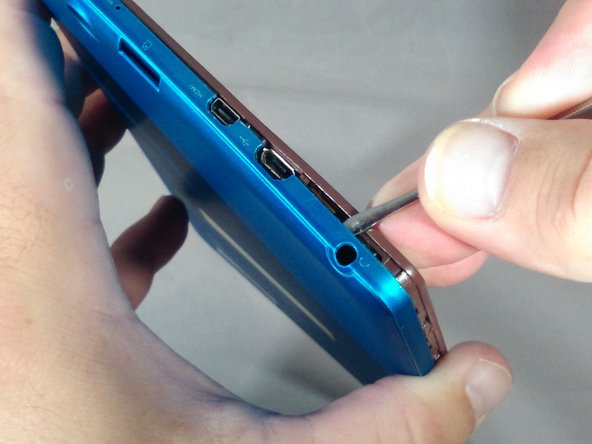
    • Be careful once you get to the top of the tablet with the spudger so as not to damage the headphone jack and other ports.

    • When prying along the top of the tablet, try to keep the spudger between 70 to 85 degrees (almost perpendicular) to the tablet screen.

    • Continue working the spudger around the tablet until the cover of the device comes off

    Ask FixBot

    Add Comment

  7. Nextbook NXA8QC116B Battery Replacement: step 7, image 1 of 2 Nextbook NXA8QC116B Battery Replacement: step 7, image 2 of 2
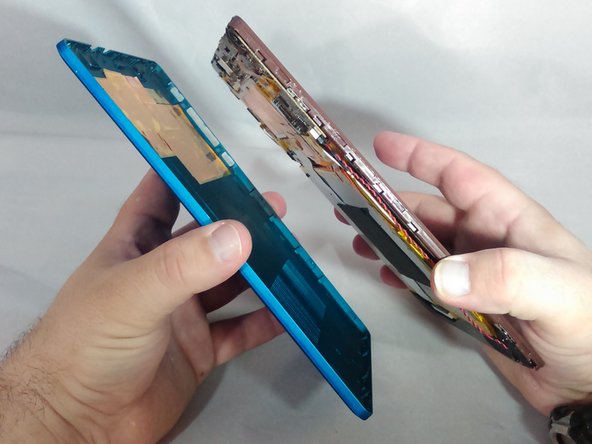
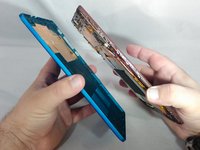
    • Separate from the cover from the tablet.

    Ask FixBot

    Add Comment

  8. Nextbook NXA8QC116B Battery Replacement: step 8, image 1 of 3 Nextbook NXA8QC116B Battery Replacement: step 8, image 2 of 3 Nextbook NXA8QC116B Battery Replacement: step 8, image 3 of 3
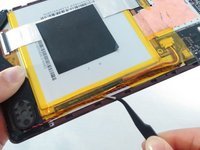
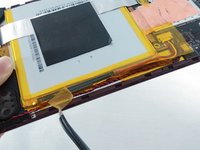
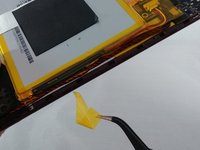
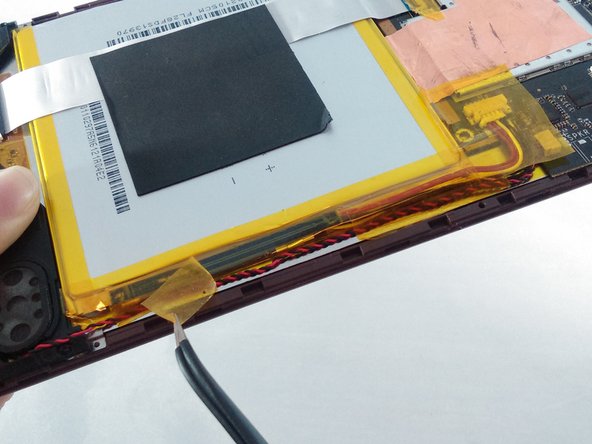
    • Locate and carefully remove the yellow cellophane tape from the red and black speaker wires that connect the speaker to the edge of the motherboard.

    Ask FixBot

    Add Comment

  9. Nextbook NXA8QC116B Battery Replacement: step 9, image 1 of 2 Nextbook NXA8QC116B Battery Replacement: step 9, image 2 of 2
    Tool used on this step:
    Tweezers
    $4.99
    Buy
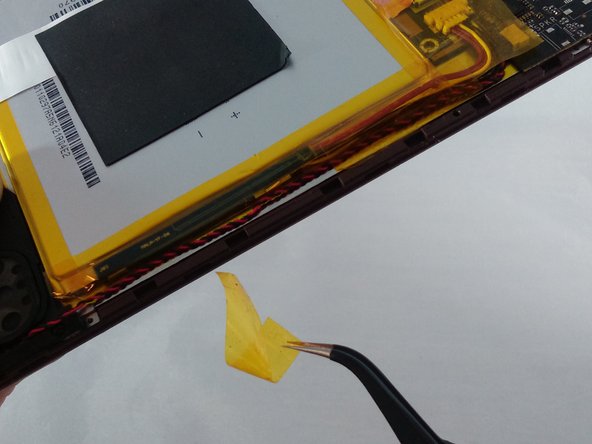
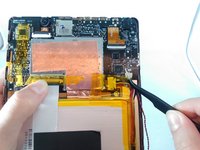
    • Locate and carefully remove the yellow cellophane tape with tweezers from the battery connector and black and red speaker wires on the edge of the motherboard.

    Ask FixBot

    Add Comment

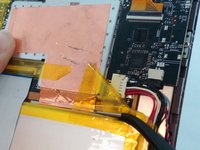
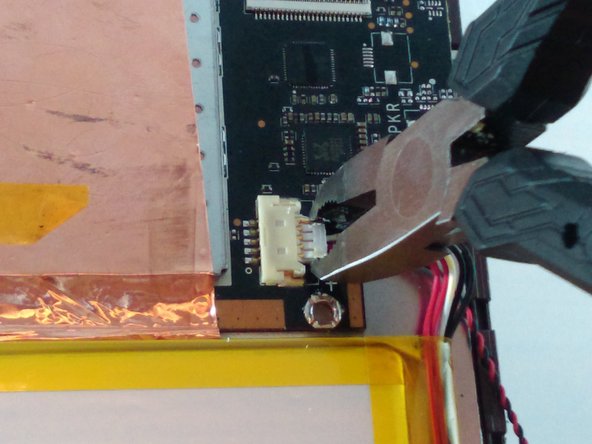
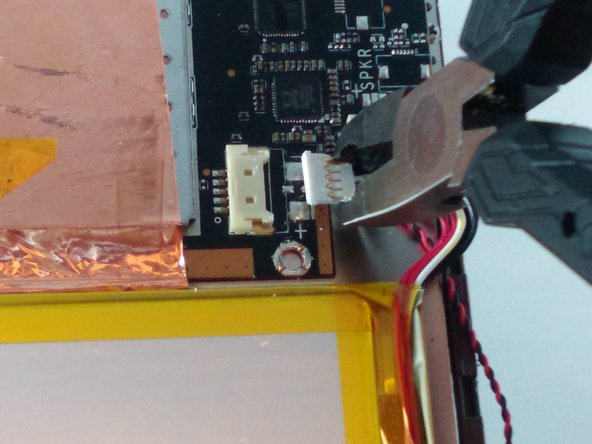
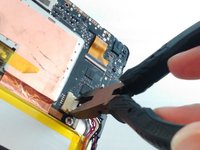
  10. Nextbook NXA8QC116B Battery Replacement: step 10, image 1 of 3 Nextbook NXA8QC116B Battery Replacement: step 10, image 2 of 3 Nextbook NXA8QC116B Battery Replacement: step 10, image 3 of 3
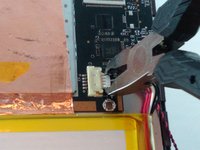
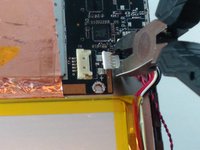
    • Using small pliers, carefully disconnect the male battery connector from the motherboard.

    • If you are only replacing the front camera, skip to step 17 in the camera replacement guide and continue.

    Ask FixBot

    Add Comment

  11. Nextbook NXA8QC116B Battery Replacement: step 11, image 1 of 1
    • If the battery is leaking or bulging, stop and get away from it!

    • Carefully remove the gray square pad glued to both the white ribbon cable and the battery by pulling slowly.

    Ask FixBot

    Add Comment

  12. Nextbook NXA8QC116B Battery Replacement: step 12, image 1 of 1
    • Locate the white ribbon cable Zero Insertion Force (ZIF) connector between the battery and the motherboard, and peel the yellow cellophane tape off the connector.

    Ask FixBot

    Add Comment

  13. Nextbook NXA8QC116B Battery Replacement: step 13, image 1 of 2 Nextbook NXA8QC116B Battery Replacement: step 13, image 2 of 2
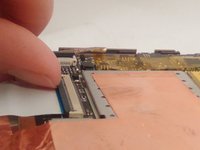
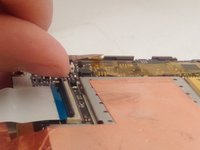
    • Flip up the gray retainer clip on the white ribbon cable ZIF connector on the motherboard with your fingernail. If you do not have fingernails long enough, carefully use a black plastic spudger.

    Ask FixBot

    Add Comment

  14. Nextbook NXA8QC116B Battery Replacement: step 14, image 1 of 3 Nextbook NXA8QC116B Battery Replacement: step 14, image 2 of 3 Nextbook NXA8QC116B Battery Replacement: step 14, image 3 of 3
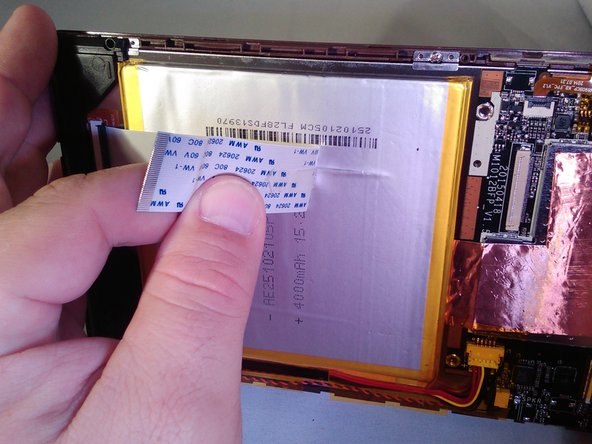
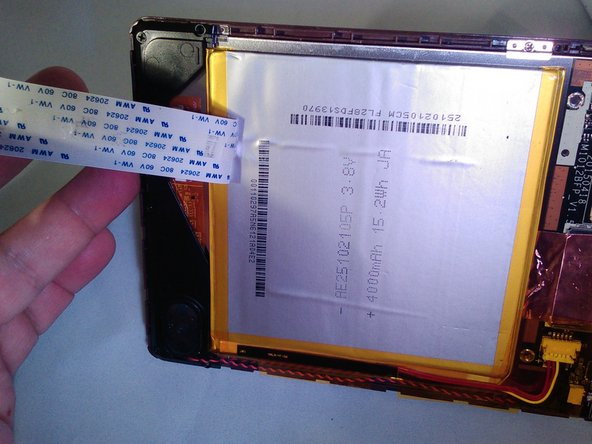
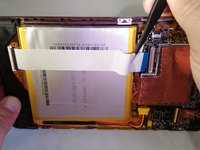
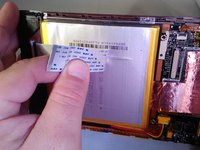
    • Remove the white ribbon cable and carefully peel it off the battery.

    Ask FixBot

    Add Comment

  15. Nextbook NXA8QC116B Battery Replacement: step 15, image 1 of 3 Nextbook NXA8QC116B Battery Replacement: step 15, image 2 of 3 Nextbook NXA8QC116B Battery Replacement: step 15, image 3 of 3
    • Move the spudger in a left-to-right scraping motion to loosen the glue until the battery is separated from the tablet.

    Ask FixBot

    Add Comment

  16. Nextbook NXA8QC116B Battery Replacement: step 16, image 1 of 1
    • Remove the battery.

    Ask FixBot

    Add Comment

Conclusion

To reassemble your device, follow these instructions in reverse order.

Cancel: I did not complete this guide.

3 other people completed this guide.

1 Guide Comment

Where can i buy this battery?

Cell Tech - Reply Share
Add Comment

View Statistics:

Past 24 Hours: 2

Past 7 Days: 9

Past 30 Days: 33

All Time: 5,485