Introduction
This guide will walk you through replacing the battery pack in the Nextbook Flexx 10. If your device is no longer holding a charge, shuts down unexpectedly, or fails to power on without being plugged in, the battery may need to be replaced.
Before beginning, power off the device and disconnect it from any external power source. You will need to remove the back cover, which is secured by plastic clips—use caution to avoid damaging them during removal.
This guide requires moderate technical skill and careful handling of internal components. Be sure to follow each step closely to prevent damage to the device.
What you need
-
-
Open the 2-in-1 and hold the screen.
-
Press the silver button at the top of the keyboard.
-
When the screen lifts up, gently lift the screen away from the keyboard.
 Ask FixBot
-
-
-
You may use your fingers or a spudger. Be careful not to break your cover OR your fingernail. Removing the cover requires good judgement.
-
The goal is to separate the black from the silver. Start in a corner, or a flat edge—whichever works best for you. Remember to not use too much force.
-
Once you start the initial separation, keep going until you free one edge. The goal now is to free three edges of the rectangle.
-
If your progress stops on one side of the rectangle, go to the other side and try there.
-
-
-
-
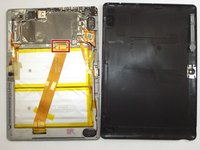
Once you have the cover off, remove the screws from the outer perimeter of the board assembly with a small Phillips head screwdriver.
-
-
-
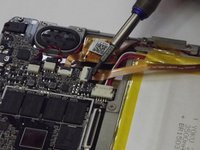
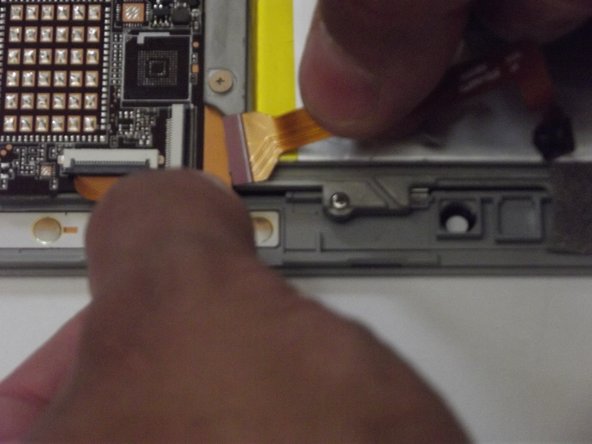
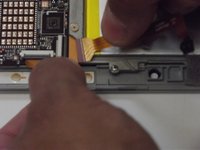
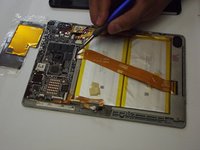
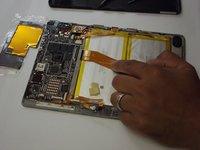
Remove the smaller ribbon clip on the right side of the device and the top right of the battery.
-
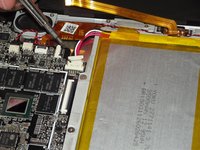
Remove the second clip underneath the ribbon clip.
-
-
-
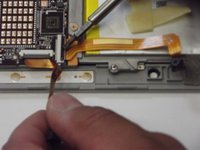
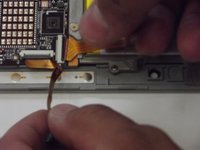
When removing the second cable clip, use a small flat-head screwdriver to lift the latch.
-
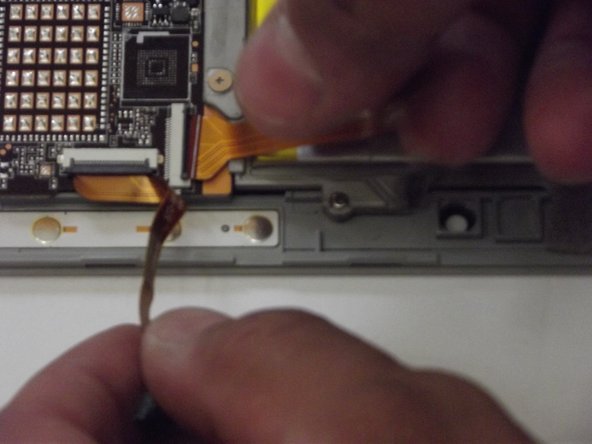
When removing, be careful not to damage the ribbon cable.
-
-
-
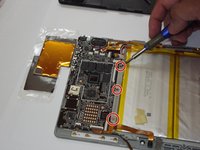
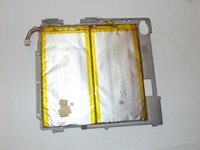
To remove the battery section of the device from the circuit board, use the small Phillips head screwdriver for the 3 small screws near the top.
-
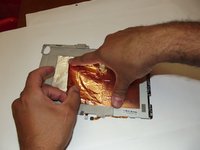
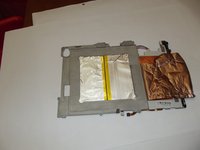
To get the battery pack completely away from the circuit board, there is copper foil on the back of the battery.
-
Be careful not to rip the copper foil. Pull the foil slowly and evenly.
-
-
-
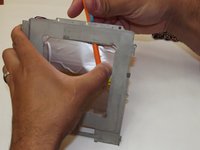
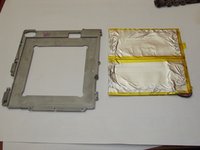
Now that the battery is all by itself, find a non-sharp and thin object to help pry the battery from its base.
-
Move slowly and carefully to not puncture the battery casing.
-
FINALLY, you have successfully removed the battery from your device.
-









To reassemble your device, follow these instructions in reverse order.
Cancel: I did not complete this guide.
4 other people completed this guide.

Team

Western Carolina University, Team S1-G4, Virtue Fall 2017 Member of Western Carolina University, Team S1-G4, Virtue Fall 2017
WCU-VIRTUE-F17S1G4
5 Members
12 Guides authored
