Free Shipping on Domestic Orders $75+

Nest Dropcam Pro Camera Lens Replacement

What you need

  1. Nest Dropcam Pro Camera Lens Replacement, Outer Case: step 1, image 1 of 1
    • Press in the mounting clips on each side of the case to remove the camera from the mount.

    Ask FixBot

    Add Comment

  2. Nest Dropcam Pro Camera Lens Replacement: step 2, image 1 of 2 Nest Dropcam Pro Camera Lens Replacement: step 2, image 2 of 2
    • Using a Philips #0 screwdriver, remove the four 3 mm screws.

    Ask FixBot

    Add Comment

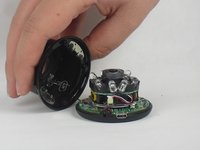
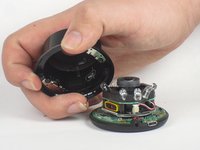
  3. Nest Dropcam Pro Camera Lens Replacement: step 3, image 1 of 2 Nest Dropcam Pro Camera Lens Replacement: step 3, image 2 of 2
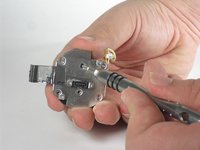
    • Lift the front of the case slowly, as there is an antenna cable attached to the motherboard.

    • Carefully disconnect the antenna cable from the motherboard. You will feel this cable "pop" out of place when disconnected.

    Ask FixBot

    Add Comment

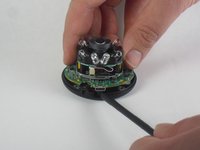
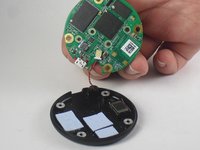
  4. Nest Dropcam Pro Camera Lens Replacement, Motherboard: step 4, image 1 of 2 Nest Dropcam Pro Camera Lens Replacement, Motherboard: step 4, image 2 of 2
    • Insert a spudger tool under the micro-USB port and lift to separate the motherboard from the back case.

    Ask FixBot

    Add Comment

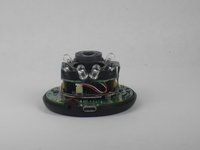
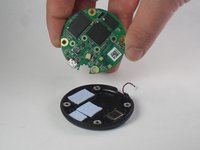
  5. Nest Dropcam Pro Camera Lens Replacement: step 5, image 1 of 2 Nest Dropcam Pro Camera Lens Replacement: step 5, image 2 of 2
    • Pull the motherboard away from the back case.

    • Unplug the red and black cable connecting the motherboard to the back case.

    Ask FixBot

    Add Comment

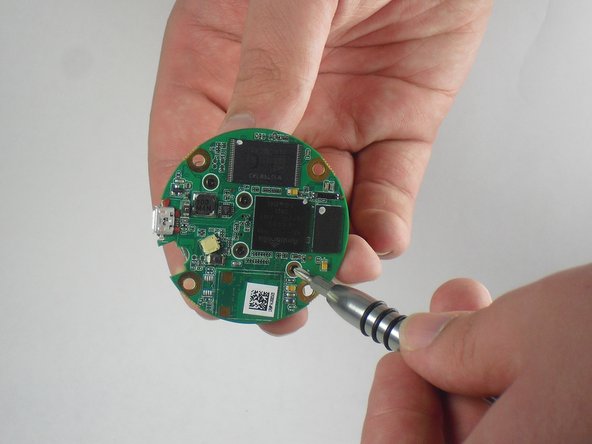
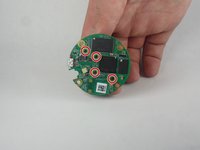
  6. Nest Dropcam Pro Camera Lens Replacement: step 6, image 1 of 2 Nest Dropcam Pro Camera Lens Replacement: step 6, image 2 of 2
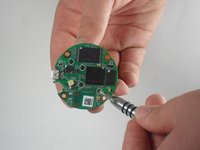
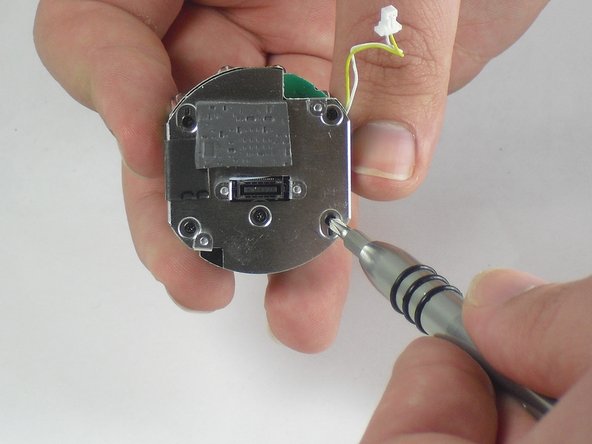
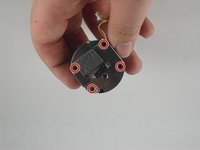
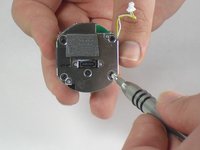
    • Using a Philips #0 screwdriver, remove the four 2 mm screws.

    Ask FixBot

    Add Comment

  7. Nest Dropcam Pro Camera Lens Replacement: step 7, image 1 of 2 Nest Dropcam Pro Camera Lens Replacement: step 7, image 2 of 2
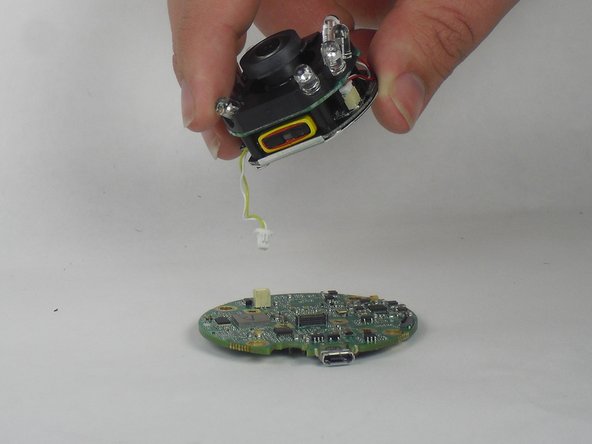
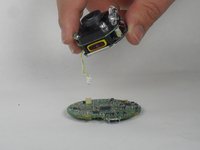
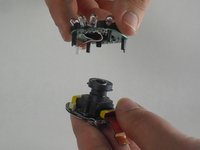
    • Lift the lens and LED assembly away from the motherboard.

    • Unplug the yellow and white cable from the motherboard.

    Ask FixBot

    Add Comment

  8. Nest Dropcam Pro Camera Lens Replacement, Camera Lens: step 8, image 1 of 2 Nest Dropcam Pro Camera Lens Replacement, Camera Lens: step 8, image 2 of 2
    • Using a Philips #0 screwdriver, remove the four 2 mm screws.

    Ask FixBot

    Add Comment

  9. Nest Dropcam Pro Camera Lens Replacement: step 9, image 1 of 3 Nest Dropcam Pro Camera Lens Replacement: step 9, image 2 of 3 Nest Dropcam Pro Camera Lens Replacement: step 9, image 3 of 3
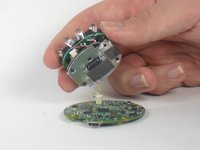
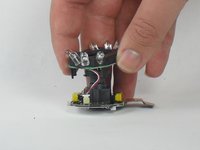
    • Peel off the paper seal holding the Lens and LEDs together.

    • Disconnect the red and white wire from the bottom board.

    Ask FixBot

    Add Comment

  10. Nest Dropcam Pro Camera Lens Replacement: step 10, image 1 of 2 Nest Dropcam Pro Camera Lens Replacement: step 10, image 2 of 2
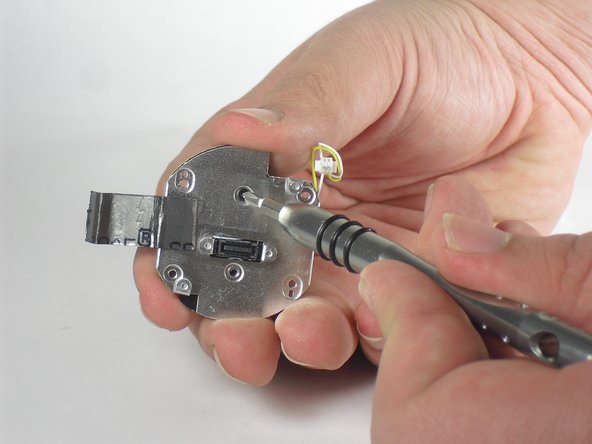
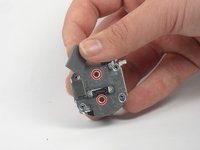
    • Lift up the foam cover to reveal a second screw underneath.

    • Using a Philips #0 screwdriver, remove the two 3 mm screws.

    Ask FixBot

    Add Comment

  11. Nest Dropcam Pro Camera Lens Replacement: step 11, image 1 of 1
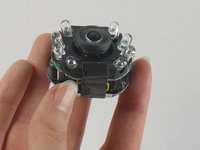
    • With the screws gone, lift the camera lens away from the remaining components.

    Ask FixBot

    Add Comment

Conclusion

To reassemble your device, follow these instructions in reverse order.

Cancel: I did not complete this guide.

2 other people completed this guide.

David Foens

Member since: 09/03/15

896 Reputation

6 Guides authored

Team

USF Tampa, Team 15-4, Blackwell Fall 2015 Member of USF Tampa, Team 15-4, Blackwell Fall 2015

USFT-BLACKWELL-F15S15G4

3 Members

12 Guides authored

2 Guide Comments

Where do you get replacement lens?

Jim Fischer - Reply Share
good morning , is there any store on the USA where i can send my drop camera ti get fix? it fell and doesn't want to broadcast any image.

andres - Reply Share
Add Comment

View Statistics:

Past 24 Hours: 3

Past 7 Days: 7

Past 30 Days: 38

All Time: 4,294