Introduction
As this replacement guide works on an internal component of the Xoom Wifi, completion of prior steps to remove external parts is necessary.
What you need
-
-
-
There are two 6.6 mm screws that hold ports into place as well as the back panel. Remove these with a T5 Torx screwdriver.
 Ask FixBot
-
-
-
Apply light pressure with hand and slide the back plate till it stops in this position.
-
There is a flex clip on both sides that need to be pushed down in order for the plate to slide off completely. Use a plastic opening tool to release the flex clips. They are located under the back cover near the sides.
-
As soon as the clips are released the back should slide off.
-
-
-
-
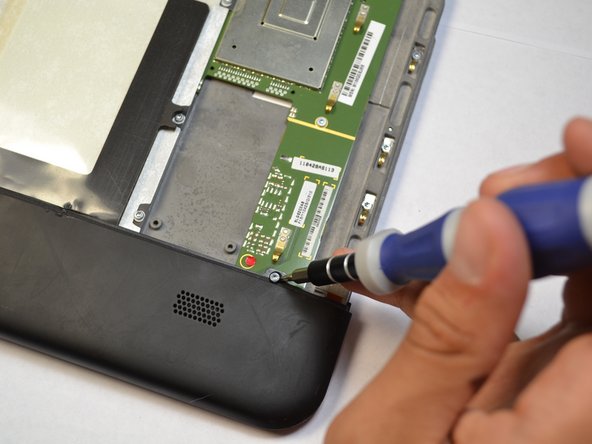
Remove last two 4.2 mm screws from the remaining back piece with a T5 Torx screwdriver.
-
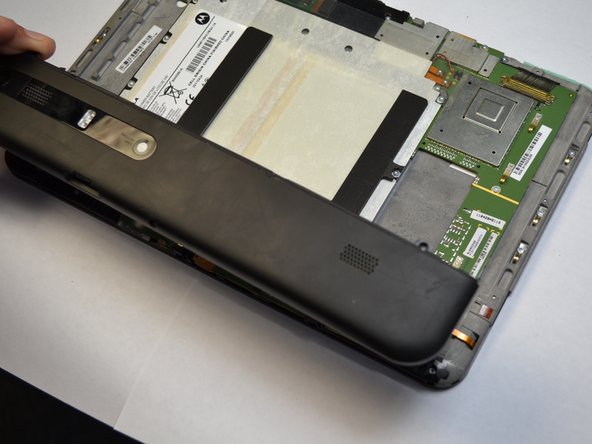
Once both screws are taken out, lift the rest of the backing out of the way.
-
-
-
-
-
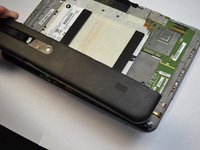
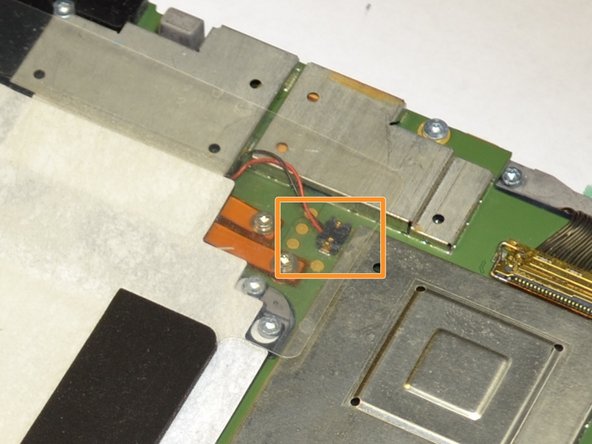
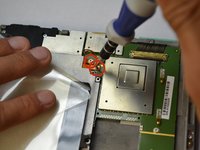
Remove the two battery leads with a T-5 Torx screwdriver.
-
Grab the red and black wires with your fingers and gently lift to disconnect black wire connector from the motherboard.
-
-
-
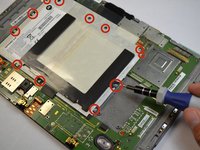
All that holds the battery in are twelve screws. Remove them with a T-6 Torx screwdriver.
-
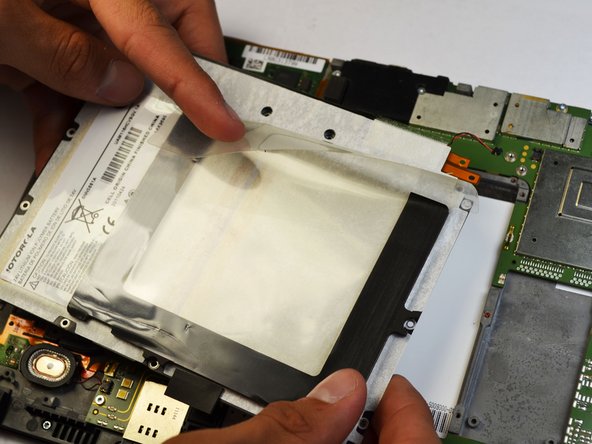
The battery should lift out easily.
-
-




To reassemble your device, follow these instructions in reverse order.
Cancel: I did not complete this guide.
6 other people completed this guide.

Team

Cal Poly, Team 3-39, Maness Spring 2014 Member of Cal Poly, Team 3-39, Maness Spring 2014
CPSU-MANESS-S14S3G39
4 Members
96 Guides authored
