
Motorola V60c Side Buttons Replacement

Ryan Kuroiwa and 6 other contributors
Last updated on Jan 28, 2014
Views: 5.6K
View statistics:
- Past 24 Hours:
- 0
- Past 7 Days:
- 7
- Past 30 Days:
- 39
- All Time:
- 5,561
Comments: 1
1 comment on steps.
Completed: 0 1
No one has marked this guide "completed." Will you be the first?
1 person has marked this guide "completed." It's you — great job!
Favorites: 0 1
No one has favorited (and subscribed to) this guide. Will you be the first?
1 person has favorited (and subscribed to) this guide — and that's you!
Missing Prerequisites
This guide is missing information on how to start the process. Make a prerequisite guide!
Introduction
Go to step 1 ↓How to replace the side buttons.
What you need
Tools


-
-
-
Hold battery from both sides at the bottom.
-
Push upwards and gently lift to remove.
-
-
-
-
-
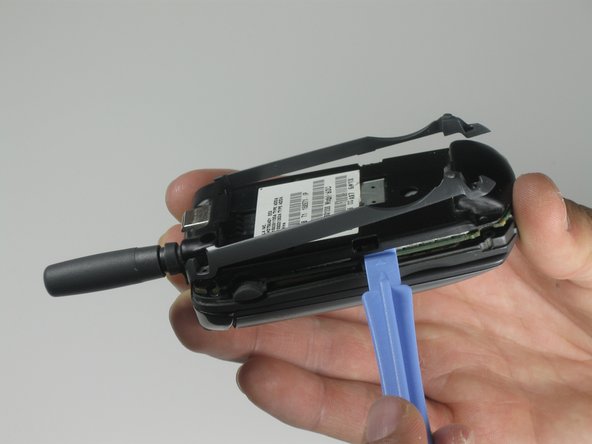
Use a plastic opening tool to gently remove the orange ribbon cable.
-
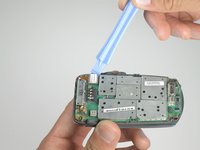
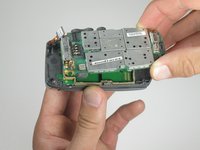
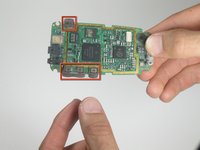
Lift up the main logic board.
-
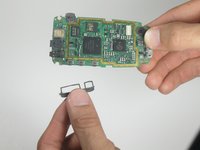
NOTE: Rubber side buttons are not secure and might detach from the main logic board during removal.
-


 Ask FixBot






To reassemble your device, follow these instructions in reverse order.

Team

Cal Poly, Team 25-86, Amido Spring 2010 Member of Cal Poly, Team 25-86, Amido Spring 2010
CPSU-AMIDO-S10S25G86
5 Members
60 Guides authored
