Free Shipping on Domestic Orders $75+

Motorola RAZR2 v9m Battery Replacement

  1. Motorola RAZR2 v9m Battery Replacement, Battery: step 1, image 1 of 2 Motorola RAZR2 v9m Battery Replacement, Battery: step 1, image 2 of 2
    • Push the rear cover toward the hinge of the RAZR2. The panel will slide about 3 mm.

    Ask FixBot

    Add Comment

  2. Motorola RAZR2 v9m Battery Replacement: step 2, image 1 of 3 Motorola RAZR2 v9m Battery Replacement: step 2, image 2 of 3 Motorola RAZR2 v9m Battery Replacement: step 2, image 3 of 3
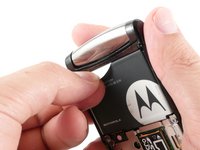
    • Pinch the top and bottom edges of the panel and pull it away from the RAZR2.

    • The rear panel uses four small hooks to hold it in place. If the panel will not easily pull away, slide the panel more toward the hinge.

    Ask FixBot

    Add Comment

  3. Motorola RAZR2 v9m Battery Replacement: step 3, image 1 of 2 Motorola RAZR2 v9m Battery Replacement: step 3, image 2 of 2
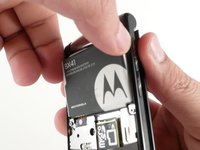
    • Gently pull the white plastic tab to lift the battery away from the RAZR2.

    • The white plastic tab is attached to the phone. Only pull it enough to expose the edges of the battery.

    Ask FixBot

    Add Comment

  4. Motorola RAZR2 v9m Battery Replacement: step 4, image 1 of 2 Motorola RAZR2 v9m Battery Replacement: step 4, image 2 of 2
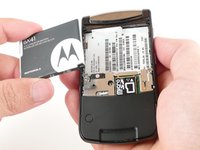
    • To remove the battery, grasp its edges pull away from the phone.

    • When installing a new battery, be sure the metal contacts on the phone line up with the ones on the battery.

    Ask FixBot

    Add Comment

Conclusion

To reassemble your device, follow these instructions in reverse order.

Cancel: I did not complete this guide.

4 other people completed this guide.

0 Guide Comments

Add Comment

View Statistics:

Past 24 Hours: 2

Past 7 Days: 6

Past 30 Days: 37

All Time: 2,427