Free Shipping on Domestic Orders $75+

Motorola Q Global Camera Replacement

What you need

    1. Motorola Q Global Camera Replacement, Battery: step 1, image 1 of 2 Motorola Q Global Camera Replacement, Battery: step 1, image 2 of 2
      • Turn the phone face down.

      • Press and hold the release button in the middle of the back panel.

      • Slide the bottom panel down to remove.

      Ask FixBot

      Add Comment

    2. Motorola Q Global Camera Replacement: step 2, image 1 of 2 Motorola Q Global Camera Replacement: step 2, image 2 of 2
      • Remove the battery pack by prying it out with a fingernail, screw driver or other opening tool at the tab shown.

      • When reinserting the battery, make sure the contacts in the battery are lined up with the contacts in the phone.

      Ask FixBot

      Add Comment

    1. Motorola Q Global Camera Replacement, Camera: step 3, image 1 of 1
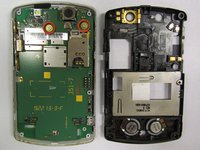
      • Press inward on the upper casing.

      Ask FixBot

      Add Comment

    2. Motorola Q Global Camera Replacement: step 4, image 1 of 1
      • Slide the upper case to the right and lift up.

      • Lift the camera sticker so that it doesn't get damaged.

      Ask FixBot

      Add Comment

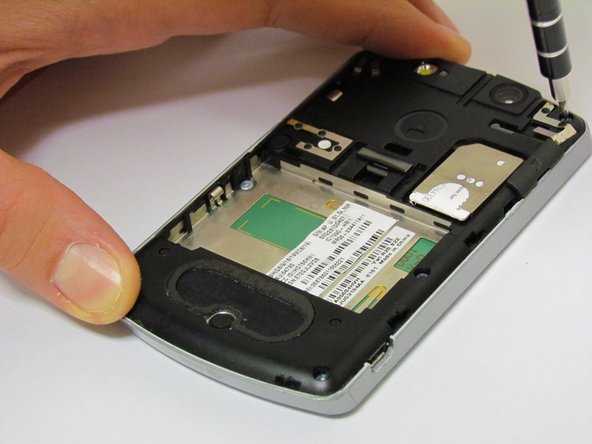
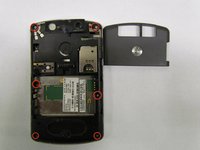
    3. Motorola Q Global Camera Replacement: step 5, image 1 of 2 Motorola Q Global Camera Replacement: step 5, image 2 of 2
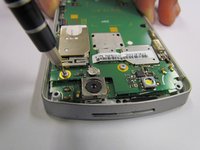
      • Remove the six labeled screws with a T5 Torx Screwdriver.

      Ask FixBot

      Add Comment

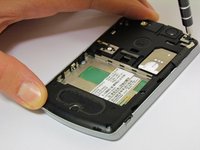
    4. Motorola Q Global Camera Replacement: step 6, image 1 of 1
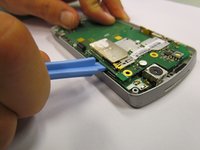
      • Once the screws are removed, use the plastic opening tool to remove the black casing.

      Ask FixBot

      Add Comment

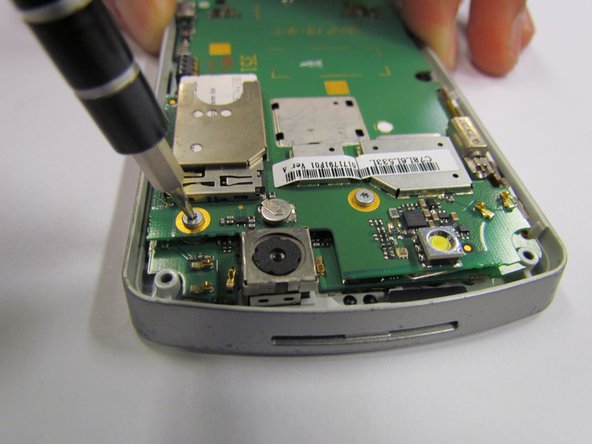
    5. Motorola Q Global Camera Replacement: step 7, image 1 of 2 Motorola Q Global Camera Replacement: step 7, image 2 of 2
      • Remove both screws on the mounted surface with a T5 screwdriver.

      Ask FixBot

      Add Comment

    6. Motorola Q Global Camera Replacement: step 8, image 1 of 2 Motorola Q Global Camera Replacement: step 8, image 2 of 2
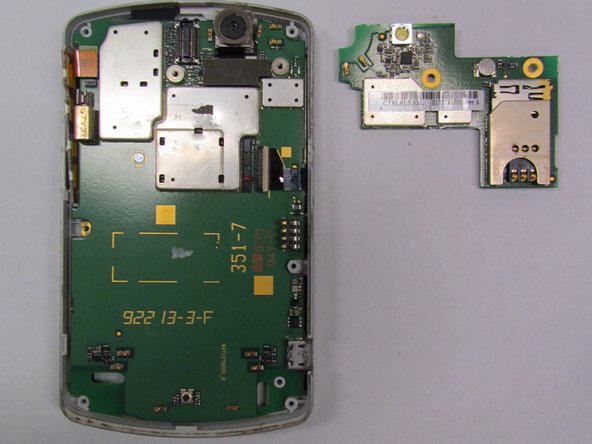
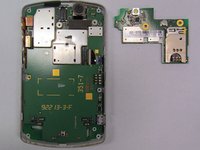
      • Remove the glued, mounted surface by lifting it from underneath the SIM card slot by using the plastic opening tool.

      Ask FixBot

      Add Comment

    7. Motorola Q Global Camera Replacement: step 9, image 1 of 1
      • Use the plastic opening tool to lift the camera from the phone.

      Ask FixBot

      Add Comment

    8. Motorola Q Global Camera Replacement: step 10, image 1 of 1
      • The new camera can now be attached to the motherboard.

      Ask FixBot

      Add Comment

Conclusion

To reassemble your device, follow these instructions in reverse order.

Cancel: I did not complete this guide.

Jorge Vanegas Moran

Member since: 10/03/12

8 Reputation

1 Guide authored

Team

Cal Poly, Team 6-31, Regan Fall 2012 Member of Cal Poly, Team 6-31, Regan Fall 2012

CPSU-REGAN-F12S6G31

5 Members

60 Guides authored

0 Guide Comments

Add Comment

View Statistics:

Past 24 Hours: 1

Past 7 Days: 2

Past 30 Days: 26

All Time: 999