Free Shipping on Domestic Orders $75+

Motorola MC5590 Keyboard Replacement

Views: 686

View statistics:

Past 24 Hours:
0
Past 7 Days:
9
Past 30 Days:
64
All Time:
686
Comments: 0

No one has left comments on this guide. Will you be first?

Go to guide comments
Completed: 0

No one has marked this guide "completed." Will you be the first?

Favorites: 0

No one has favorited (and subscribed to) this guide. Will you be the first?

Time Required: 15 minutes
Difficulty: Moderate
Motorola MC5590 Keyboard Replacement

Introduction

Go to step 1 ↓

In this guide, we'll show you exactly how to get to the keyboard and replace it. This guide is crucial as the keyboard needs to be removed so we can dislodge the motherboard from the hard plastic cover. The motherboard removal is necessary for many other repairs.

What you need

Tools

    1. Motorola MC5590 Keyboard Replacement, Battery: step 1, image 1 of 1
      • Push in the battery release button.

      Ask FixBot

      Add Comment

    2. Motorola MC5590 Keyboard Replacement: step 2, image 1 of 1
      • Pull out battery.

      Ask FixBot

      Add Comment

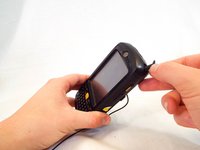
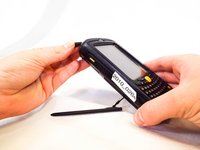
    1. Motorola MC5590 Keyboard Replacement, Keyboard: step 3, image 1 of 2 Motorola MC5590 Keyboard Replacement, Keyboard: step 3, image 2 of 2
      • Remove the two rubber plugs on the top of the device by pushing them up and out of the phone.

      Ask FixBot

      Add Comment

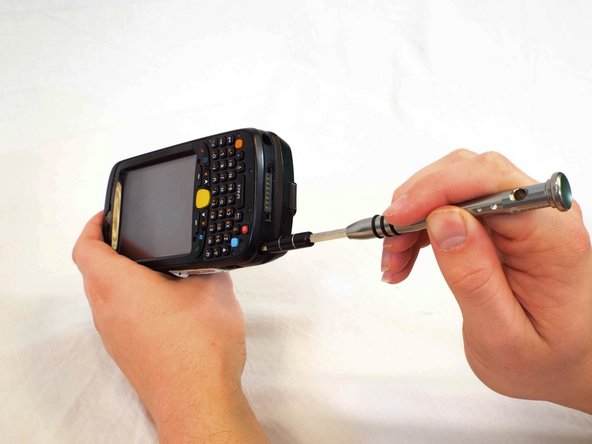
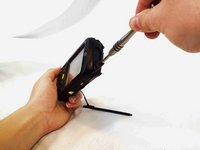
    2. Motorola MC5590 Keyboard Replacement: step 4, image 1 of 3 Motorola MC5590 Keyboard Replacement: step 4, image 2 of 3 Motorola MC5590 Keyboard Replacement: step 4, image 3 of 3
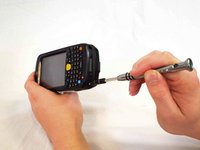
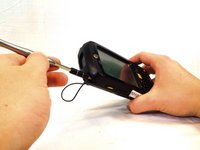
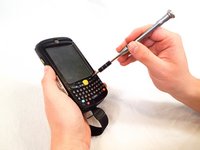
      • Remove the four 1cm Phillips #0 screws from the top and bottom of the phone.

      Ask FixBot

      Add Comment

    3. Motorola MC5590 Keyboard Replacement: step 5, image 1 of 1
      • Use a plastic opening tool to remove the keyboard cover by prying up on its perimeter.

      Ask FixBot

      Add Comment

    4. Motorola MC5590 Keyboard Replacement: step 6, image 1 of 2 Motorola MC5590 Keyboard Replacement: step 6, image 2 of 2
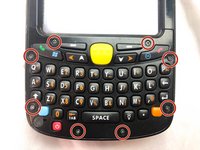
      • Remove the eight 4mm Phillips #00 screws from the keyboard cover.

      Ask FixBot

      Add Comment

    5. Motorola MC5590 Keyboard Replacement: step 7, image 1 of 1
      • Remove the keyboard cover.

      Ask FixBot

      Add Comment

    6. Motorola MC5590 Keyboard Replacement: step 8, image 1 of 3 Motorola MC5590 Keyboard Replacement: step 8, image 2 of 3 Motorola MC5590 Keyboard Replacement: step 8, image 3 of 3
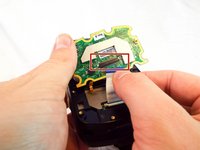
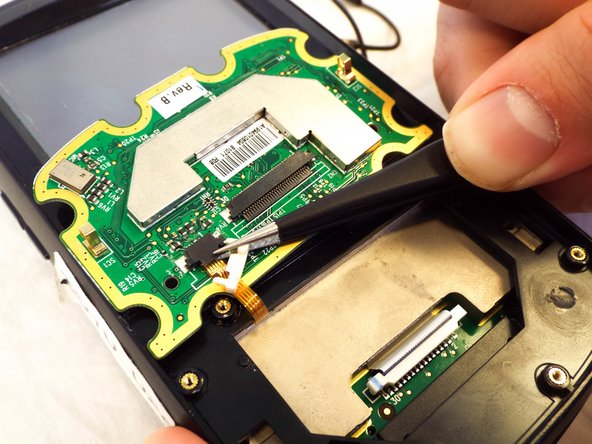
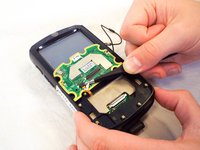
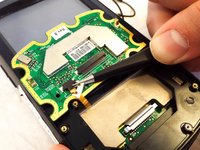
      • Use a spudger to flip up the retaining flap on the keyboard ribbon cable ZIF socket.

      • Pull the ribbon cable out of the socket.

      Ask FixBot

      Add Comment

    7. Motorola MC5590 Keyboard Replacement: step 9, image 1 of 2 Motorola MC5590 Keyboard Replacement: step 9, image 2 of 2
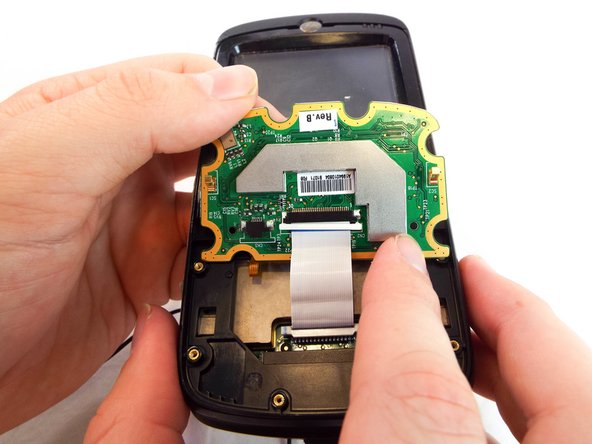
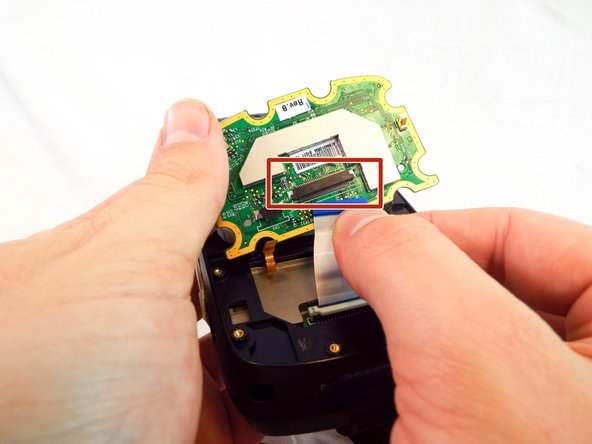
      • Use a spudger to flip up the retaining flap on the display ribbon cable ZIF socket.

      • Remove the keyboard from the device.

      Ask FixBot

      Add Comment

Conclusion

To reassemble your device, follow these instructions in reverse order.

Cancel: I did not complete this guide.

Tyler Jean

Member since: 02/22/18

555 Reputation

5 Guides authored

Team

USF Tampa, Team S1-G6, Cagle Spring 2018 Member of USF Tampa, Team S1-G6, Cagle Spring 2018

USFT-CAGLE-S18S1G6

4 Members

72 Guides authored

0 Guide Comments

Add Comment

View Statistics:

Past 24 Hours: 0

Past 7 Days: 9

Past 30 Days: 64

All Time: 686