Introduction
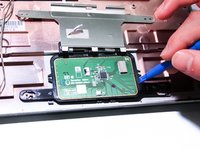
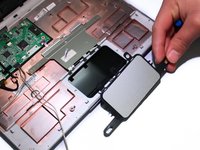
You will start by following the guide to remove the bottom case of the lapdock. After doing this you will remove the screws from the trackpad frame and gain access to the trackpad itself. Then you will unplug the trackpad from the motherboard. Once all of this is done you will be able to remove the trackpad from the lapdock.
What you need
-
-
-
To take off the Keyboard there are three tabs at the top of the Keyboard in the locations shown in the picture that you must press and unclip. They are located behind each of the keys that are removed.
 Ask FixBot
-
-
-
You can use a small metal spudger to depress each tab to avoid scratching the keyboard.
-
-
-
Lift up keyboard so that you are able to see the ribbon cable connected to the contact.
-
-
-
-
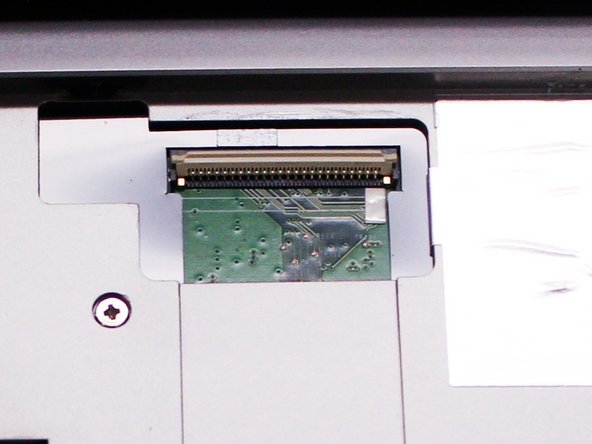
Flip up the ZIF connector holding the ribbon cable on the contact as shown in the two pictures and then gently disconnect the ribbon cable.
-
-
-
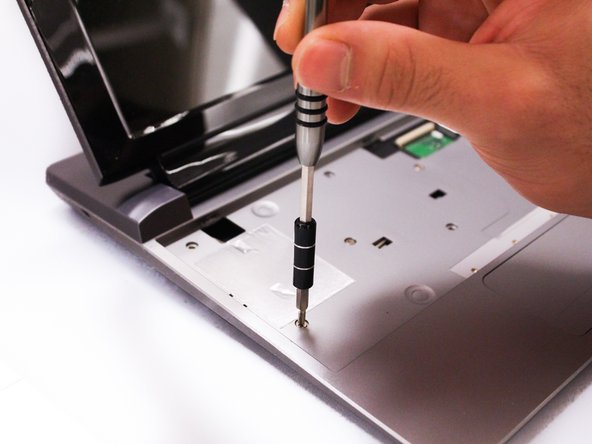
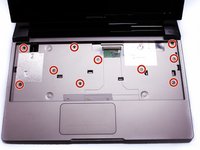
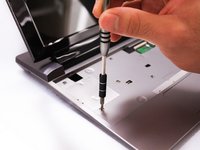
After we remove the Keyboard, you can clearly see the screws under it. Remove the ten 3mm long phillips head screws.
-
-
-
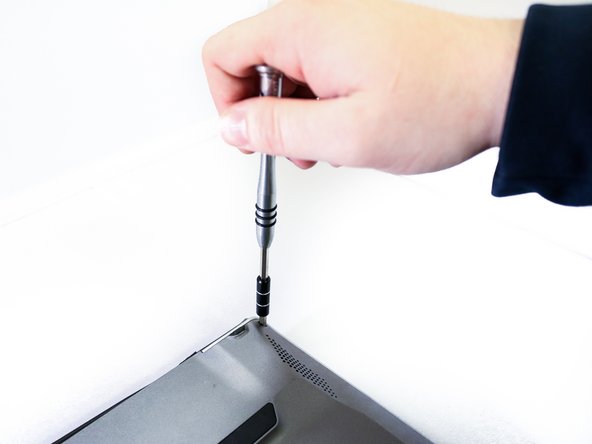
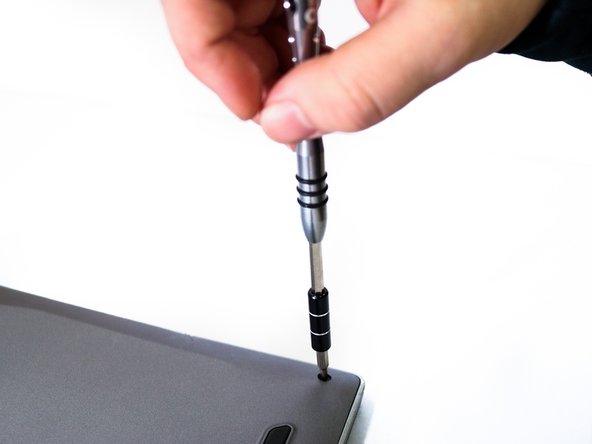
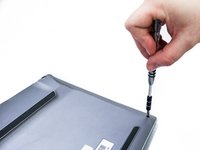
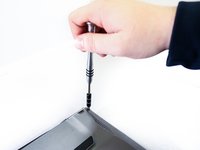
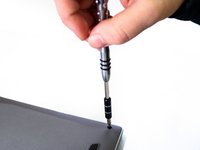
Flip over the Lapdock and remove the four 3.5mm long phillips head screws from the bottom.
-
-
-
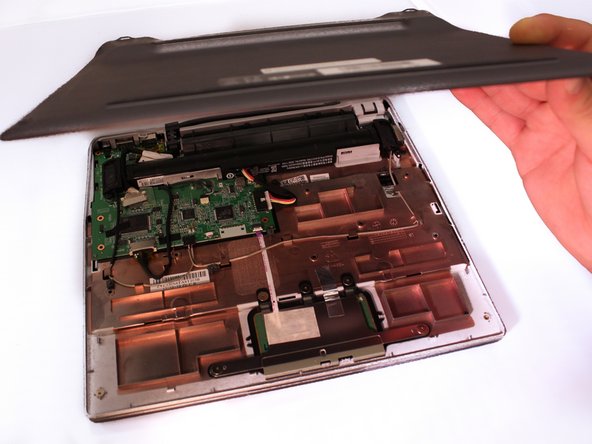
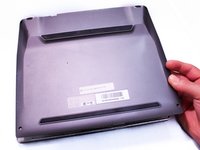
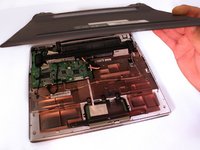
Use a plastic prying tool to take off the bottom case. Make sure that all of the clips are unclipped before trying to remove the case.
-
-
-
-
-
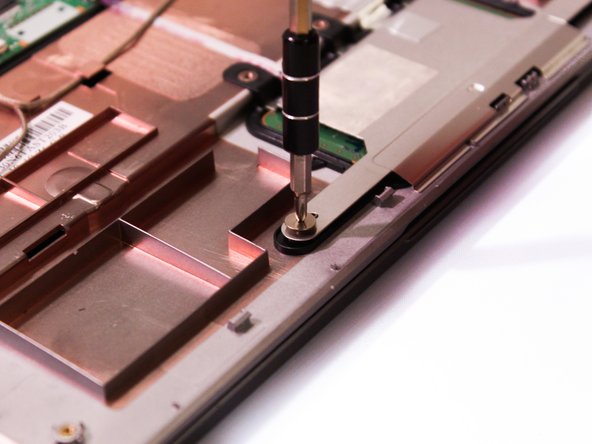
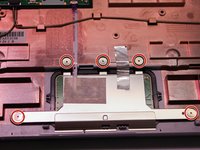
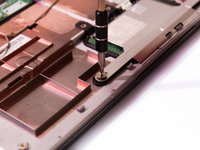
Remove the five 1.2mm long screws with the PH0 screwdriver from track pad reinforcement frame.
-
-
-
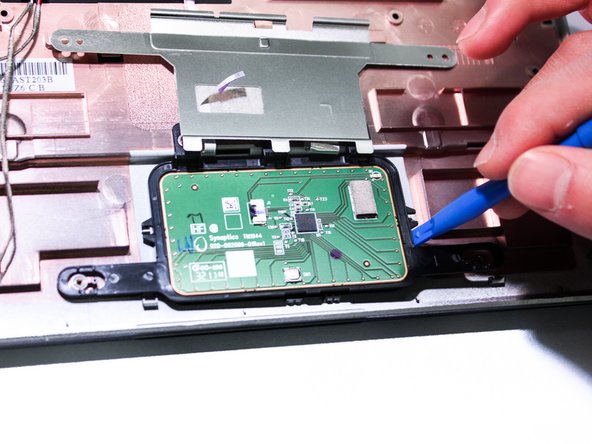
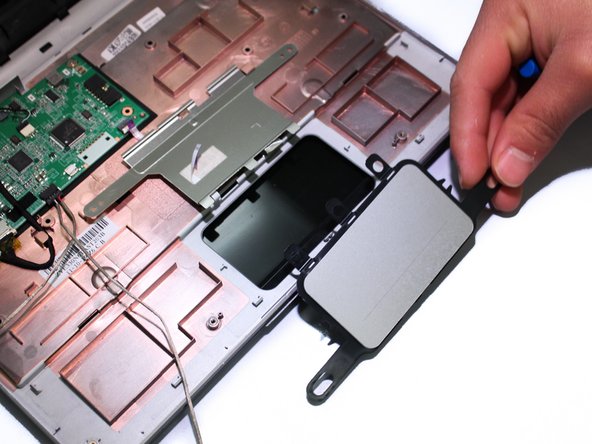
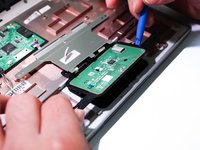
Unplug track pad from the ribbon cable that is attaching it to the motherboard then use a plastic prying tool to take out the track-pad.
-
-







To reassemble your device, follow these instructions in reverse order.

Team

Eastern Washington University, Team 1-3, Rowley Winter 2016 Member of Eastern Washington University, Team 1-3, Rowley Winter 2016
EWU-ROWLEY-W16S1G3
4 Members
96 Guides authored
