Free Shipping on Domestic Orders $75+

Motorola Droid Pro Keyboard Replacement

What you need

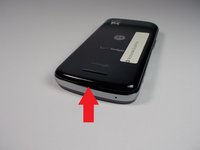
  1. Motorola Droid Pro Keyboard Replacement, SD Card/SIM Card PCB Board: step 1, image 1 of 2 Motorola Droid Pro Keyboard Replacement, SD Card/SIM Card PCB Board: step 1, image 2 of 2
    • Remove the back cover and battery by using the thumb tabs.

    Ask FixBot

    Add Comment

  2. Motorola Droid Pro Keyboard Replacement: step 2, image 1 of 1
    • Unscrew the 8 back panel screws using the T4 Torx screwdriver.

    Ask FixBot

    Add Comment

  3. Motorola Droid Pro Keyboard Replacement: step 3, image 1 of 1
    • Use a spudger to open the phone along the sides between the back panel and the chrome trim.

    • It is held together by small clips that lock in. You may have to use a little force to unlock them.

    • Go around on all sides then pull the back panel off.

    Ask FixBot

    Add Comment

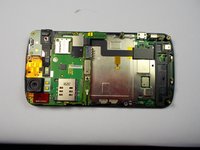
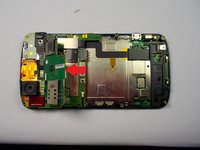
  4. Motorola Droid Pro Keyboard Replacement: step 4, image 1 of 2 Motorola Droid Pro Keyboard Replacement: step 4, image 2 of 2
    • Gently lift the SD & SIM card board (PCB) as shown in the following pictures.

    • This will expose the ribbon cable attached to the board and another ribbon cable for the mother board. Remove them both using the spudger.

    • Once the small one is removed the small board can be pulled off.

    Ask FixBot

    Add Comment

  5. Motorola Droid Pro Keyboard Replacement, Screen: step 5, image 1 of 1
    • Unscrew the 6 screws using the T5 Torx screwdriver.

    Ask FixBot

    Add Comment

  6. Motorola Droid Pro Keyboard Replacement: step 6, image 1 of 1
    • Unlock the ribbon cable and then you can pull the screen out.

    • When replacing screen make sure you lock the ribbon cable back in place.

    Ask FixBot

    Add Comment

  7. Motorola Droid Pro Keyboard Replacement, Keyboard: step 7, image 1 of 1
    • Pop out key board using a spudger on the marked points.

    • The keyboard is locked in place, but can pop in and out. You may need to use a little force to get it out.

    • Once out you can pop the new keyboard in the opposite way you took it out.

    Ask FixBot

    Add Comment

Conclusion

To reassemble your device, follow these instructions in reverse order.

Cancel: I did not complete this guide.

Peter Cakounes

Member since: 10/21/14

19 Reputation

4 Guides authored

Team

0 Guide Comments

Add Comment

View Statistics:

Past 24 Hours: 2

Past 7 Days: 5

Past 30 Days: 31

All Time: 443