Free Shipping on Domestic Orders $75+

Motorola Droid MAXX 2 Screen Only Replacement

What you need

  1. Motorola Droid MAXX 2 Screen Only Replacement, Battery: step 1, image 1 of 1
    • Insert a small pointed object into the hole on the sim card tray to eject the tray from the phone.

    Ask FixBot

    Add Comment

  2. Motorola Droid MAXX 2 Screen Only Replacement: step 2, image 1 of 1
    • Pull the sim card tray up out of the phone

    Ask FixBot

    Add Comment

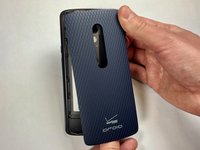
  3. Motorola Droid MAXX 2 Screen Only Replacement: step 3, image 1 of 2 Motorola Droid MAXX 2 Screen Only Replacement: step 3, image 2 of 2
    • Wedge your thumb into the indent located on the bottom left corner of the back cover and pull up to remove the back cover.

    Ask FixBot

    Add Comment

  4. Motorola Droid MAXX 2 Screen Only Replacement: step 4, image 1 of 1
    • Remove the seventeen 3.2mm Torx T4 screws from the mid-frame.

    • These may be T3 screws. If you are having trouble unscrewing these, stop and try a T3 bit.

    Ask FixBot

    Add Comment

  5. Motorola Droid MAXX 2 Screen Only Replacement: step 5, image 1 of 1
    • Pull the mid-frame off of the phone.

    • Keep track of the on/off and volume buttons when you take the phone apart because they are likely to fall out when the halves are separated.

    Ask FixBot

    Add Comment

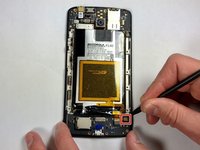
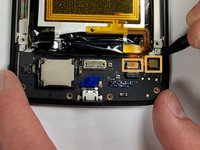
  6. Motorola Droid MAXX 2 Screen Only Replacement: step 6, image 1 of 3 Motorola Droid MAXX 2 Screen Only Replacement: step 6, image 2 of 3 Motorola Droid MAXX 2 Screen Only Replacement: step 6, image 3 of 3
    • Remove the static tape covering the two connectors.

    • Use a spudger to disconnect the battery cables from the motherboard.

    • If battery has adhesive, use heat gun for one to two minutes to loosen it. Be careful of the points outlined in red when prying it up. Use guitar picks or a spudger to gently lift the battery and separate the adhesive.

    Ask FixBot

    Add Comment

  7. Motorola Droid MAXX 2 Screen Only Replacement: step 7, image 1 of 1
    • Remove the disconnected battery from the phone.

    Ask FixBot

    Add Comment

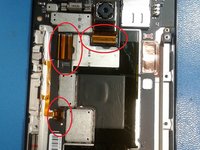
  8. Motorola Droid MAXX 2 Screen Only Replacement, Screen Assembly: step 8, image 1 of 2 Motorola Droid MAXX 2 Screen Only Replacement, Screen Assembly: step 8, image 2 of 2
    Tool used on this step:
    Tweezers
    $4.99
    Buy
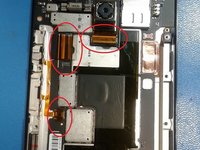
    • We will be removing these 3 ribbon cables.

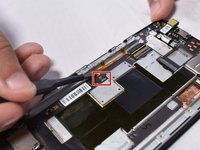
    • Using an opening pick, lift the grey tab on the rear camera's ZIF connector. Remove the ribbon cable and the camera.

    • Use tweezers to lift up on the grey latch on the ZIF connector.

    • Remove the ribbon cable from the ZIF connector.

    Ask FixBot

    Add Comment

  9. Motorola Droid MAXX 2 Screen Only Replacement: step 9, image 1 of 2 Motorola Droid MAXX 2 Screen Only Replacement: step 9, image 2 of 2
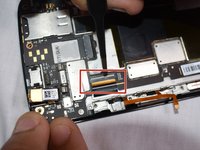
    • Use a pair of tweezers to lift up the black latch on the ZIF connector.

    • Pull the ribbon cable out of the ZIF connector.

    Ask FixBot

    Add Comment

  10. Motorola Droid MAXX 2 Screen Only Replacement: step 10, image 1 of 3 Motorola Droid MAXX 2 Screen Only Replacement: step 10, image 2 of 3 Motorola Droid MAXX 2 Screen Only Replacement: step 10, image 3 of 3
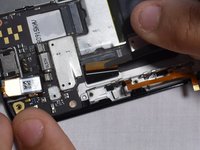
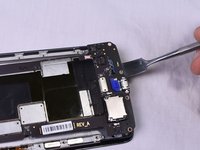
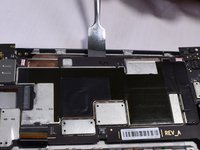
    • Using a metal spudger, work your way around the perimeter of the main board and screen.

    • There is a lot of adhesive between the two pieces, so be careful to try to remove the adhesive slowly in order to not break anything.

    Ask FixBot

    Add Comment

  11. Motorola Droid MAXX 2 Screen Only Replacement, Screen Only: step 11, image 1 of 2 Motorola Droid MAXX 2 Screen Only Replacement, Screen Only: step 11, image 2 of 2
    • Use an opening pick or metal jimmy to carefully peel up a corner of this section of copper tape.

    • Slowly peel the entire piece of copper tape off of the frame, trying not to tear or kink it. Set aside and re-install after attaching new display.

    • Using the pointy tip of a spudger, detach these display cable tabs from the frame.

    Ask FixBot

    Add Comment

  12. Motorola Droid MAXX 2 Screen Only Replacement: step 12, image 1 of 2 Motorola Droid MAXX 2 Screen Only Replacement: step 12, image 2 of 2
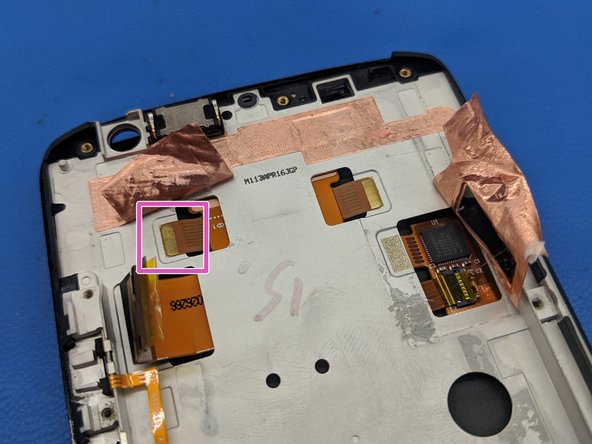
    • Carefully peel up the bottom part of this piece of copper tape and fold it over.

    • Using the point of a spudger, detach this display cable tab from the frame.

    Ask FixBot

    Add Comment

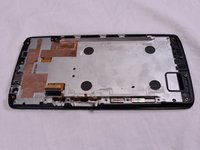
    • The plastic edge around the digitizer is very fragile. Use caution when separating the adhesive.

    • Heat the top bezel to soften the adhesive and carefully start removing the display from the frame using a plastic opening picks and a metal jimmy as necessary.

    • The display cable is lightly adhered to the frame. Remove the display starting from the top.

    Ask FixBot

    Add Comment

Conclusion

To reassemble your device, follow these instructions in reverse order.

Cancel: I did not complete this guide.

Patrick

Member since: 05/14/14

6,782 Reputation

21 Guides authored

0 Guide Comments

Add Comment

View Statistics:

Past 24 Hours: 1

Past 7 Days: 12

Past 30 Days: 52

All Time: 732