Free Shipping on Domestic Orders $75+

Motorola Droid Bionic LCD Replacement

What you need

  1. Motorola Droid Bionic LCD Replacement, LCD: step 1, image 1 of 1
    • Remove the back battery cover.

    Ask FixBot

    Add Comment

  2. Motorola Droid Bionic LCD Replacement: step 2, image 1 of 1
    • Remove the battery

    Ask FixBot

    Add Comment

  3. Motorola Droid Bionic LCD Replacement: step 3, image 1 of 2 Motorola Droid Bionic LCD Replacement: step 3, image 2 of 2
    • Remove the 11 T4 Torx Screws

    • Next, remove the information sticker.

    Ask FixBot

    Add Comment

  4. Motorola Droid Bionic LCD Replacement: step 4, image 1 of 2 Motorola Droid Bionic LCD Replacement: step 4, image 2 of 2
    • Using a plastic removal tool, work around the edges of the back housing.

    • Lift off the back housing.

    Ask FixBot

    Add Comment

  5. Motorola Droid Bionic LCD Replacement: step 5, image 1 of 3 Motorola Droid Bionic LCD Replacement: step 5, image 2 of 3 Motorola Droid Bionic LCD Replacement: step 5, image 3 of 3
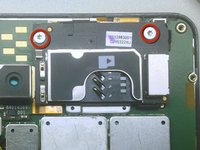
    • Remove the two silver T4 screws securing the SIM tray.

    • Carefully lift the SIM tray to disconnect it from the board.

    • Carefully remove the plastic spacer beneath by lifting gently in the center with a plastic removal tool.

    • Then, using a plastic removal tool, disconnect the speaker & front facing camera assembly from the board. The speaker is attached with adhesive, so be careful not to rip the flex cable.

    Ask FixBot

    Add Comment

  6. Motorola Droid Bionic LCD Replacement: step 6, image 1 of 1
    • Disconnect the 2 digitizer connectors using a plastic removal tool.

    • Then disconnect the LCD connector

    Ask FixBot

    Add Comment

  7. Motorola Droid Bionic LCD Replacement: step 7, image 1 of 2 Motorola Droid Bionic LCD Replacement: step 7, image 2 of 2
    • The board is now free from all connections. Carefully lift from the top and remove the board.

    Ask FixBot

    Add Comment

  8. Motorola Droid Bionic LCD Replacement: step 8, image 1 of 2 Motorola Droid Bionic LCD Replacement: step 8, image 2 of 2
    • Carefully peel the two flex cables from the back housing of the LCD. Be exceptionally careful during this process, as those flex cables can be easily ripped.

    • With the flex cables out of the way, you can now use a plastic opening tool to carefully pry the old LCD loose and out of the display.

    • If you're installing a new LCD, simply add it now and follow these instructions in reverse to complete the installation.

    Ask FixBot

    Add Comment

Conclusion

To reassemble your device, follow these instructions in reverse order.

Cancel: I did not complete this guide.

4 other people completed this guide.

Taylor

Member since: 08/30/12

244 Reputation

1 Guide authored

0 Guide Comments

Add Comment

View Statistics:

Past 24 Hours: 1

Past 7 Days: 13

Past 30 Days: 50

All Time: 2,193