Free Shipping on Domestic Orders $75+

Motorola Atrix 4G Motherboard Replacement

What you need

  1. Motorola Atrix 4G Motherboard Replacement, Battery: step 1, image 1 of 1
    • Pry the back cover off the back of the phone.

  2. Motorola Atrix 4G Motherboard Replacement: step 2, image 1 of 2 Motorola Atrix 4G Motherboard Replacement: step 2, image 2 of 2
    Tool used on this step:
    Spudger
    $3.99
    Buy
    • Insert a spudger into the small notch at the base of the battery.

    • Lift the battery out of the phone.

  3. Motorola Atrix 4G Motherboard Replacement, Antenna: step 3, image 1 of 2 Motorola Atrix 4G Motherboard Replacement, Antenna: step 3, image 2 of 2
    Tool used on this step:
    T5 Torx Screwdriver
    $5.49
    Buy
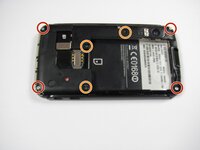
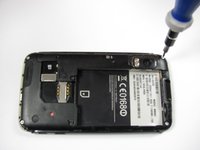
    • Remove the four 5.0 mm T5 Torx screws using a T5 Torx Screwdriver.

    • Remove the three 5.5 mm T5 Torx screws using a T5 Torx Screwdriver.

    • Use gentle force while unscrewing to avoid stripping the screws.

  4. Motorola Atrix 4G Motherboard Replacement: step 4, image 1 of 1
    Tool used on this step:
    iFixit Opening Tool
    $1.99
    Buy
  5. Motorola Atrix 4G Motherboard Replacement: step 5, image 1 of 2 Motorola Atrix 4G Motherboard Replacement: step 5, image 2 of 2
    Tool used on this step:
    iFixit Opening Tool
    $1.99
    Buy
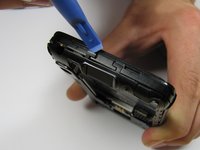
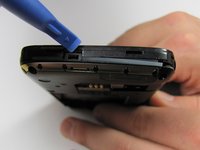
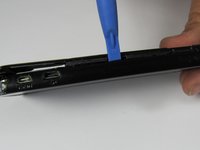
    • Gently lift the tabs located at the top of the phone using an opening tool.

    • Gently lift the tab located at the bottom of the phone with the same tool.

    • Use an opening tool, not your fingers, because the plastic tabs are easily broken.

  6. Motorola Atrix 4G Motherboard Replacement: step 6, image 1 of 2 Motorola Atrix 4G Motherboard Replacement: step 6, image 2 of 2
    Tool used on this step:
    iFixit Opening Tool
    $1.99
    Buy
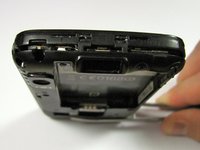
    • Insert an opening tool between the front and back of the case.

    • Slide the tool down the side of the phone.

    • Repeat the same process for the other side.

    • There should be a noticeable gap between the front and back cases. If not, repeat this step.

  7. Motorola Atrix 4G Motherboard Replacement: step 7, image 1 of 1
    • Carefully lift the back case off the phone.

    • Do not completely separate the back case from the phone. The antenna is connected to both cases.

  8. Motorola Atrix 4G Motherboard Replacement: step 8, image 1 of 1
    Tool used on this step:
    iFixit Opening Tool
    $1.99
    Buy
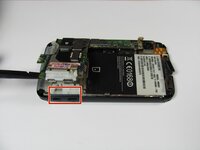
    • Slide an opening tool beneath the antenna and lift straight up from the motherboard.

    • Lift straight upwards, not at an angle, to avoid damaging the socket underneath.

  9. Motorola Atrix 4G Motherboard Replacement: step 9, image 1 of 1
    • Ease the antenna from out of its guide along the side of the phone

    • Remove the back case and the antenna from the phone.

    • The antenna is soldered to the back case. When reassembling, do not pull it with too much force.

  10. Motorola Atrix 4G Motherboard Replacement, Motherboard: step 10, image 1 of 2 Motorola Atrix 4G Motherboard Replacement, Motherboard: step 10, image 2 of 2
    Tool used on this step:
    Spudger
    $3.99
    Buy
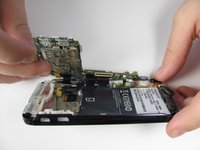
    • Insert a spudger between the black plastic and the motherboard.

    • Lift upwards with the spudger to dislodge the board.

    • The motherboard should lift up easily. If the white rubber piece shifts, move it back to its original place.

  11. Motorola Atrix 4G Motherboard Replacement: step 11, image 1 of 1
    Tool used on this step:
    Spudger
    $3.99
    Buy
    • Disconnect the press connectors using a spudger.

    • If you are unfamiliar with using connectors, consult this guide.

  12. Motorola Atrix 4G Motherboard Replacement: step 12, image 1 of 1
    Tool used on this step:
    Spudger
    $3.99
    Buy
    • Lift the white latch on the ZIF connector using a spudger.

    • Gently pull the black ribbon down and away from the latch.

  13. Motorola Atrix 4G Motherboard Replacement: step 13, image 1 of 1
    • There should be five distinct parts of the phone: the back cover, the back case, the front case, the battery, and the motherboard.

Conclusion

To reassemble your device, follow these instructions in reverse order.

5 other people completed this guide.

Derek Walker

Member since: 04/19/12

297 Reputation

4 Guides authored

Team

Cal Poly, Team 9-42, Regan Spring 2012 Member of Cal Poly, Team 9-42, Regan Spring 2012

CPSU-REGAN-S12S9G42

6 Members

15 Guides authored

0 Guide Comments

Add Comment

View Statistics:

Past 24 Hours: 1

Past 7 Days: 6

Past 30 Days: 28

All Time: 6,743