Free Shipping on Domestic Orders $75+

Moto Z Rear-Facing Camera Replacement

What you need

  1. Moto Z Rear-Facing Camera Replacement, Display Assembly: step 1, image 1 of 1
    • Heat an iOpener and apply it to the left edge of the phone for at least 90 seconds.

    • A hair dryer, heat gun, or hot plate may also be used, but be careful not to overheat the phone—the OLED display and internal battery are both susceptible to heat damage.

    • As you're waiting for the adhesive to soften, move on and read the following step to get an idea of where to pry.

    Ask FixBot

    Add Comment

  2. Moto Z Rear-Facing Camera Replacement: step 2, image 1 of 2 Moto Z Rear-Facing Camera Replacement: step 2, image 2 of 2
    • In the following steps you will be cutting through the adhesive around the edge of the display assembly.

    • To avoid damage, do not cut in the following areas:

    • The OLED panel

    • The home button

    • The flash unit

    Ask FixBot

    Add Comment

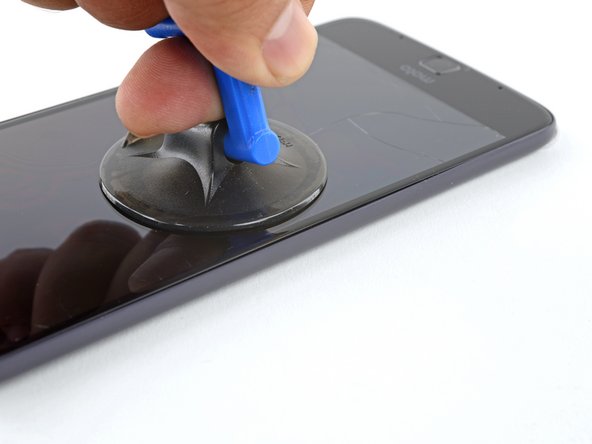
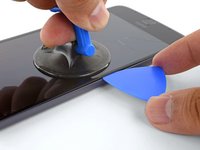
  3. Moto Z Rear-Facing Camera Replacement: step 3, image 1 of 3 Moto Z Rear-Facing Camera Replacement: step 3, image 2 of 3 Moto Z Rear-Facing Camera Replacement: step 3, image 3 of 3
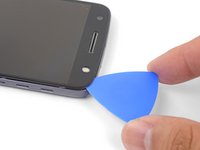
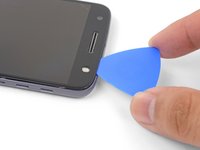
    • Apply a suction cup as close to the heated edge as possible.

    • Lift on the suction cup and insert the tip of an opening pick into the gap.

    • Do not insert the pick more than 1/16" (1.5 mm). Over-inserting the pick may damage the OLED panel.

    Ask FixBot

    Add Comment

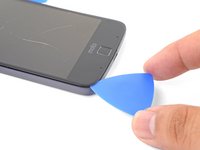
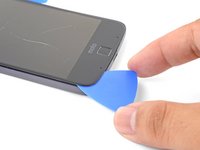
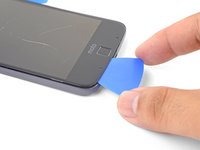
  4. Moto Z Rear-Facing Camera Replacement: step 4, image 1 of 3 Moto Z Rear-Facing Camera Replacement: step 4, image 2 of 3 Moto Z Rear-Facing Camera Replacement: step 4, image 3 of 3
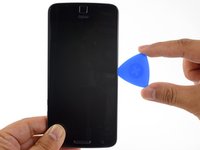
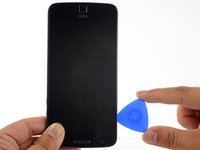
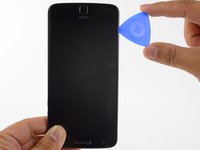
    • Carefully slide the tip of the opening pick down and up the side of the phone, making sure not to cut deeper than 1/16" (1.5 mm).

    • As you run the pick along the side, you will feel the tip of the pick press against the edge of the OLED panel. That is as far as the pick should go without damaging the panel.

    • Once you have separated the adhesive, leave an opening pick in the side to keep the adhesive from resealing.

    Ask FixBot

    Add Comment

  5. Moto Z Rear-Facing Camera Replacement: step 5, image 1 of 1
    • Repeat the heating, lifting, and cutting steps for the remaining long edge of the phone.

    Ask FixBot

    Add Comment

  6. Moto Z Rear-Facing Camera Replacement: step 6, image 1 of 1
    Ask FixBot

    Add Comment

  7. Moto Z Rear-Facing Camera Replacement: step 7, image 1 of 2 Moto Z Rear-Facing Camera Replacement: step 7, image 2 of 2
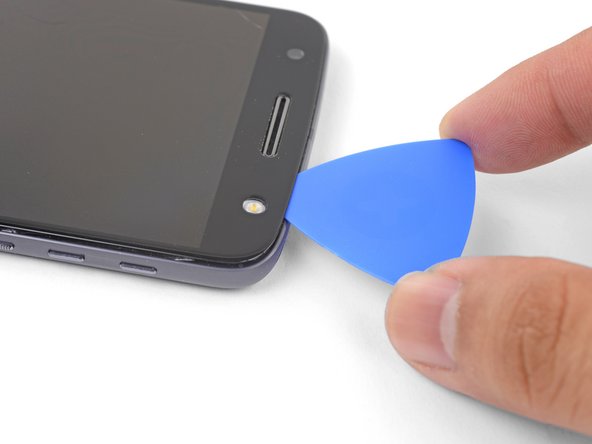
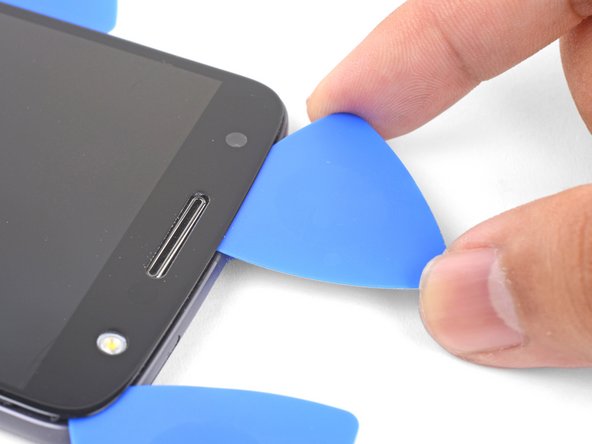
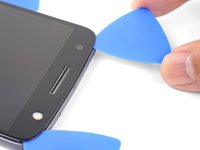
    • Insert an opening pick into the flash side corner of the phone and carefully slice around the flash unit.

    • Do not insert the pick more than 1/16" (1.5 mm) into the edge.

    • Once you are done cutting, leave the pick in the corner to prevent the adhesive from resealing.

    Ask FixBot

    Add Comment

  8. Moto Z Rear-Facing Camera Replacement: step 8, image 1 of 3 Moto Z Rear-Facing Camera Replacement: step 8, image 2 of 3 Moto Z Rear-Facing Camera Replacement: step 8, image 3 of 3
    • Insert an opening pick into the remaining top corner of the phone.

    • Carefully slice through the adhesive across the top of the phone.

    • Do not insert the pick beyond 1/2" (12.5 mm).

    Ask FixBot

    Add Comment

  9. Moto Z Rear-Facing Camera Replacement: step 9, image 1 of 1
    • Apply a heated iOpener to the bottom edge of the phone for at least 90 seconds.

    Ask FixBot

    Add Comment

  10. Moto Z Rear-Facing Camera Replacement: step 10, image 1 of 3 Moto Z Rear-Facing Camera Replacement: step 10, image 2 of 3 Moto Z Rear-Facing Camera Replacement: step 10, image 3 of 3
    • Insert an opening pick into a bottom corner and slice towards the home button, stopping before you reach it.

    • Once you're done with the corner, leave a pick in place to prevent the adhesive from sealing.

    • Repeat the process for the other bottom corner.

    Ask FixBot

    Add Comment

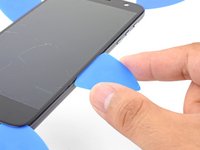
  11. Moto Z Rear-Facing Camera Replacement: step 11, image 1 of 2 Moto Z Rear-Facing Camera Replacement: step 11, image 2 of 2
    • Carefully twist the first opening pick slightly to help release the edge adhesive.

    • Repeat the same process for each remaining pick, moving them as necessary and twisting slightly to release the adhesive.

    Ask FixBot

    Add Comment

  12. Moto Z Rear-Facing Camera Replacement: step 12, image 1 of 3 Moto Z Rear-Facing Camera Replacement: step 12, image 2 of 3 Moto Z Rear-Facing Camera Replacement: step 12, image 3 of 3
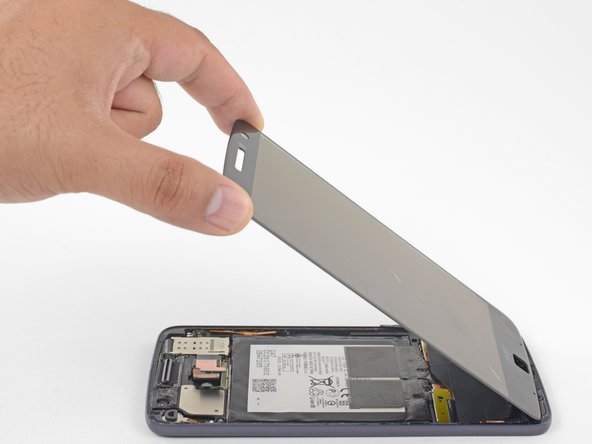
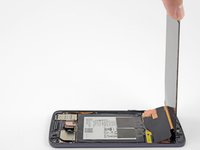
    • Lift the earpiece end of the display up to provide access to the display cables.

    • Do not open the display beyond 90 degrees, and always support the display panel.

    Ask FixBot

    Add Comment

  13. Moto Z Rear-Facing Camera Replacement: step 13, image 1 of 3 Moto Z Rear-Facing Camera Replacement: step 13, image 2 of 3 Moto Z Rear-Facing Camera Replacement: step 13, image 3 of 3
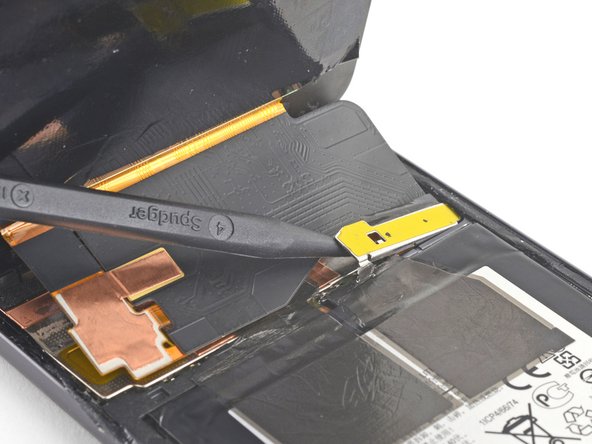
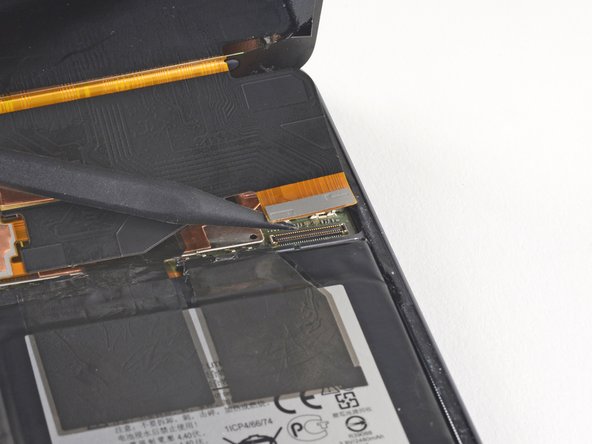
    • Use the point of a spudger to pry the display cable shield up.

    • Remove the display cable shield.

    Ask FixBot

    Add Comment

  14. Moto Z Rear-Facing Camera Replacement: step 14, image 1 of 2 Moto Z Rear-Facing Camera Replacement: step 14, image 2 of 2
    • Use the point of the spudger to lift and disconnect the display cable connector from its socket.

    Ask FixBot

    Add Comment

  15. Moto Z Rear-Facing Camera Replacement: step 15, image 1 of 2 Moto Z Rear-Facing Camera Replacement: step 15, image 2 of 2
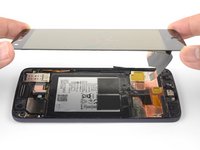
    • Remove the display assembly.

    • Compare your new replacement part to the original part. You may need to transfer remaining components (such as the flash lens) or remove adhesive backings from the new part before installing.

    • Before you reinstall the display assembly, thoroughly remove any remaining adhesive and glass from the frame.

    • After removing all traces of glue and glass from the frame, clean the adhesion areas with 90% (or higher) isopropyl alcohol and a lint-free cloth or coffee filter.

    • Be sure to turn on your phone and test your repair before installing new adhesive and resealing the phone.

    • Use the Motorola Moto Z display adhesive to reseal your phone. Follow this guide for instructions on how to apply adhesive to the replacement screen.

    Ask FixBot

    Add Comment

  16. Moto Z Rear-Facing Camera Replacement, Rear-Facing Camera: step 16, image 1 of 1
    Tool used on this step:
    Tweezers
    $4.99
    Buy
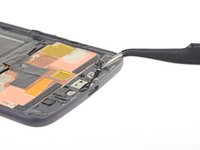
    • Place the tweezers under the copper tab on the top of the device.

    • Make sure you have a firm grip on the tab with the tweezers.

    • Make sure not to puncture the battery with the metal tweezers as it's a fire hazard.

    Ask FixBot

    Add Comment

  17. Moto Z Rear-Facing Camera Replacement: step 17, image 1 of 1
    • Slowly and carefully lift up on the tab until it pops out of the phone and is only connected by the black tape.

    Ask FixBot

    Add Comment

  18. Moto Z Rear-Facing Camera Replacement: step 18, image 1 of 2 Moto Z Rear-Facing Camera Replacement: step 18, image 2 of 2
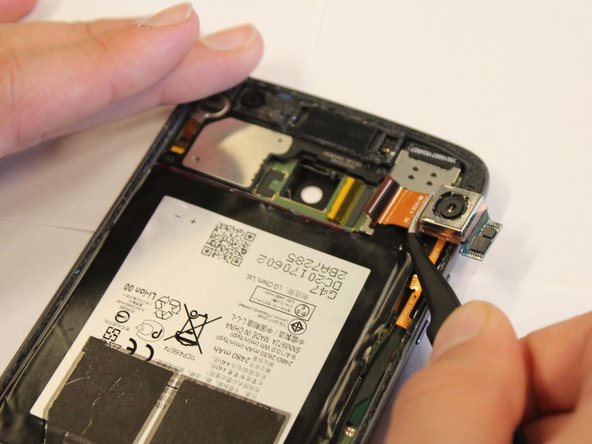
    • Using the tweezers, firmly grab the black connecting tape closest to the lens.

    • Gently pull to the right until the camera (lens and black tape) disconnects from the device.

    Ask FixBot

    Add Comment

Conclusion

Compare your new replacement part to the original part. You may need to transfer remaining components or remove adhesive backings from the new part before installing.

To reassemble your device, follow these instructions in reverse order.

Take your e-waste to an R2 or e-Stewards certified recycler.

Repair didn’t go as planned? Check out our [|Motorola Moto Z Answers community] for troubleshooting help.

Cancel: I did not complete this guide.

Miriam Lam

Member since: 01/24/18

1,188 Reputation

5 Guides authored

Team

Cal Poly, Team S2-G2, Livingston Winter 2018 Member of Cal Poly, Team S2-G2, Livingston Winter 2018

CPSU-LIVINGSTON-W18S2G2

4 Members

10 Guides authored

0 Guide Comments

Add Comment

View Statistics:

Past 24 Hours: 0

Past 7 Days: 21

Past 30 Days: 59

All Time: 1,289