Introduction
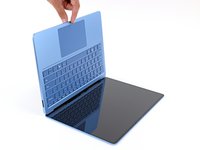
Follow this guide to replace a broken or cracked screen on your Microsoft Surface Laptop 7 (13.8‑inch).
Some replacement screens only have two connector cables, but the screen will still work normally. Update your laptop's firmware using this download to avoid any issues.
What you need
-
-
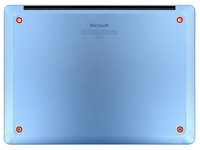
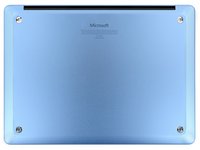
Close your laptop and lay it down so the rubber feet are facing up.
-
-
-
Gently slide one arm of your angled tweezers into the recess near the upper right edge of one of the feet.
-
Use your tweezers to pry up and remove the foot.
-
Repeat the process to remove the remaining feet.
-
-
Tool used on this step:FixMat$36.95
-
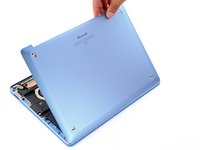
Use a Torx Plus 5IP screwdriver to remove the four 4.5 mm‑long screws (with washers) securing the lower case.
-
-
-
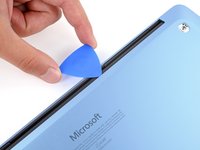
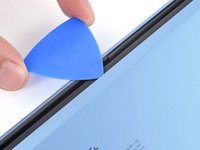
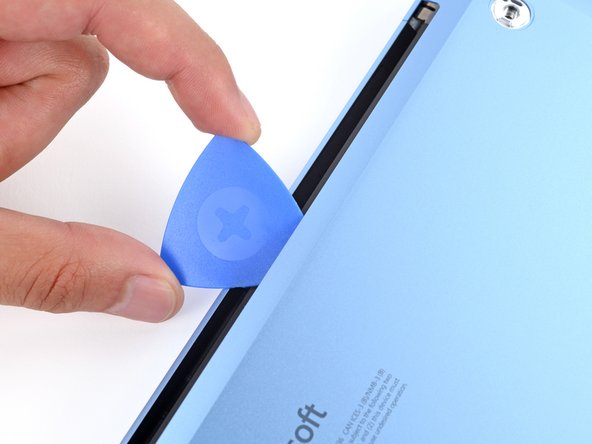
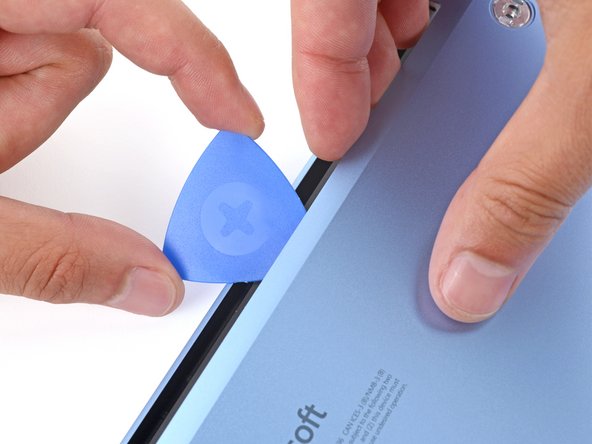
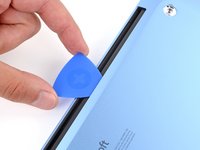
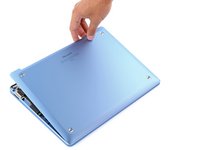
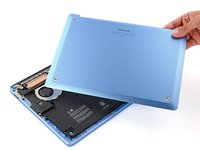
Insert the tip of an opening pick under the top edge of the lower case, about an inch (2.5 cm) to the left or right of the Microsoft logo.
-
-
-
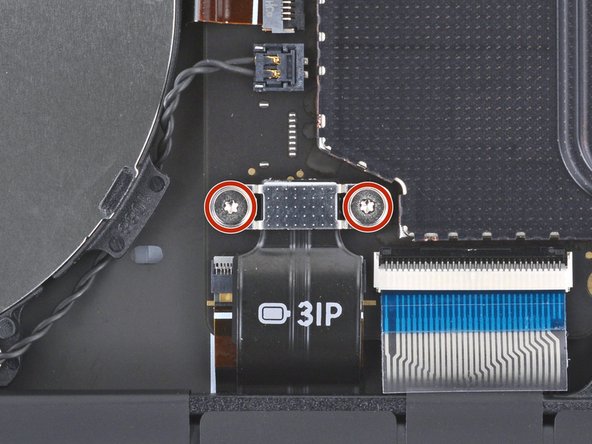
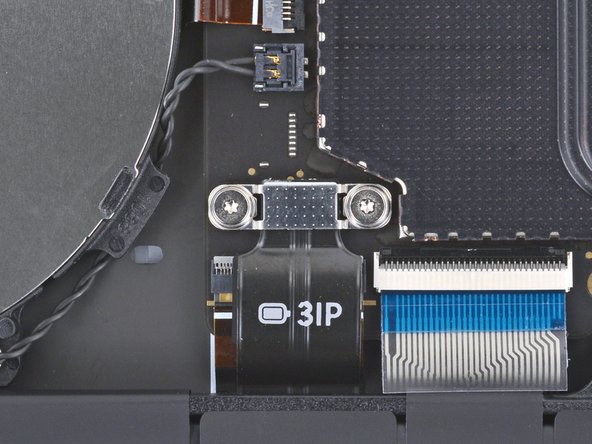
Use a Torx Plus 3IP screwdriver to remove the two 2.3 mm‑long screws securing the battery connector cover.
-
-
-
Insert the flat end of a spudger under the top edge of the battery press connector and pry up to disconnect it.
-
-
-
-
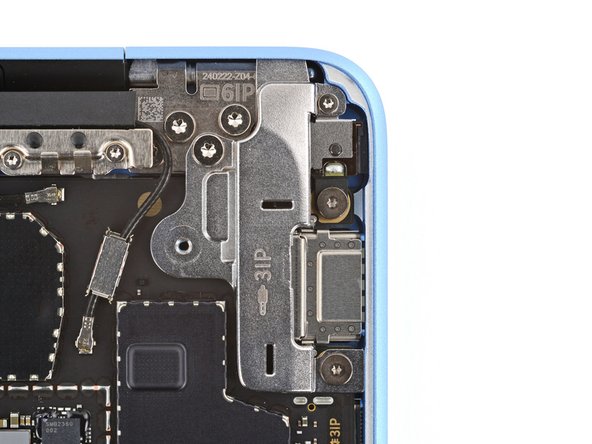
Use a Torx Plus 3IP screwdriver to remove the two screws from the right edge of the audio jack cover:
-
One 3 mm‑long screw in the top right corner
-
One 4.7 mm‑long screw in the bottom right corner
-
Use a Torx Plus 6IP screwdriver to remove the remaining 6.3 mm‑long screw in the top left corner.
-
-
-
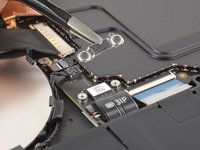
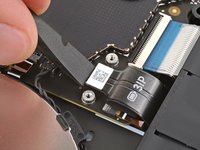
Use a spudger to lift the hinged locking flap on the audio jack ZIF connector.
-
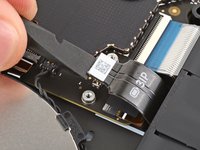
Use tweezers to grip the audio jack cable's pull tab and slide the cable out of its socket.
-
-
-
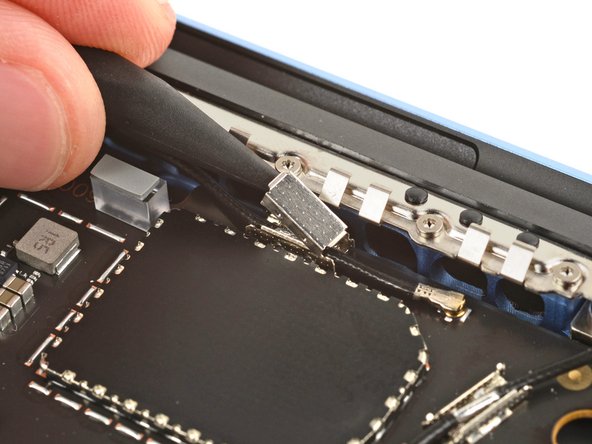
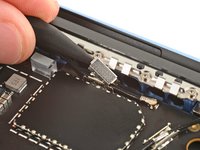
Use the point of a spudger to pry up and remove the two antenna cable covers from the top right corner of the motherboard.
-
-
-
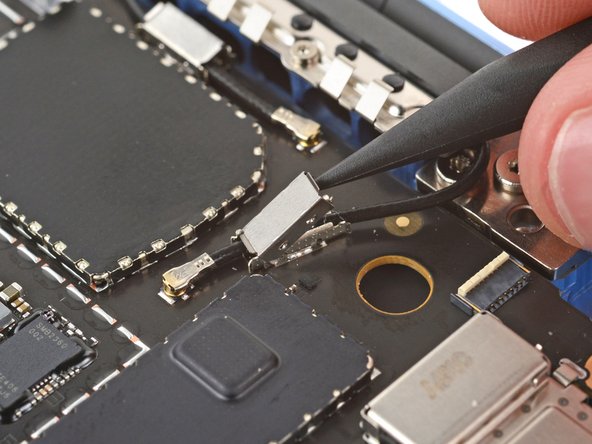
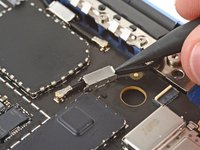
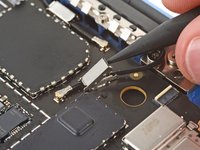
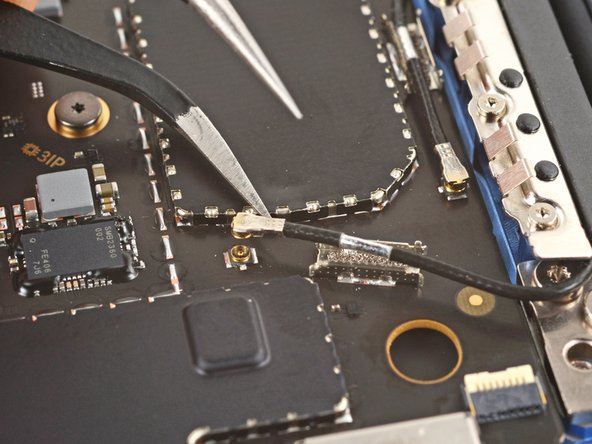
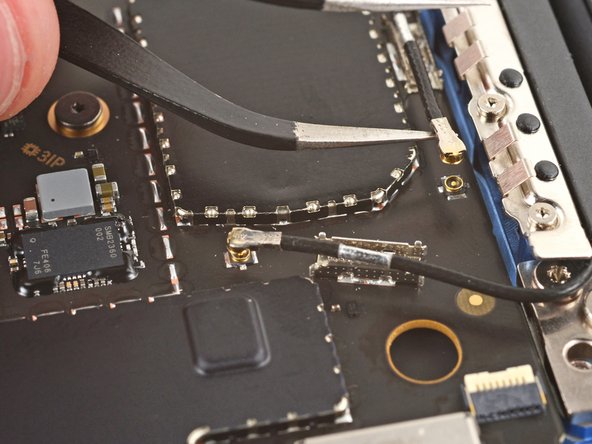
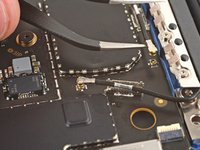
Slide one arm of a pair of angled tweezers under the metal neck of one of the antenna cable coaxial connectors and lift straight up to disconnect it.
-
Repeat the process to disconnect the other antenna cable.
-
-
-
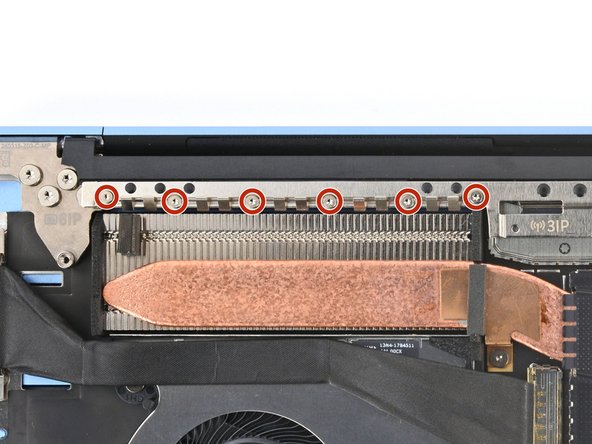
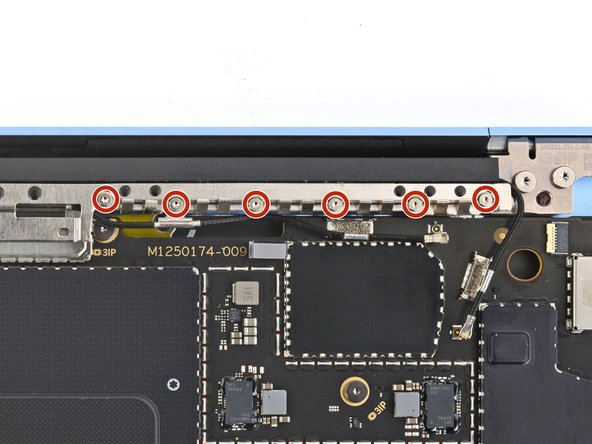
Use a Torx Plus 3IP screwdriver to remove the twelve 2.4 mm‑long screws securing the antenna bar.
-
-
-
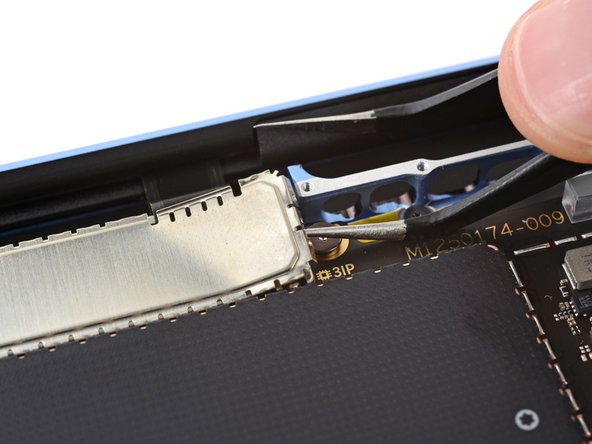
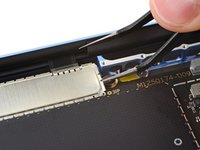
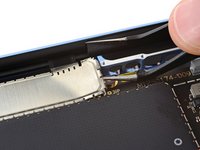
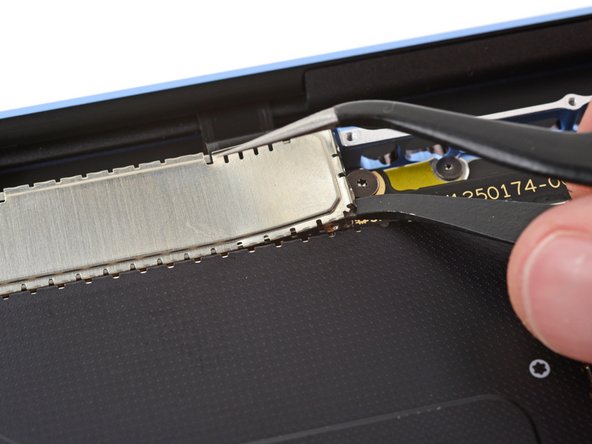
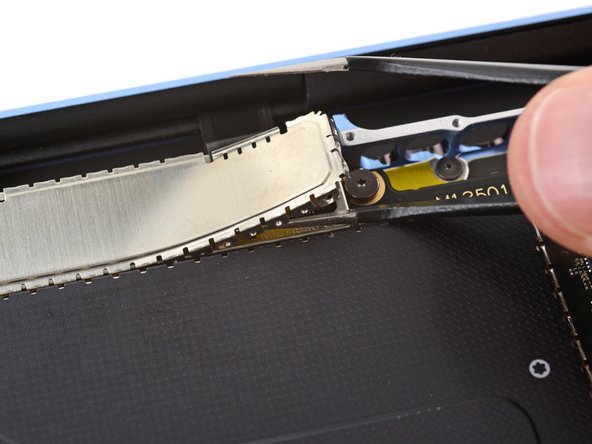
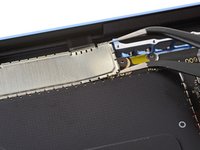
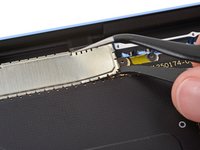
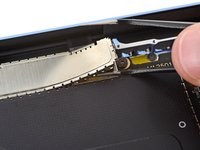
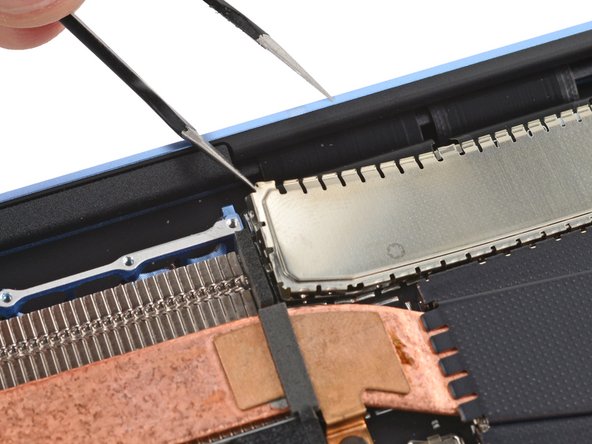
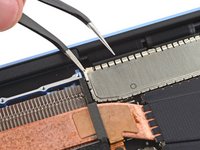
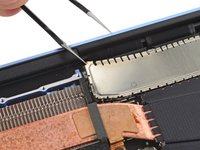
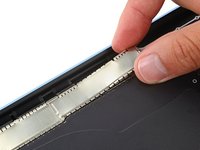
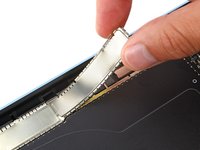
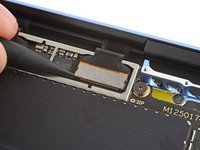
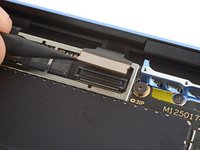
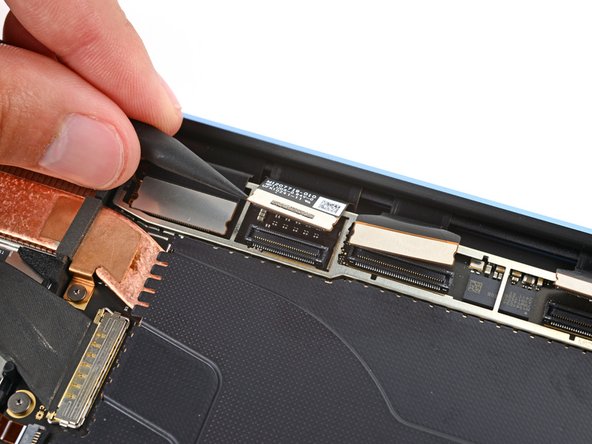
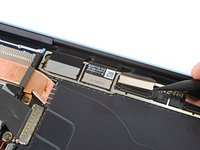
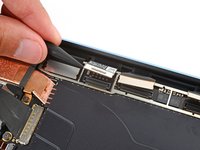
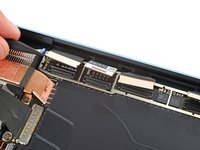
Slide an arm of a pair of angled tweezers into one of the gaps on the right edge of the display cable shield.
-
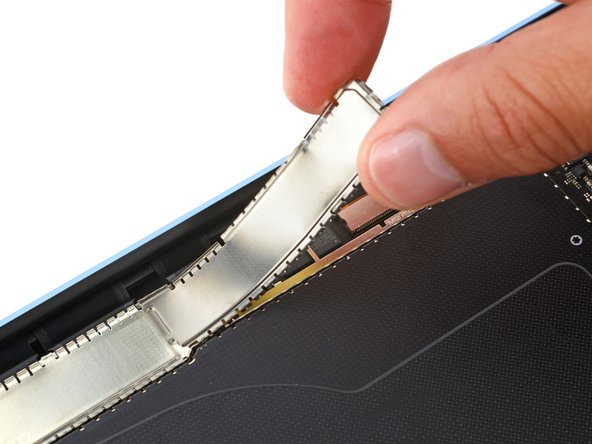
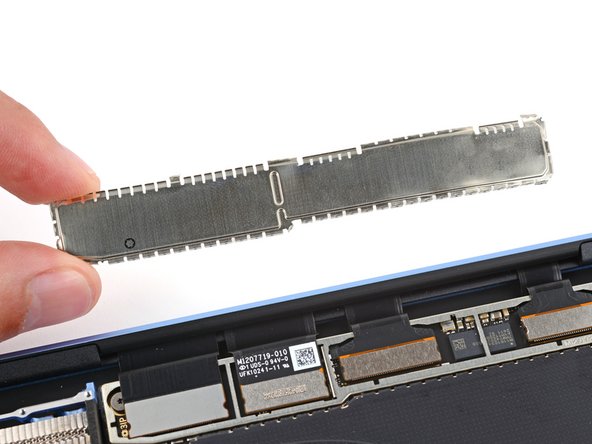
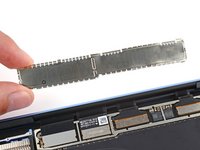
Gently pry the shield up to begin unclipping it.
-
-
-
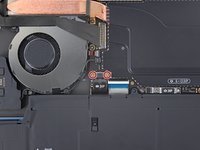
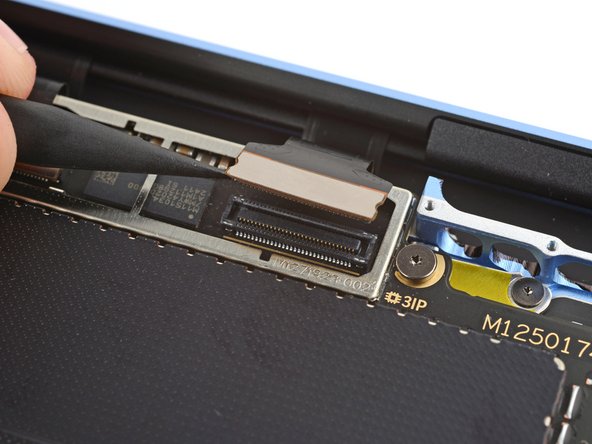
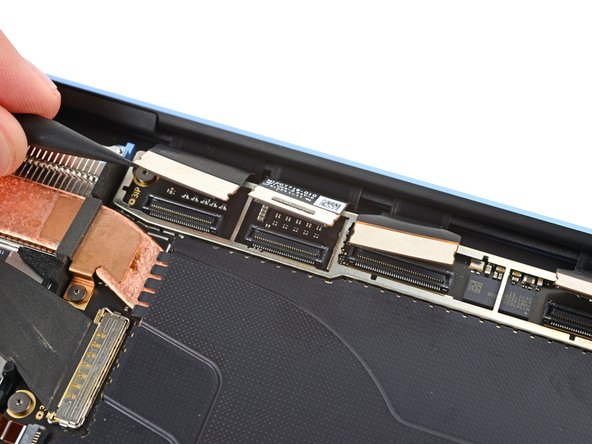
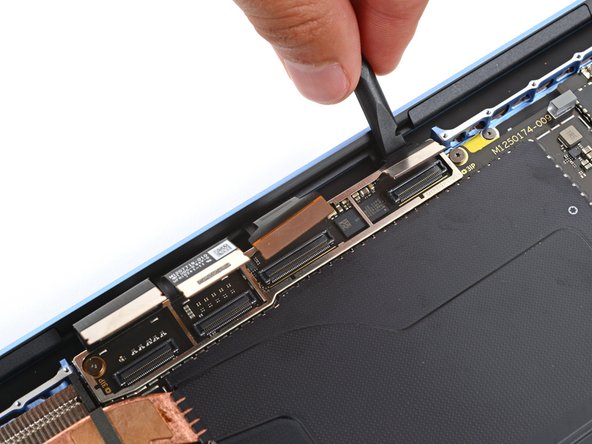
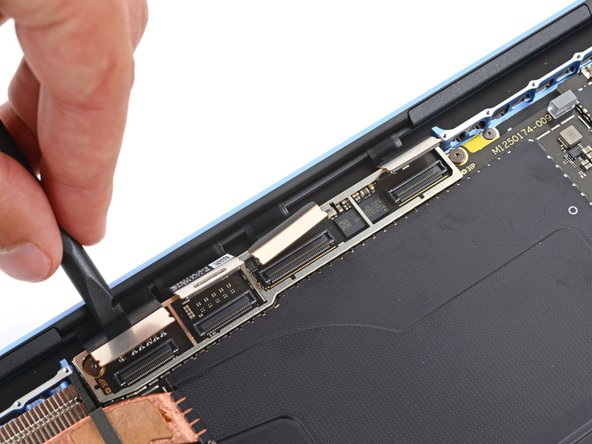
Insert the point of a spudger under the bottom left corner of the rightmost display cable press‑connector and pry up to disconnect it.
-
-
-
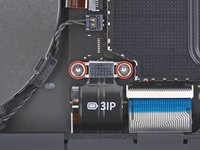
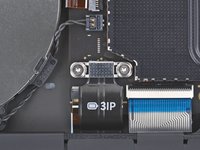
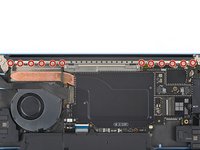
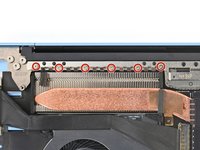
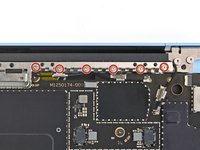
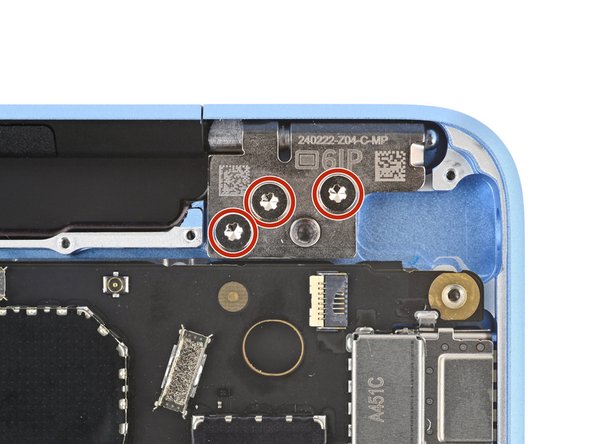
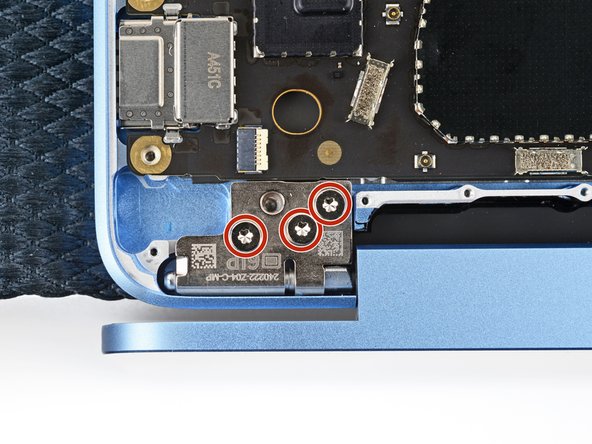
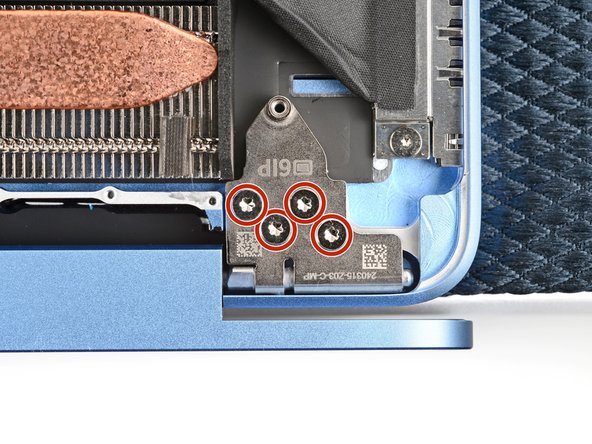
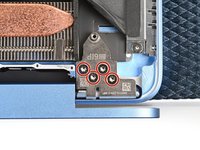
Use a Torx Plus 6IP screwdriver to loosen (not remove) the seven hinge screws.
-
-
-
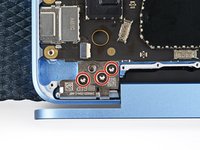
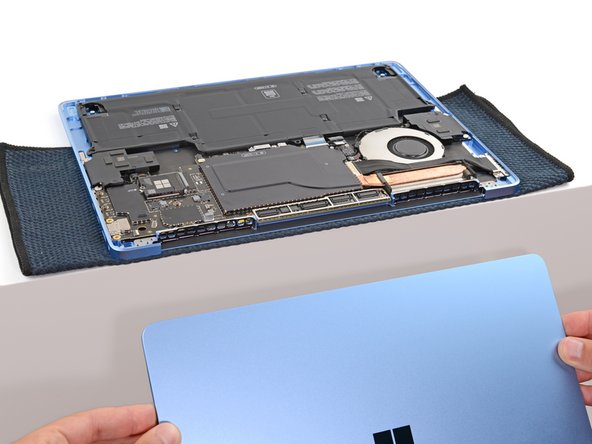
Support the screen with one hand and use your free hand to remove the seven 6.3 mm‑long Torx Plus 6IP screws securing the hinges.
-
-
-
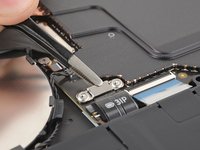
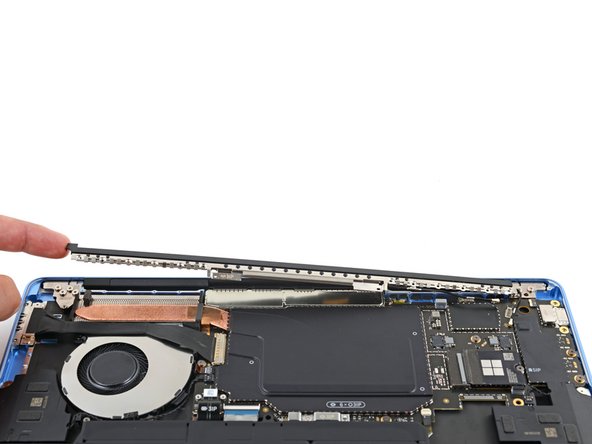
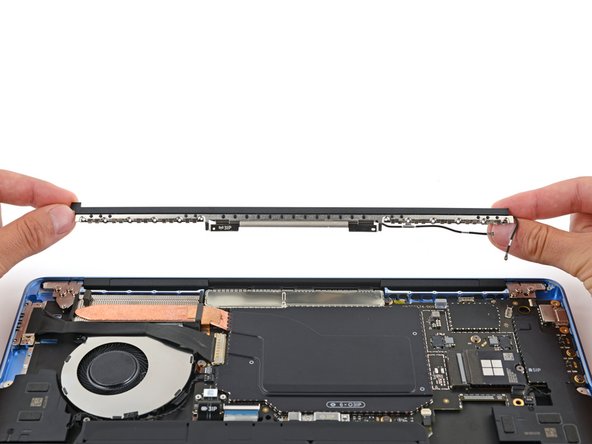
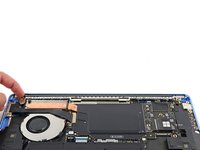
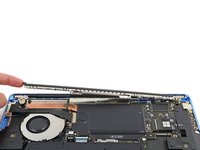
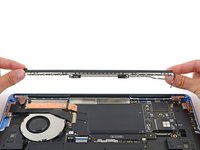
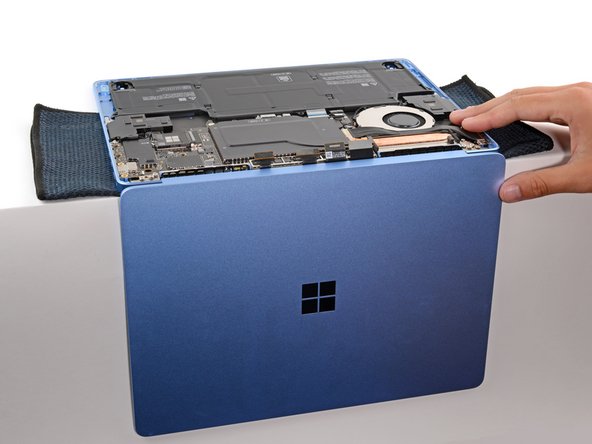
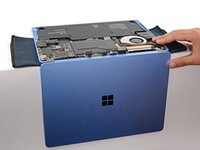
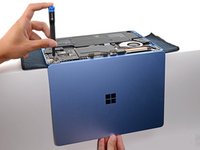
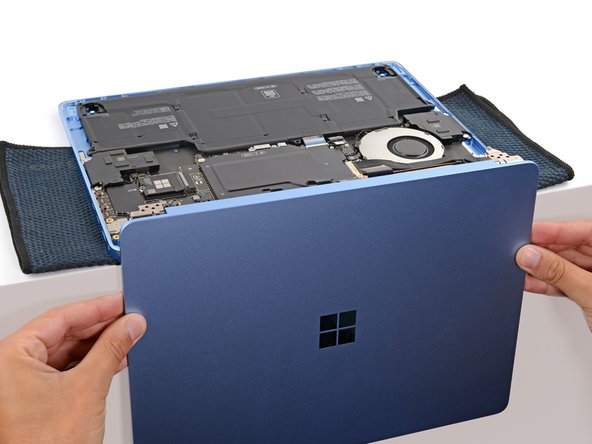
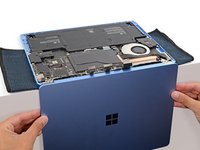
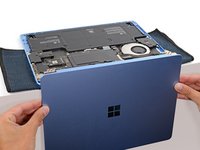
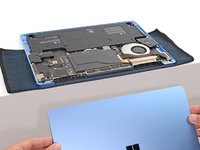
Hold the screen with both hands and lift the hinges out of their recesses to remove the screen.
-
Make sure the screen hinges are open 90 degrees and guide them into their recesses in the frame.
-
Install and partially tighten the seven hinge screws.
-
Close your laptop and make sure the screen is properly aligned. If it clicks or snaps, readjust the alignment.
-
Fully tighten the hinge screws.
-



















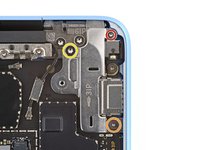
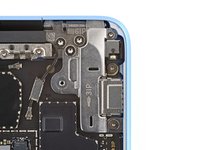

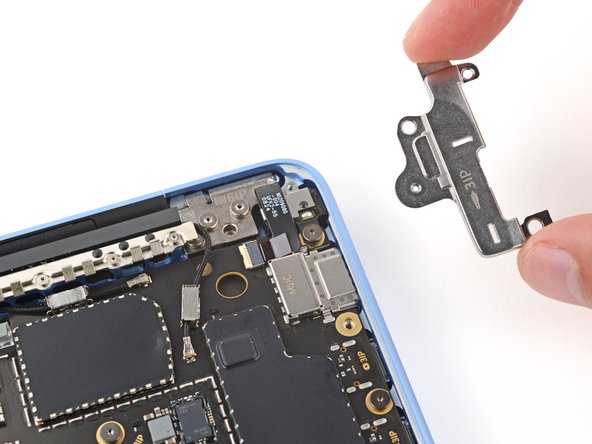

















To reassemble your device, follow these instructions in reverse order.
Take your e-waste to an R2 or e-Stewards certified recycler.
Repair didn’t go as planned? Try some basic troubleshooting, or ask our Answers community for help.
Cancel: I did not complete this guide.
2 other people completed this guide.


5 Guide Comments
Does it come with just the display or the top panel of the laptop as well (the lid). My laptop's lid got bent (the meta0) due to which the screen is bulging and so I want to replace both the display and the lid. The guide does not make this distinction clear.
Hello! This guide shows you how to replace the entire screen assembly, which includes the screen and the top lid. The genuine screen on our store is the same. Hope this helps!
Same here. Just received a replacement screen with only 2 connectors. Been on the phone with Microsoft for over an hour trying to see if they have the screen with 4 connectors. I'm on hold with them as I type this.
