Introduction
This guide explains how to replace the optical sensor lens in a Microsoft Bluetooth Ergonomic Mouse if the sensor is damaged or no longer functioning properly.
The optical sensor detects surface movement and translates that motion into cursor movement on your computer. A faulty sensor may cause the cursor to move inconsistently, inaccurately, or not at all.
Before proceeding, inspect the sensor opening for dust, debris, or surface damage that may be interfering with tracking. Test the mouse on multiple surfaces and verify your motion settings to confirm the optical sensor is the source of the issue.
Before beginning, power off the mouse and disconnect it from any external power source.
What you need
-
-
-
Remove the battery cover and take out both AAA batteries from the mouse.
 Ask FixBot
-
-
-
Insert a thin pry tool beneath the seam near the left and right click buttons.
-
Slide the pry tool toward the rear of the mouse while keeping the tool underneath the upper shell clips.
-
Gently release the retaining clips securing the top shell.
-
Continue working around the shell until the top cover separates from the lower housing.
-
-
-
-
Open the inner shell carefully from left to right to access the internal circuits.
-
-
-
-
-
Use tweezers to lift and disconnect the two JST connectors secured to the motherboard.
-
-
-
Use tweezers to disconnect the battery power supply connector from the motherboard.
-
-
-
Remove the two 7.1 mm Phillips #00 screws securing the button board.
-
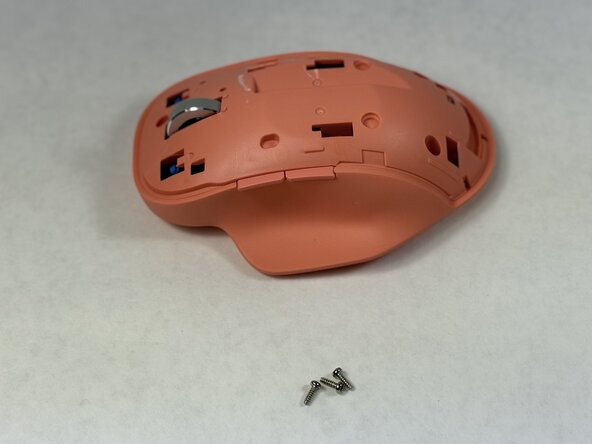
Remove the three 4.1 mm Phillips #00 screws securing the motherboard to the housing.
-
-
-
Carefully lift the circuit board out of the mouse housing.
-
Use angled tweezers to remove the optical sensor lens from the lower housing.
-
-




To reassemble your device, follow the above steps in reverse order.
Take your e-waste to an R2 or e-Stewards certified recycler.
Repair didn’t go as planned? Try some basic troubleshooting or ask our Answers community for help.

Team

UMass Dartmouth, Team 2-5, Biswokarma Spring 2026 Member of UMass Dartmouth, Team 2-5, Biswokarma Spring 2026
UMASSD-BISWOKARMA-S26S2G5
5 Members
72 Guides authored
