
Maze Speed Motherboard Replacement

Jun Soo Kim and
Last updated on May 7, 2024
Views: 1.1K
View statistics:
- Past 24 Hours:
- 2
- Past 7 Days:
- 14
- Past 30 Days:
- 68
- All Time:
- 1,072
Comments: 9
9 comments on steps.
Completed: 1 2
1 person has marked this guide "completed." Will you be next?
2 people have marked this guide "completed." Including you — great job!
Favorites: 0 1
No one has favorited (and subscribed to) this guide. Will you be the first?
1 person has favorited (and subscribed to) this guide — and that's you!
What you need
Tools


Introduction
Go to step 1 ↓This guide will help you replace the motherboard on your device with another one.
First, you will learn how to take out the motherboard. After these steps are completed, then follow the instructions on how to insert a separate motherboard.
This guide is easy to follow if your electronic accidentally got wet or some other anomaly caused your motherboard to stop working.
-
-
-
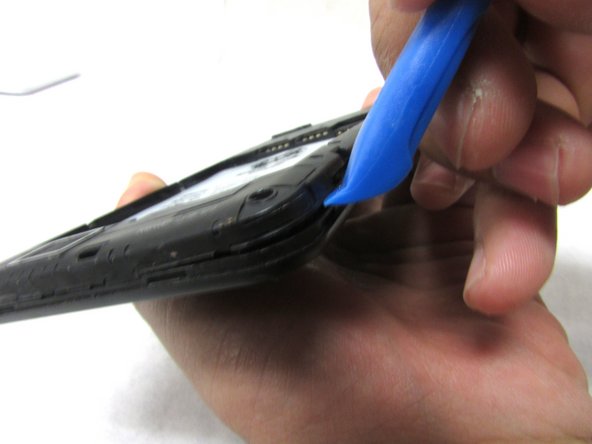
Remove the back cover by inserting the plastic opening tool at the bottom left corner of the device.
 Ask FixBot
-
-
-
Lift the plastic opening tool up at the bottom left corner to create the gap.
-
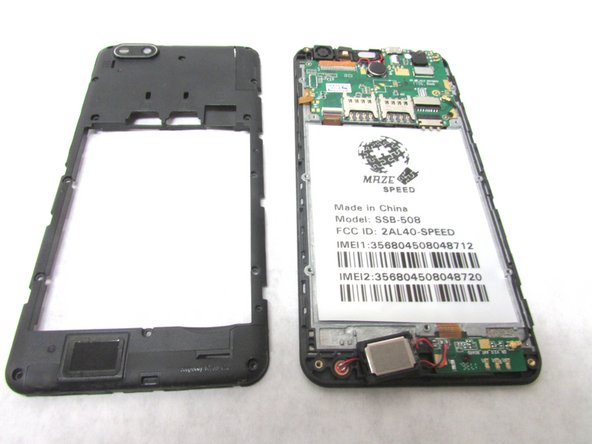
Repeat this through all corners to remove the internal casing.
-
-
-
-
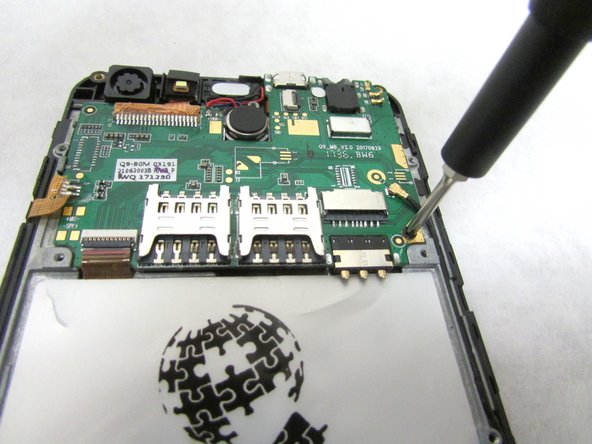
Unscrew the 2mm screw at the bottom right of the motherboard.
-
Remove the internal antenna casing from the motherboard.
-
-
-
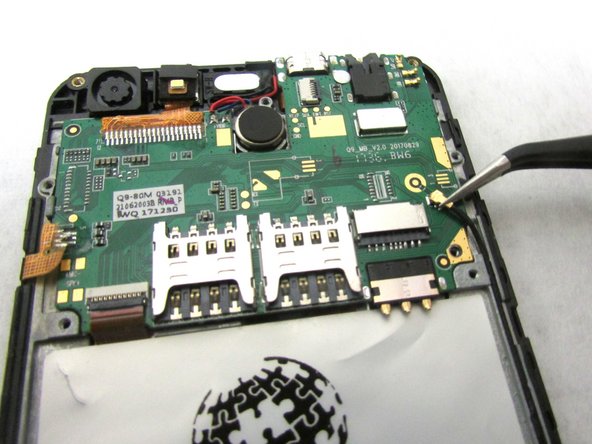
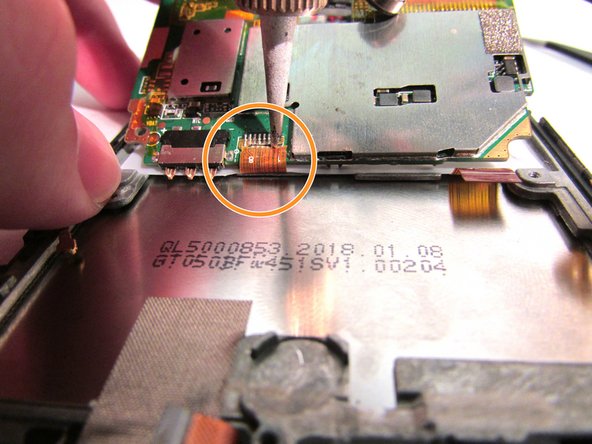
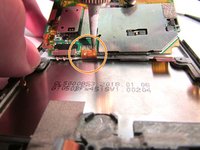
Desolder the gold ribbon that is connected to the motherboard at the bottom left corner.
-
-
Tool used on this step:Tweezers$4.99
-
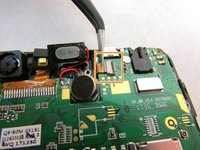
Use tweezers to remove cable from the ZIF connectors located at the bottom left of the motherboard.
-
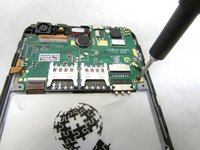
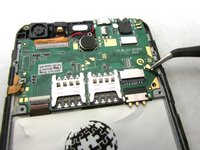
Use the tweezers to remove the second cable from ZIF connector located to the right of the speaker that you unplugged in step five.
-
-
-
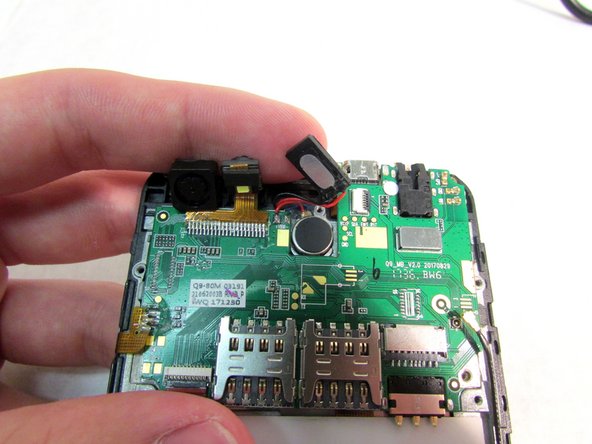
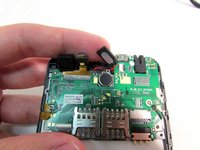
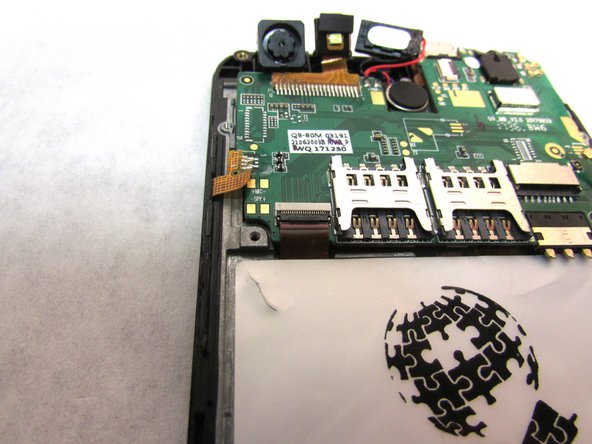
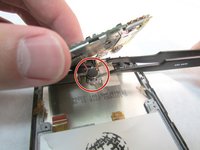
Use the tweezers to dislodge the speaker.
-
After the speaker is dislodged, flip the motherboard up so that you can see the cable.
-
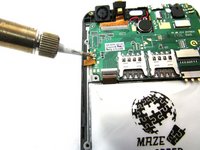
Using a soldering tool, desolder the cable from the back of the motherboard.
-
-


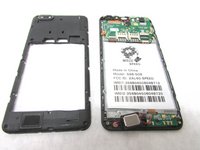

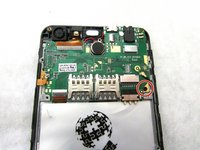



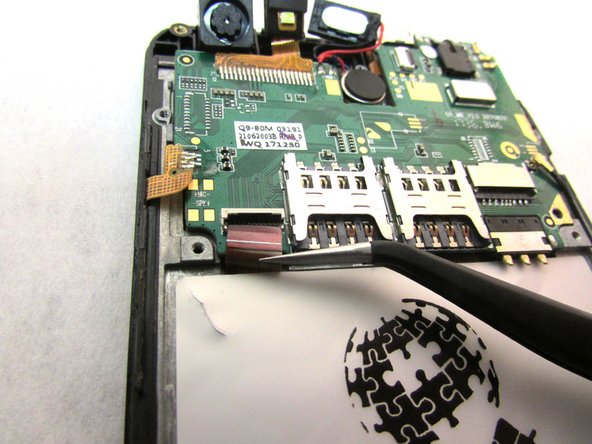
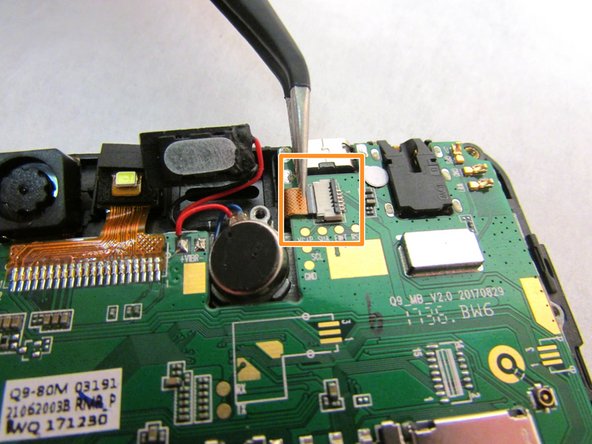


You have now successfully taken out the old motherboard and replaced it with a working one. To reassemble your device, follow these instructions in reverse order.
Cancel: I did not complete this guide.
One other person completed this guide.

Team

Embry-Riddle Aeronautical University, Team S3-G3, Watkins Summer 2019 Member of Embry-Riddle Aeronautical University, Team S3-G3, Watkins Summer 2019
ERAU-WATKINS-SU19S3G3
4 Members
60 Guides authored
