
MartinLogan Motion 4i Woofer Replacement

Austin Paul and 2 other contributors
Last updated on Dec 27, 2023
Views: 581
View statistics:
- Past 24 Hours:
- 2
- Past 7 Days:
- 15
- Past 30 Days:
- 50
- All Time:
- 581
Comments: 0
No one has left comments on this guide. Will you be first?
Go to guide commentsCompleted: 0 1
No one has marked this guide "completed." Will you be the first?
1 person has marked this guide "completed." It's you — great job!
Favorites: 0 1
No one has favorited (and subscribed to) this guide. Will you be the first?
1 person has favorited (and subscribed to) this guide — and that's you!
Introduction
Go to step 1 ↓Follow this guide to replace the woofer inside your MartinLogan Motion 4i model MO4IBL.
The woofer in a speaker generates low frequencies. A speaker with a failing woofer makes a fizzing sound.
You must have the back cover removed from the Speaker to start repairs. If you have already removed the back cover, please skip to step 7.
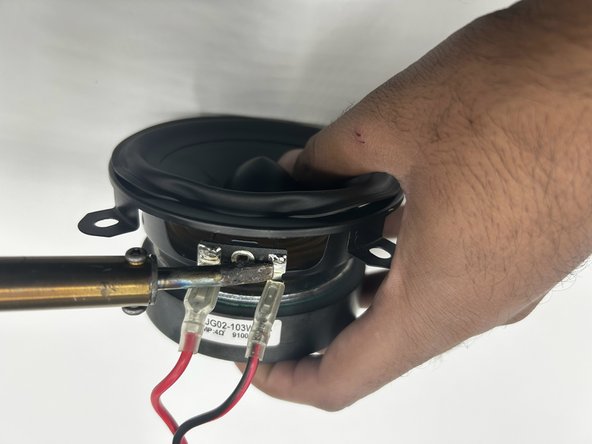
In step 9 you will need a soldering iron to take out 2 wires off the woofer.
Before beginning, the woofer is highly magnetic so keep your phone and other electronic devices away from it
What you need
Tools


-
-
-
Remove the speaker grill from the face of the speaker by using both hands to grip both ends of the speaker grill and pulling up to release the magnetic ends.
 Ask FixBot
-
-
-
Remove the six caps from the outer edge of the face of the speaker with an iFixit opening tool.
-
-
-
Remove the six 4 mm Phillips #2 screws that are located inside each of the holes where the rubber caps used to be.
-
-
-
-
Lightly grip the material that insulates and covers the speaker components and remove it by pulling up.
-
-
-
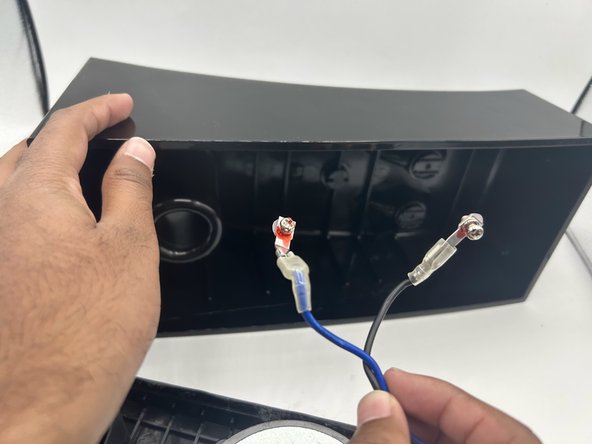
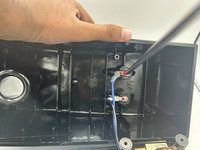
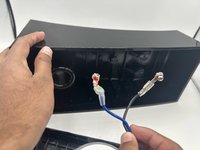
Remove both wires that are connecting the back of the speaker to the components of the speaker to fully access the speaker components.
-
-
-




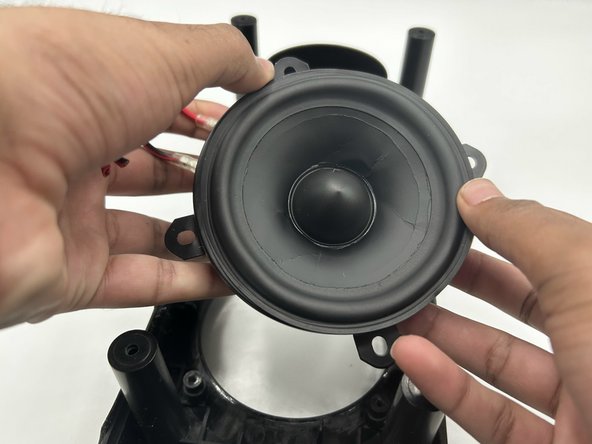
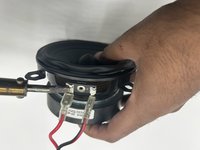
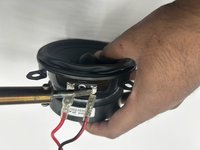
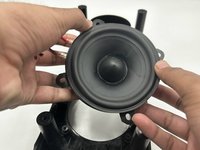
To reassemble your device, follow these instructions in reverse order.

Team

University of North Texas, Team 1-3, Kilpatrick Fall 2023 Member of University of North Texas, Team 1-3, Kilpatrick Fall 2023
UNT-KILPATRICK-F23S1G3
4 Members
60 Guides authored
