
Marshall Stanmore II Subwoofer Assembly Replacement

Rebecca Arellano and 3 other contributors
Last updated on Jun 12, 2024
Views: 1.7K
View statistics:
- Past 24 Hours:
- 8
- Past 7 Days:
- 31
- Past 30 Days:
- 125
- All Time:
- 1,657
Comments: 0
No one has left comments on this guide. Will you be first?
Go to guide commentsCompleted: 0 1
No one has marked this guide "completed." Will you be the first?
1 person has marked this guide "completed." It's you — great job!
Favorites: 0 1
No one has favorited (and subscribed to) this guide. Will you be the first?
1 person has favorited (and subscribed to) this guide — and that's you!
Introduction
Go to step 1 ↓This guide is intended to replace the subwoofer in the Marshall Stanmore II Bluetooth Speaker.
The subwoofer produces the low-frequency sounds in a speaker. Low-frequency sounds--or bass--are what allow the listener to feel the richness and depth of music. Without bass, anything played through the speaker would sound tinny and mechanical.
Before using this guide, check the adjustments for the bass and treble using the dials on top of the speaker or through the Marshall Bluetooth app. Adjusting these configurations usually fixes any sound quality issues one may come across when this problem arises. If adjusting the bass and treble doesn't solve the issue, follow the troubleshooting steps on the Marshall Stanmore II Bluetooth Speaker Troubleshooting page for more possible solutions before disassembling the device.
Before removal, take note of the magnet that is on the subwoofer. Try to keep magnet-sensitive items concealed, or away, during removal.
What you need
Tools


-
-
-
Lay the speaker with the back panel facing up on a flat, stable work surface.
 Ask FixBot
-
-
-
Use a Phillips #2 screwdriver to remove the ten 20.5 mm screws that secure the rear panel to the chassis.
-
-
-
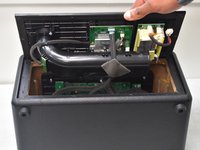
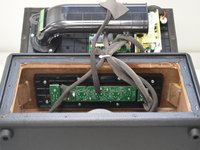
Carefully lift the rear panel and let it rest on an object, like a stack of books, to avoid straining the cables.
-
-
-
-
-
-
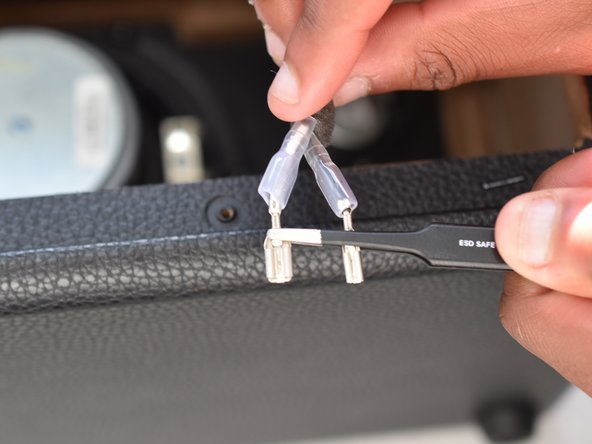
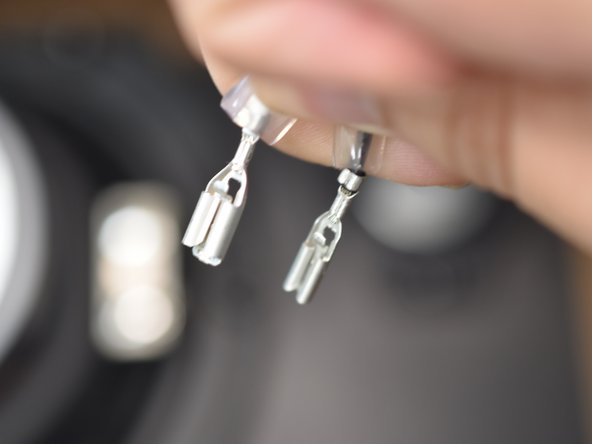
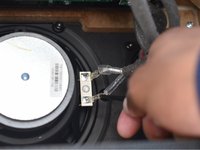
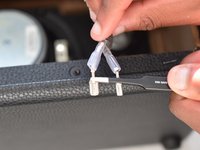
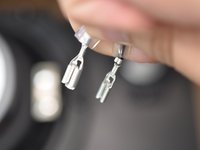
Pull back the clear sheaths on the end of each wire to expose the terminals.
-
Using a pair of tweezers, or your fingernail, depress the small latch and gently pull the wire off of the metal tabs.
-
-
-
Remove the six 20.5 mm T20 Torx screws that secure the subwoofer to the housing.
-
-





To reassemble your device, follow these instructions in reverse order.

Team

University of North Texas, Team 2-1, Kilpatrick Spring 2024 Member of University of North Texas, Team 2-1, Kilpatrick Spring 2024
UNT-KILPATRICK-S24S2G1
5 Members
72 Guides authored
