
Macintosh Powerbook 5300cs Trackpad Replacement

Ronan and 9 other contributors
Last updated on Jan 15, 2026
Views: 1.8K
View statistics:
- Past 24 Hours:
- 3
- Past 7 Days:
- 19
- Past 30 Days:
- 104
- All Time:
- 1,755
Comments: 4
4 comments on steps.
Completed: 2 3
2 people have marked this guide "completed." Will you be next?
3 people have marked this guide "completed." Including you — great job!
Favorites: 1 2
1 person has favorited (and subscribed to) this guide. Will you be next?
2 people have favorited (and subscribed to) this guide — including you!
Needs Better Images
Better photos will improve this guide. Help out by taking, editing, or uploading new ones!
Better Introduction
Improve this guide by completing or revising its introduction.
Introduction
Go to step 1 ↓The trackpad is used to move the cursor on the screen. It is located below the keyboard.
What you need
Tools

-
-
-
The battery compartment is located in the front-right side of the laptop.
 Ask FixBot
-
-
-
To insert the battery, gently slide it into the compartment until it clicks in place.
-
To remove, slide the button highlighted in the red rectangle to the right to release the battery and slide it from the compartment.
-
-
-
-
-
With the laptop upside down and with the battery removed, use a Torx #9 screw driver to remove the three .84 in. screws shown.
-
-
-
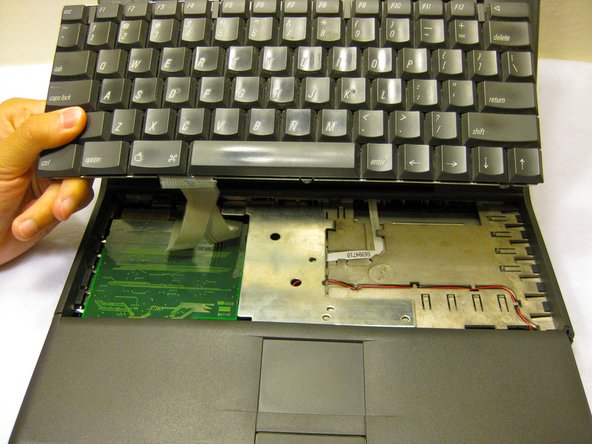
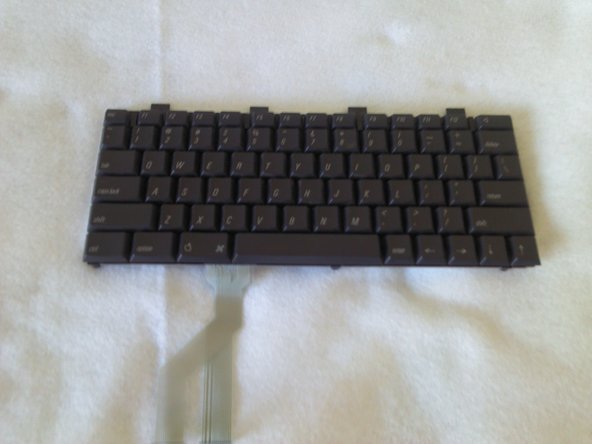
Carefully pull up on the front of the keyboard to pop it out from the case.
-
Then slide the back out so the keyboard becomes nearly free.
-
-
-
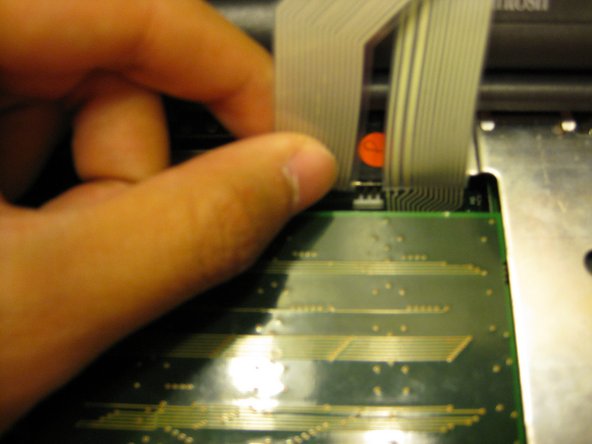
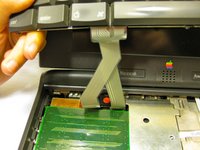
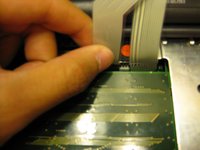
Disconnect the ribbon that is connecting the keyboard to the rest of the computer.
-
Pull the keyboard out and repair or replace as needed.
-
-
-
-
-
Remove the front plastic panel of the laptop by carefully lifting it up and forward.
-
-
-
-
Remove the orange stripped ribbon that connects the trackpad to the device by carefully pulling the ribbon from its connector up and out.
-
-
-
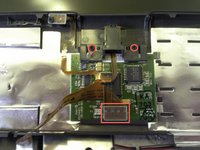
With a Torx #9 screwdriver, remove the two .20 in. screws circled in red that are holding the trackpad in place. This will disconnect the mouse button.
-
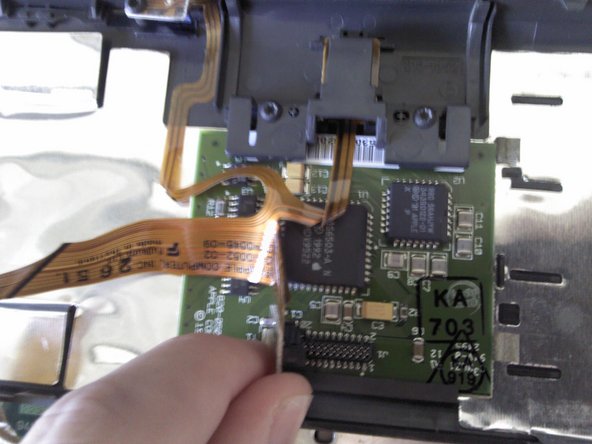
Following this action, disconnect the ribbon highlighted with the red rectangle connecting the trackpad to the laptop.
-
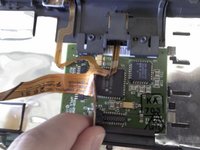
Remove the mouse button by sliding it out from the top of the orange ribbon.
-
-
-
The trackpad can now be removed from the laptop. Adjust the trackpad as needed.
-
-





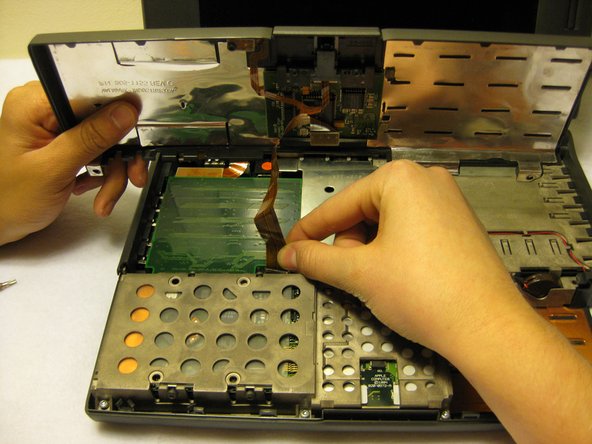




To reassemble your device, follow these instructions in reverse order.
Cancel: I did not complete this guide.
2 other people completed this guide.

Team

Cal Poly, Team 6-1, Regan Fall 2011 Member of Cal Poly, Team 6-1, Regan Fall 2011
CPSU-REGAN-F11S6G1
4 Members
72 Guides authored
