Introduction
Use this guide to replace your MacBook Pro's heat sink. Before reinstalling the heat sink, it is essential to apply a new layer of thermal paste.
What you need
-
-
-
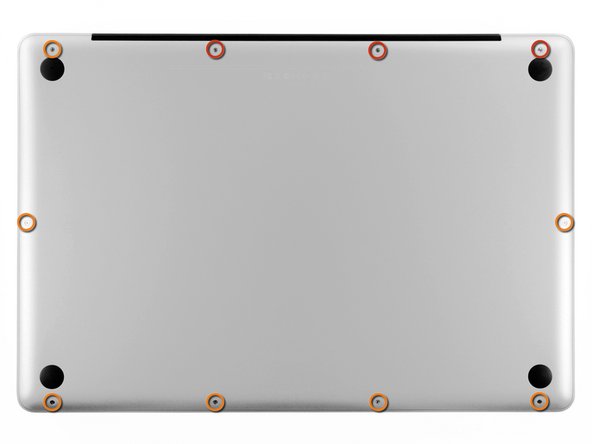
Remove the following ten screws securing the lower case to the upper case:
-
Three 13.5 mm Phillips screws.
-
Seven 3 mm Phillips screws.
 Ask FixBot
-
-
-
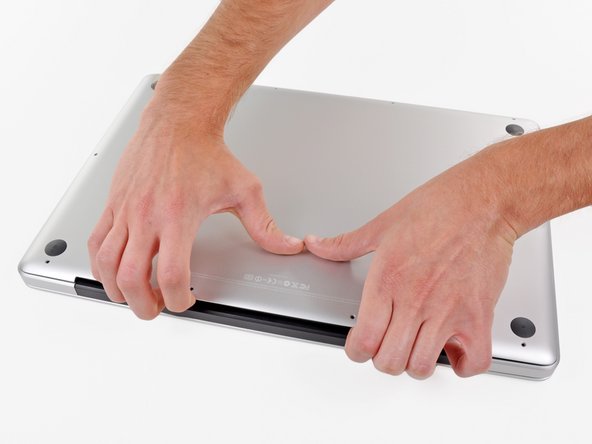
Wedge your fingers between the lower case and the vent, and lift upward to release the two clips holding the lower case to the upper case.
-
Remove the lower case.
-
-
-
-
-
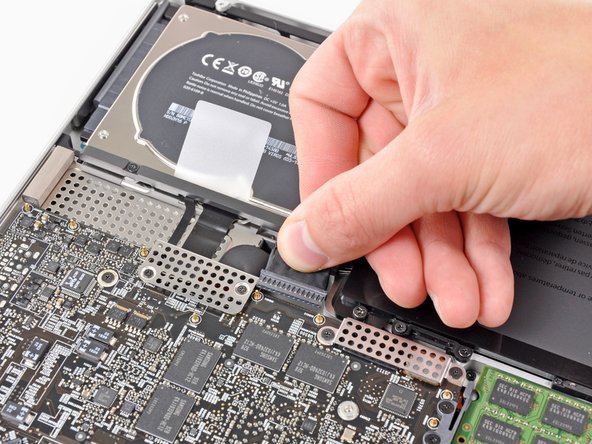
If present, grab the plastic tab attached to the battery connector and pull it toward the front edge of the device. For Late-2011 models the battery connector will not have a tab and is simply a plug that inserts straight down into the motherboard--to remove pry the plug straight up.
-
-
-
-
-
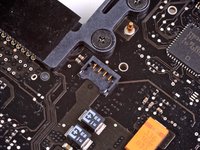
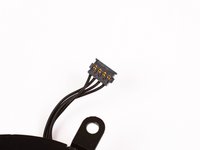
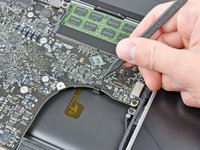
Use the flat end of a spudger to lift the right fan connector out of its socket on the logic board.
-
-
-
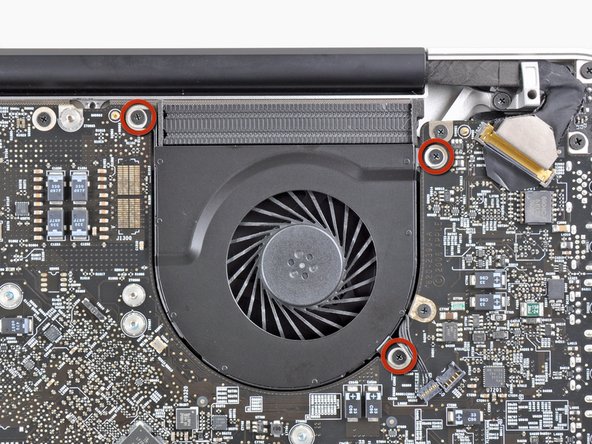
Remove the three 3.1 mm Phillips screws securing the right fan to the logic board.
-
-
-
Remove the right fan from the upper case, minding its cable that may get caught.
-
-
-
-
-
Use the flat end of a spudger to lift the left fan connector out of its socket on the logic board.
-
-
-
Remove the three 3.1 mm Phillips screws securing the left fan to the logic board.
-
Remove the left fan from the upper case, minding its cable that may get caught.
-
-
-
Use the tip of a spudger or your fingernail to flip up the retaining flap on the keyboard backlight ribbon cable.
-
Pull the keyboard backlight ribbon cable out of its socket.
-
-
-
-
Use the tip of a spudger to push the small plastic cable retainer away from the camera cable socket for enough clearance to remove the camera cable.
-
-
-
Pull the camera cable toward the optical drive opening to disconnect it from the logic board.
-
-
-
Use the flat end of a spudger to pry the optical drive connector up and out of its socket on the logic board.
-
-
-
Use the flat end of a spudger to lift the subwoofer & right speaker connector out of its socket on the logic board.
-
-
-
Use the tip of a spudger or your fingernail to flip up the retaining flap on the IR sensor ribbon cable socket.
-
Pull the IR sensor ribbon cable out of its socket.
-
-
-
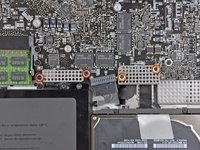
Remove the following four screws:
-
Two 3.5 mm Phillips screws
-
Two 1.6 mm Phillips screws
-
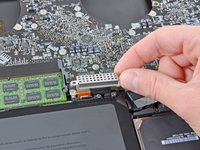
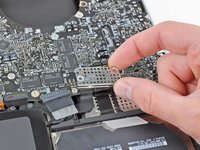
Remove both connector shields from the logic board.
-
-
-
Use the flat end of a spudger to pry the trackpad connector up and out of its socket on the logic board.
-
-
-
Use your fingernail to flip up the retaining flap on the keyboard ribbon cable socket.
-
Pull the keyboard ribbon cable out of its socket.
-
-
-
Use your fingernail to flip up the retaining flap on the express card cage ribbon cable socket.
-
Pull the express card cage ribbon cable out of its socket.
-
-
-
Use the flat end of a spudger to lift the hard drive cable connector up and out of its socket on the logic board.
-
-
-
Use the tip of a spudger or your fingernail to flip up the retaining flap on the battery indicator cable socket.
-
Pull the battery indicator ribbon cable out of its socket.
-
-
-
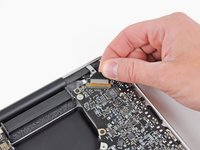
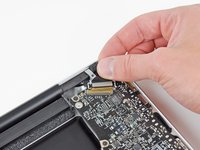
Lift the black plastic flap attached to the display data cable retainer and rotate it toward the DC-In side of the MacBook.
-
Pull the display data cable out of its socket.
-
-
-
Remove the following eight screws securing the logic board and DC-In board to the upper case:
-
Six 3.2 mm Phillips screws
-
Two 7.6 mm Phillips screws
-
-
-
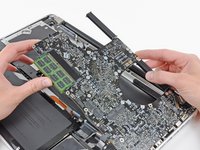
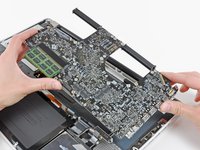
Lift the logic board assembly from the side nearest the optical drive and lift it away from the upper case.
-
Carefully pull the ports and DC-In board away from the side of the upper case and remove the logic board assembly, minding any cables that may get caught.
-
-
-
-
-
Remove the eight 8.3 mm Phillips screws securing the heat sink to the logic board.
-
-
-
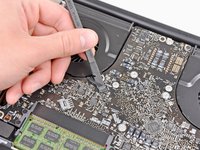
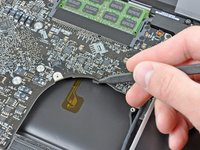
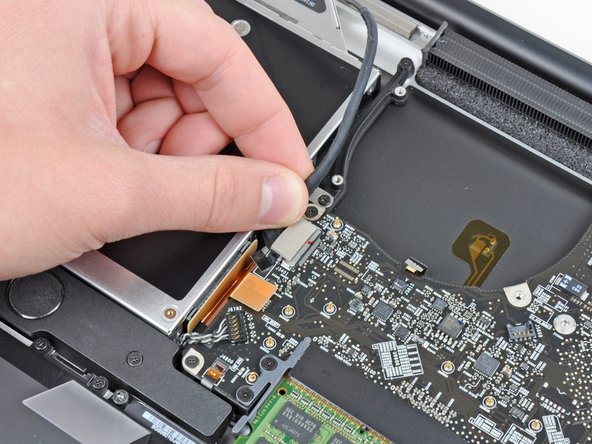
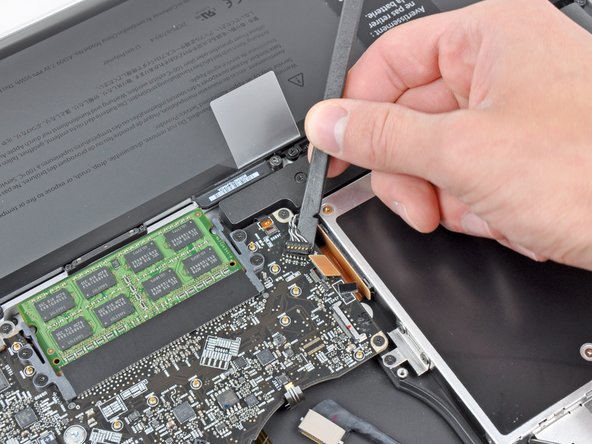
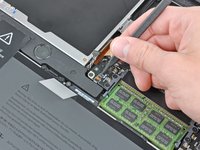
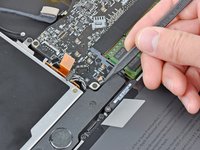
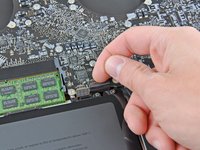
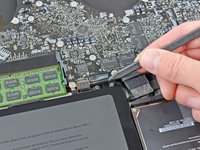
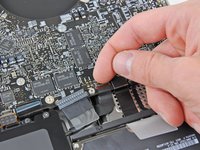
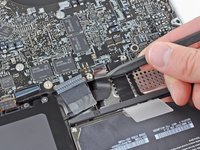
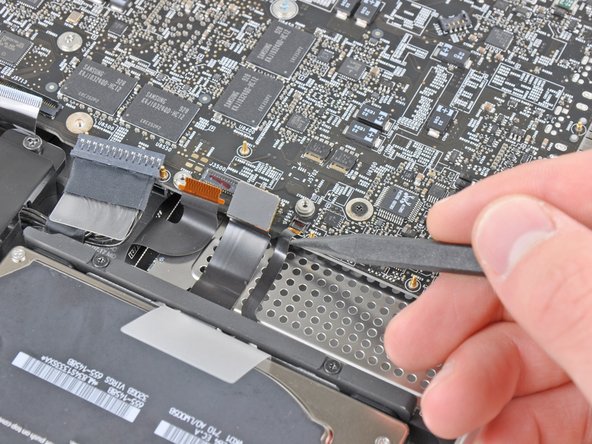
Squeeze the heat sink thermal sensor cable between your thumb and the tip of a spudger.
-
Lift the spudger upward to lift the thermal sensor connector out of its socket on the logic board.
-
-


























To reassemble your device, follow these instructions in reverse order.
Cancel: I did not complete this guide.
35 other people completed this guide.

10 Guide Comments
After compleating this repair , my mac had the normal hard drive noise then a chime did not even grey screen . almost instantly I smelt fire and saw smoke pouring out of the case.. maac was on battery at the time .. I opened it up and disconected the battery and then I saw the video display cable (Step 21 ) it had glowing embers on the tape and tottally melted one side of it ... the connector to the logic board has black marks , but i do not know if the damage is extened to the logic board or if I can get away with a new dispay data cable , dont even know where to source one here in NZ .. any help would be great
I completed this guide. When I finished the macbook would not turn on => PANIC
I went over and the problem was the keyboard cable. The Step 17 is a little difficult in reverse. Pay special atention at the correct position of the keyboard ribbon cable.
It was a little scare. Otherwise all perfect! Thank you very much!
Successfully changed the thermal paste by following this guide. My MacBook Pro had some issues after I put it back together because of loose and improperly seated cables. In my case, the display cable wasn't seated properly and the IR-sensor cable was loose. So if your machine doesn't turn on, or something seems to be working incorrectly, it's definitely worth double checking the cables.
Yes B S, the temps will be lower. Apple is known to put only a tiny amount or bad quality thermal paste on their machines, so even is a Mac is brand new, temperatures will be better if the thermal paste is replaced. I have replaced thermal paste on numerous computers and have never regretted it :)
