Free Shipping on Domestic Orders $75+

MacBook Pro 15" Retina Display Mid 2014 IO Board Cable Replacement

What you need

  1. MacBook Pro 15" Retina Display Mid 2014 IO Board Cable Replacement, Lower Case: step 1, image 1 of 1
    • Remove the following P5 pentalobe screws securing the lower case to the MacBook Pro:

    • Eight 3.0 mm

    • Two 2.3 mm

    Ask FixBot

    Add Comment

  2. MacBook Pro 15" Retina Display Mid 2014 IO Board Cable Replacement: step 2, image 1 of 1
    • Lifting from the edge nearest the clutch cover, lift the lower case off the MacBook Pro.

    • Set the lower case aside.

    Ask FixBot

    Add Comment

  3. MacBook Pro 15" Retina Display Mid 2014 IO Board Cable Replacement, Battery Connector: step 3, image 1 of 1
    • Peel back the warning label covering the battery connector.

    Ask FixBot

    Add Comment

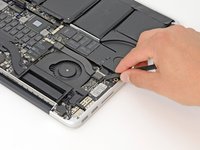
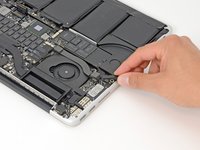
  4. MacBook Pro 15" Retina Display Mid 2014 IO Board Cable Replacement: step 4, image 1 of 2 MacBook Pro 15" Retina Display Mid 2014 IO Board Cable Replacement: step 4, image 2 of 2
    • Using the flat end of a spudger, gently pry the battery connector straight up out of its socket on the logic board.

    • Bend the battery cables back and out of the way, ensuring that the battery connector doesn't accidentally make contact with the logic board.

    Ask FixBot

    Add Comment

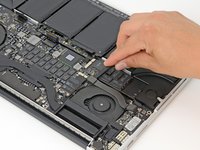
  5. MacBook Pro 15" Retina Display Mid 2014 IO Board Cable Replacement, I/O Board Cable: step 5, image 1 of 3 MacBook Pro 15" Retina Display Mid 2014 IO Board Cable Replacement, I/O Board Cable: step 5, image 2 of 3 MacBook Pro 15" Retina Display Mid 2014 IO Board Cable Replacement, I/O Board Cable: step 5, image 3 of 3
    • Using the flat end of a spudger, pry the I/O board cable straight up out of its socket on the I/O board.

    • In a similar fashion, remove the I/O board cable from its socket on the I/O board.

    Ask FixBot

    Add Comment

  6. MacBook Pro 15" Retina Display Mid 2014 IO Board Cable Replacement: step 6, image 1 of 1
    • Remove the I/O board cable from the MacBook Pro.

    Ask FixBot

    Add Comment

Conclusion

To reassemble your device, follow these instructions in reverse order.

Cancel: I did not complete this guide.

One other person completed this guide.

Andrew Optimus Goldheart

Member since: 10/17/09

515,193 Reputation

407 Guides authored

Team

iFixit Member of iFixit

Staff

122 Members

26,593 Guides authored

0 Guide Comments

Add Comment

View Statistics:

Past 24 Hours: 1

Past 7 Days: 14

Past 30 Days: 54

All Time: 7,102