Free Shipping on Domestic Orders $75+

MacBook Pro 13" Retina Display Early 2013 SSD Replacement

What you need

  1. MacBook Pro 13" Retina Display Early 2013 SSD Replacement, Lower Case: step 1, image 1 of 1
    Tool used on this step:
    Magnetic Project Mat
    $19.95
    Buy
    • Remove the following ten screws securing the lower case to the upper case:

    • Two 2.3 mm P5 Pentalobe screws

    • Eight 3.0 mm P5 Pentalobe screws

    • Throughout this repair, keep track of each screw and make sure it goes back exactly where it came from to avoid damaging your device.

    Ask FixBot

    Add Comment

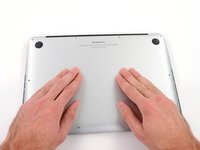
  2. MacBook Pro 13" Retina Display Early 2013 SSD Replacement: step 2, image 1 of 1
    • Wedge your fingers between the upper case and the lower case.

    • Gently pull the lower case away from the upper case.

    • Remove the lower case and set it aside.

    Ask FixBot

    Add Comment

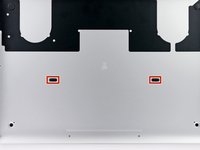
  3. MacBook Pro 13" Retina Display Early 2013 SSD Replacement: step 3, image 1 of 3 MacBook Pro 13" Retina Display Early 2013 SSD Replacement: step 3, image 2 of 3 MacBook Pro 13" Retina Display Early 2013 SSD Replacement: step 3, image 3 of 3
    • During reassembly, gently push down the center of the lower case to reattach the two plastic clips.

    • The lower case is connected to the upper case at the center, with two plastic clips.

    Ask FixBot

    Add Comment

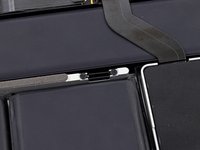
  4. MacBook Pro 13" Retina Display Early 2013 SSD Replacement, Battery Connector: step 4, image 1 of 1
    • Remove the plastic cover adhered to the battery contact board.

    Ask FixBot

    Add Comment

  5. MacBook Pro 13" Retina Display Early 2013 SSD Replacement: step 5, image 1 of 1
    • Remove the following screws securing the battery connector board to the logic board:

    • Two 2.8 mm T6 Torx screws

    • One 7.0 mm T6 Torx shouldered screw

    Ask FixBot

    Add Comment

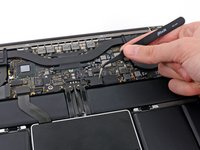
  6. MacBook Pro 13" Retina Display Early 2013 SSD Replacement: step 6, image 1 of 2 MacBook Pro 13" Retina Display Early 2013 SSD Replacement: step 6, image 2 of 2
    Tool used on this step:
    Tweezers
    $4.99
    Buy
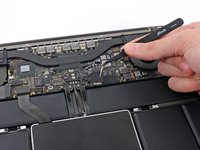
    • Use tweezers to remove the small plastic cover located near the bottom right of the battery connector board.

    Ask FixBot

    Add Comment

  7. MacBook Pro 13" Retina Display Early 2013 SSD Replacement: step 7, image 1 of 1
    • Remove the wide head 6.4 mm T6 Torx screw securing the battery connector to the logic board assembly.

    Ask FixBot

    Add Comment

  8. MacBook Pro 13" Retina Display Early 2013 SSD Replacement: step 8, image 1 of 2 MacBook Pro 13" Retina Display Early 2013 SSD Replacement: step 8, image 2 of 2
    • Carefully lift the battery connector board up off the logic board.

    • It is recommended to bend the battery cables just slightly, to keep the board suspended up above the logic board and out of the way.

    • Do not fold the board completely over, or crease the cables, as this may damage the battery.

    Ask FixBot

    Add Comment

  9. MacBook Pro 13" Retina Display Early 2013 SSD Replacement, Battery Contact Board: step 9, image 1 of 2 MacBook Pro 13" Retina Display Early 2013 SSD Replacement, Battery Contact Board: step 9, image 2 of 2
    Tool used on this step:
    Tweezers
    $4.99
    Buy
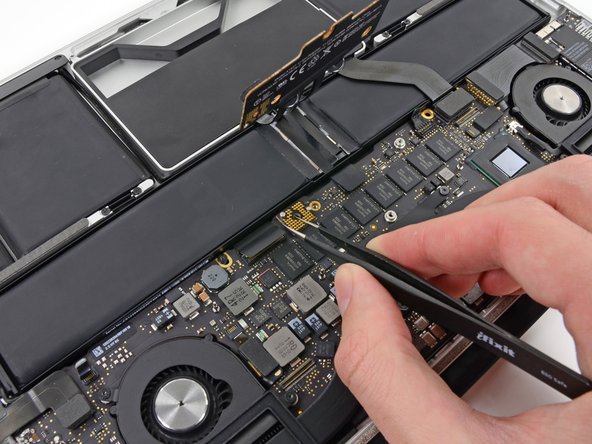
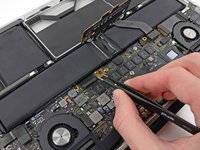
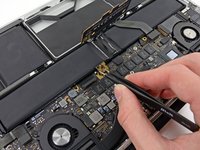
    • Grasp the Interposer with tweezers.

    • An interposer is the name for an interface that links one electrical connection to another. In this repair, it is the board connecting the battery to logic board.

    • Lift the Interposer off the logic board and remove it.

    • Removing this board will ensure that the battery remains disconnected throughout your repair, preventing your computer from accidentally powering on. It's also a good idea to take it out so it doesn't fall out unexpectedly.

    Ask FixBot

    Add Comment

  10. MacBook Pro 13" Retina Display Early 2013 SSD Replacement, SSD Assembly: step 10, image 1 of 2 MacBook Pro 13" Retina Display Early 2013 SSD Replacement, SSD Assembly: step 10, image 2 of 2
    • Use the flat end of a spudger to pry the SSD cable connector up from its socket on the logic board.

    Ask FixBot

    Add Comment

  11. MacBook Pro 13" Retina Display Early 2013 SSD Replacement: step 11, image 1 of 3 MacBook Pro 13" Retina Display Early 2013 SSD Replacement: step 11, image 2 of 3 MacBook Pro 13" Retina Display Early 2013 SSD Replacement: step 11, image 3 of 3
    • Use your thumb or finger to bend the plastic spring bar on the SSD tray, freeing the two clips at the front side of the device.

    • While holding the spring bar depressed, tilt the SSD assembly up out of its cavity.

    Ask FixBot

    Add Comment

  12. MacBook Pro 13" Retina Display Early 2013 SSD Replacement: step 12, image 1 of 1
    • Remove the SSD assembly from the upper case.

    Ask FixBot

    Add Comment

  13. MacBook Pro 13" Retina Display Early 2013 SSD Replacement: step 13, image 1 of 1
    • Remove the single 2.9 mm T5 Torx screw securing the SSD to the SSD tray.

    Ask FixBot

    Add Comment

  14. MacBook Pro 13" Retina Display Early 2013 SSD Replacement: step 14, image 1 of 2 MacBook Pro 13" Retina Display Early 2013 SSD Replacement: step 14, image 2 of 2
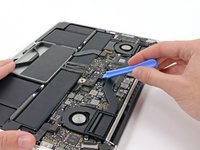
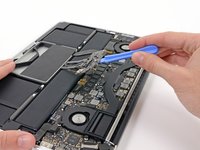
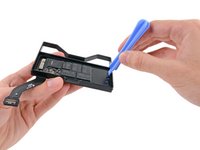
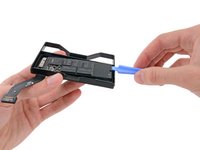
    • Insert the edge of plastic opening tool between the SSD and the SSD tray, opposite to the socket side of SSD tray.

    • Pry the side of the SSD opposite the SSD tray socket out of the SSD tray.

    • Only lift the SSD up far enough to grab the sides of it with your fingers. Lifting it any more may damage the card or socket.

    Ask FixBot

    Add Comment

  15. MacBook Pro 13" Retina Display Early 2013 SSD Replacement: step 15, image 1 of 2 MacBook Pro 13" Retina Display Early 2013 SSD Replacement: step 15, image 2 of 2
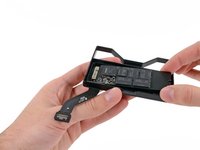
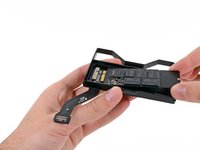
    • Carefully pull the SSD straight out of its socket on the SSD tray.

    Ask FixBot

    Add Comment

  16. MacBook Pro 13" Retina Display Early 2013 SSD Replacement, SSD: step 16, image 1 of 1
    • SSD remains.

    Ask FixBot

    Add Comment

Conclusion

To reassemble your device, follow these instructions in reverse order.

Cancel: I did not complete this guide.

55 other people completed this guide.

Sam Goldheart

Member since: 10/18/12

477,615 Reputation

538 Guides authored

Team

iFixit Member of iFixit

Staff

122 Members

26,593 Guides authored

8 Guide Comments

Excelente, muchas gracias

Ruben Morales - Reply Share

Ok, now that I replaced my SSD - how do I recover my OS?

Andy Stevko - Reply Share

You can boot your mac to the recovery pressing command + R while you turn on your mac, configure your wifi and then create the partition in the ssd using disk utility, then you can clos disk utility and proceed to the instalation of the OS, the installation will be downloaded from the apple servers so it will depend of your internet speed how long will it take.

Ivan Roque - Reply Share

Sieht so aus, als würde da eine ganz normale 2,5”-SSD reinpassen, wenn man den Einschub weglässt. Kann man das Kabel am MBP entfernen und ohne den Einschub benutzen?

Familienfreundlicher_Nutzer - Reply Share

Geht leider nicht. Die neue NVMe m.2 SSD muss eine Übergangslösung haben. Leicht zu finden beim Internett. Das Übergang ist ein kleines Zeug das Mann braucht der Länge und Datei - Brikett zur passen.

Adrian Swift - Reply Share

Add Comment

View Statistics:

Past 24 Hours: 5

Past 7 Days: 36

Past 30 Days: 179

All Time: 148,818