Free Shipping on Domestic Orders $75+

MacBook Air 13" Early 2014 Fan Replacement

What you need

  1. MacBook Air 13" Early 2014 Fan Replacement, Lower Case: step 1, image 1 of 1
    Tool used on this step:
    P5 Pentalobe Screwdriver Retina MacBook Pro and Air
    $5.99
    Buy
    • Before proceeding, power down your MacBook. Close the display and lay it on a soft surface, top-side down.

    • Use a P5 Pentalobe driver to remove ten screws securing the lower case, of the following lengths:

    • Two 9 mm screws

    • Eight 2.6 mm screws

    Ask FixBot

    Add Comment

  2. MacBook Air 13" Early 2014 Fan Replacement: step 2, image 1 of 1
    • Wedge your fingers between the display and the lower case and pull upward to pop the lower case off the Air.

    • Remove the lower case and set it aside.

    Ask FixBot

    Add Comment

  3. MacBook Air 13" Early 2014 Fan Replacement, Battery Connector: step 3, image 1 of 2 MacBook Air 13" Early 2014 Fan Replacement, Battery Connector: step 3, image 2 of 2
    • To ensure that everything is de-energized and won't turn on while you're working, it is recommended that you disconnect the battery.

    • Grab the clear plastic pull tab attached to the battery connector and pull it parallel to the board toward the front edge of the Air.

    • Do not lift upward on the connector as you disconnect it or you risk damage to the connector socket.

    Ask FixBot

    Add Comment

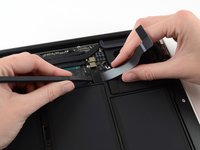
  4. MacBook Air 13" Early 2014 Fan Replacement, I/O Board Cable: step 4, image 1 of 1
    • Use the flat end of a spudger to pry the I/O board cable connector up out of its socket on the I/O board.

    Ask FixBot

    Add Comment

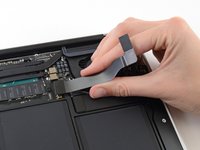
  5. MacBook Air 13" Early 2014 Fan Replacement: step 5, image 1 of 1
    • Carefully peel the I/O board cable from the adhesive securing it to the top of the fan.

    • During reassembly, make sure this cable is in the correct orientation. It will fit if reversed, but the laptop will not boot.

    Ask FixBot

    Add Comment

  6. MacBook Air 13" Early 2014 Fan Replacement: step 6, image 1 of 2 MacBook Air 13" Early 2014 Fan Replacement: step 6, image 2 of 2
    • The following connector has an especially deep socket. Use care when disconnecting it.

    • While gently pulling the I/O board cable upward near its connection to the logic board, use the flat end of a spudger to pry up on alternating sides of the connector to help "walk" it out of its socket.

    • Remove the I/O board cable.

    Ask FixBot

    Add Comment

  7. MacBook Air 13" Early 2014 Fan Replacement, Fan: step 7, image 1 of 1
    • Use the tip of a spudger to carefully flip up the retaining flap on the fan cable ZIF socket.

    • Be sure you are prying up on the hinged retaining flap, not the socket itself.

    Ask FixBot

    Add Comment

  8. MacBook Air 13" Early 2014 Fan Replacement: step 8, image 1 of 1
    • Peel the rubber gasket off the adhesive on the top of the fan.

    Ask FixBot

    Add Comment

  9. MacBook Air 13" Early 2014 Fan Replacement: step 9, image 1 of 1
    • Remove the following three screws securing the fan to the upper case:

    • One 5.4 mm T5 Torx screw

    • One 3.3 mm T5 Torx screw

    • One 4.6 mm T5 Torx screw with a short head

    Ask FixBot

    Add Comment

  10. MacBook Air 13" Early 2014 Fan Replacement: step 10, image 1 of 2 MacBook Air 13" Early 2014 Fan Replacement: step 10, image 2 of 2
    Tool used on this step:
    Tweezers
    $4.99
    Buy
    • Lift the fan from the I/O board side and pull it free from the upper case.

    • Removing the fan will also disconnect the fan ribbon cable. Be careful not to snag it.

    • If you feel resistance as you remove the fan, carefully disconnect its cable using a pair of tweezers.

    Ask FixBot

    Add Comment

Conclusion

To reassemble your device, follow these instructions in reverse order.

Cancel: I did not complete this guide.

29 other people completed this guide.

Sam Goldheart

Member since: 10/18/12

477,615 Reputation

538 Guides authored

Team

iFixit Member of iFixit

Staff

122 Members

26,593 Guides authored

3 Guide Comments

You’re using the wrong model macbook air here, the 2014 has a different battery connector that YOU SHOULD NOT lift up.

Nick katz - Reply Share

I think you’re using a different model of a macbook air because the 2014 model has a different battery connector that you shouldn’t lift up bcs you can broke it

Damian Mil - Reply Share

Hey ~~ I have an early 2014 13" MacBook Air that needs the fan replaced. I bought it from ifixit but need it installed. Is there someone that can do it for me? I'm in northern Vermont. Of course I would expect to be charged for the service.

Siggi - Reply Share

Add Comment

View Statistics:

Past 24 Hours: 2

Past 7 Days: 26

Past 30 Days: 97

All Time: 24,086