Free Shipping on Domestic Orders $75+

Mac Pro Late 2013 AirPort Card Replacement

What you need

  1. Mac Pro Late 2013 AirPort Card Replacement, Outer Case: step 1, image 1 of 2 Mac Pro Late 2013 AirPort Card Replacement, Outer Case: step 1, image 2 of 2
    • Slide the lock switch to the right, to the unlocked position.

    Ask FixBot

    Add Comment

  2. Mac Pro Late 2013 AirPort Card Replacement: step 2, image 1 of 3 Mac Pro Late 2013 AirPort Card Replacement: step 2, image 2 of 3 Mac Pro Late 2013 AirPort Card Replacement: step 2, image 3 of 3
    • Lift the outer case straight up off the Mac Pro.

    • It may help to push down on the center of the fan while lifting the case up.

    Ask FixBot

    Add Comment

  3. Mac Pro Late 2013 AirPort Card Replacement, Fan Assembly: step 3, image 1 of 3 Mac Pro Late 2013 AirPort Card Replacement, Fan Assembly: step 3, image 2 of 3 Mac Pro Late 2013 AirPort Card Replacement, Fan Assembly: step 3, image 3 of 3
    • Remove five 5.1 mm T10 Torx screws from around the outer perimeter of the fan assembly.

    Ask FixBot

    Add Comment

  4. Mac Pro Late 2013 AirPort Card Replacement: step 4, image 1 of 2 Mac Pro Late 2013 AirPort Card Replacement: step 4, image 2 of 2
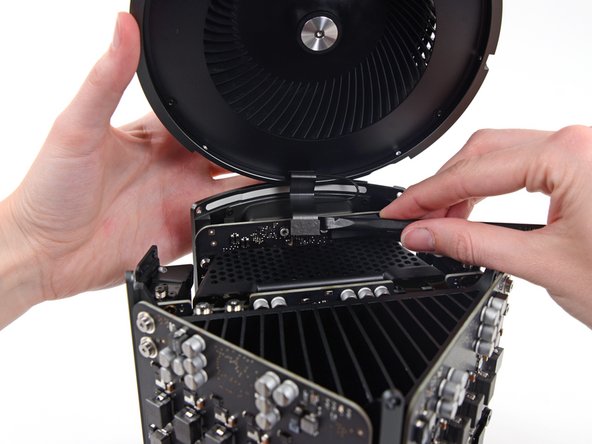
    • The fan assembly is attached to the rest of the computer by two cables on the IO board side.

    • Tilt the assembly up away from the IO board.

    • Do not try to remove the fan assembly yet, as it is still attached by two cables.

    Ask FixBot

    Add Comment

  5. Mac Pro Late 2013 AirPort Card Replacement: step 5, image 1 of 1
    • While supporting the fan assembly with one hand, loosen the two T8 captive screws in the fan cable bracket.

    • These screws are captive in the Mac Pro. Do not try to remove these screws from your Mac Pro.

    Ask FixBot

    Add Comment

  6. Mac Pro Late 2013 AirPort Card Replacement: step 6, image 1 of 1
    Tool used on this step:
    Tweezers
    $4.99
    Buy
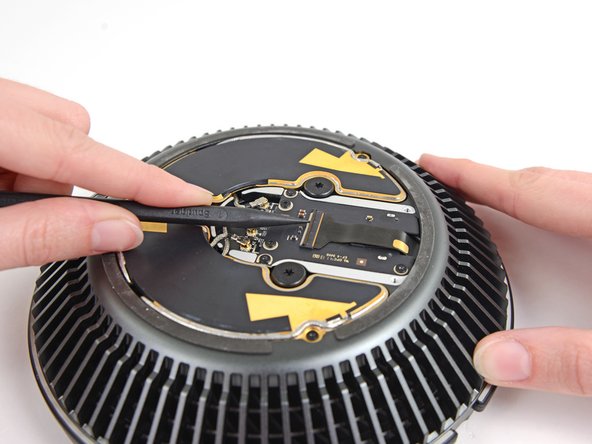
    • Use a pair of tweezers to pull the fan cable bracket away from the fan assembly.

    Ask FixBot
    Add Comment

  7. Mac Pro Late 2013 AirPort Card Replacement: step 7, image 1 of 2 Mac Pro Late 2013 AirPort Card Replacement: step 7, image 2 of 2
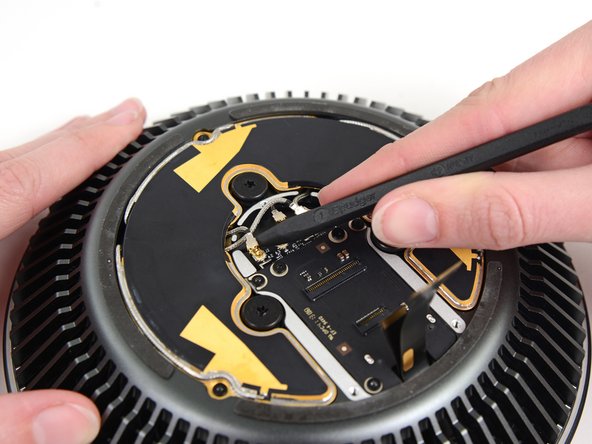
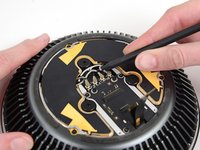
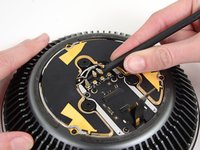
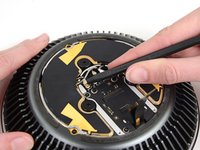
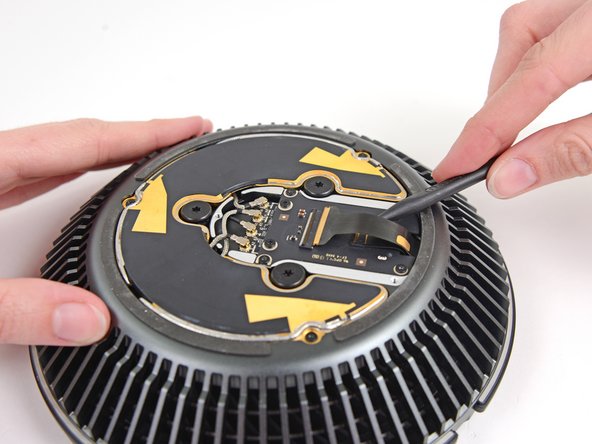
    • Use the flat end of a spudger to disconnect the fan assembly ribbon cable from the IO board.

    Ask FixBot
    Add Comment

  8. Mac Pro Late 2013 AirPort Card Replacement: step 8, image 1 of 1
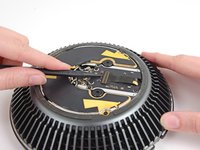
    • Disconnect the fan assembly antenna cable from the IO board.

    • Remove the fan assembly from the Mac Pro.

    Ask FixBot
    Add Comment

  9. Mac Pro Late 2013 AirPort Card Replacement, Fan Assembly Lid: step 9, image 1 of 3 Mac Pro Late 2013 AirPort Card Replacement, Fan Assembly Lid: step 9, image 2 of 3 Mac Pro Late 2013 AirPort Card Replacement, Fan Assembly Lid: step 9, image 3 of 3
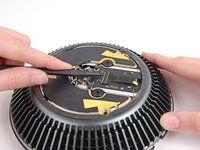
    • Use the flat end of a spudger to pry the fan assembly lid up off the fan assembly.

    • Remove the fan assembly lid.

    Ask FixBot
    Add Comment

  10. Mac Pro Late 2013 AirPort Card Replacement, AirPort Board: step 10, image 1 of 1
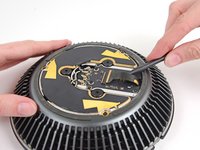
    • Remove the three 3.7 mm T4 screws securing the metal cover to the AirPort board bay.

    Ask FixBot
    Add Comment

  11. Mac Pro Late 2013 AirPort Card Replacement: step 11, image 1 of 1
    • Lift and remove the metal cover from the AirPort board bay.

    Ask FixBot

    Add Comment

  12. Mac Pro Late 2013 AirPort Card Replacement: step 12, image 1 of 3 Mac Pro Late 2013 AirPort Card Replacement: step 12, image 2 of 3 Mac Pro Late 2013 AirPort Card Replacement: step 12, image 3 of 3
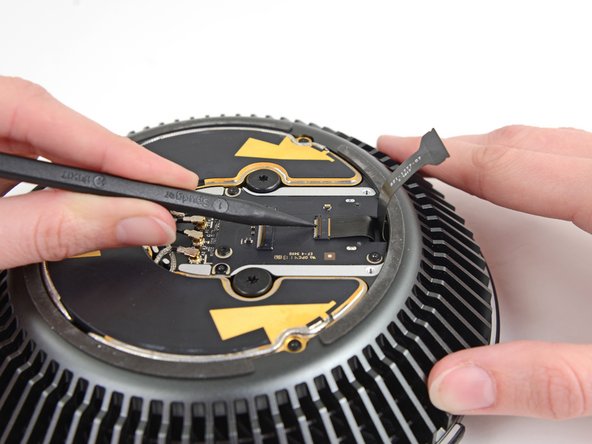
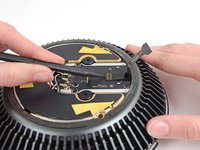
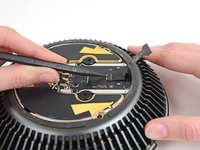
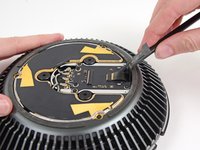
    • Use the tip of a spudger to flip the ZIF retaining tab on the fan assembly ribbon cable connector.

    • Remove the fan assembly ribbon cable from its ZIF socket.

    Ask FixBot

    Add Comment

  13. Mac Pro Late 2013 AirPort Card Replacement: step 13, image 1 of 3 Mac Pro Late 2013 AirPort Card Replacement: step 13, image 2 of 3 Mac Pro Late 2013 AirPort Card Replacement: step 13, image 3 of 3
    • Use the tip of a spudger to flip the ZIF retaining tab on the fan ribbon cable.

    • Disconnect the fan ribbon cable.

    Ask FixBot

    Add Comment

  14. Mac Pro Late 2013 AirPort Card Replacement, AirPort Card: step 14, image 1 of 3 Mac Pro Late 2013 AirPort Card Replacement, AirPort Card: step 14, image 2 of 3 Mac Pro Late 2013 AirPort Card Replacement, AirPort Card: step 14, image 3 of 3
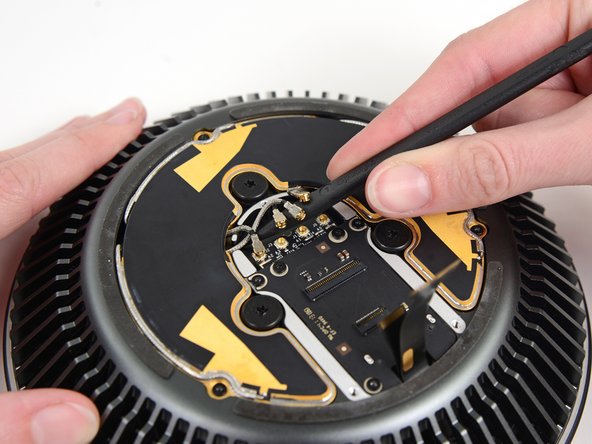
    • Use the tip of a spudger to disconnect the four AirPort antenna cables from the AirPort card.

    Ask FixBot

    Add Comment

  15. Mac Pro Late 2013 AirPort Card Replacement: step 15, image 1 of 1
    • Remove three 3.7 mm T4 screws securing the AirPort board to the fan assembly.

    Ask FixBot

    Add Comment

  16. Mac Pro Late 2013 AirPort Card Replacement: step 16, image 1 of 1
    • Remove the AirPort board and card from the fan assembly.

    Ask FixBot

    Add Comment

  17. Mac Pro Late 2013 AirPort Card Replacement: step 17, image 1 of 1
    • Remove the two 3.7 mm T4 Torx screws securing the AirPort card to the AirPort board.

    Ask FixBot

    Add Comment

  18. Mac Pro Late 2013 AirPort Card Replacement: step 18, image 1 of 2 Mac Pro Late 2013 AirPort Card Replacement: step 18, image 2 of 2
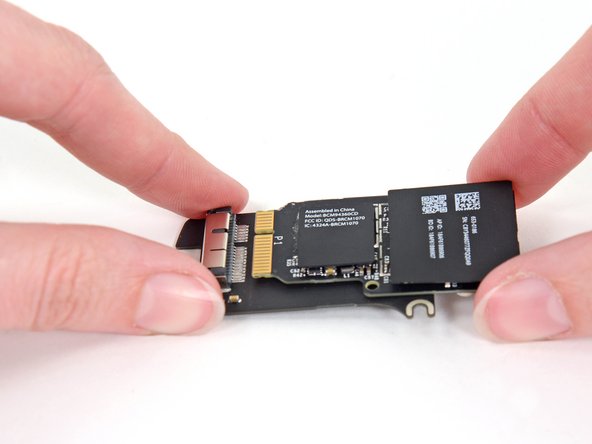
    • Slide the AirPort card out of its socket in the AirPort board.

    Ask FixBot

    Add Comment

Conclusion

To reassemble your device, follow these instructions in reverse order.

Cancel: I did not complete this guide.

3 other people completed this guide.

Andrew Optimus Goldheart

Member since: 10/17/09

515,187 Reputation

407 Guides authored

Team

iFixit Member of iFixit

Staff

122 Members

26,593 Guides authored

4 Guide Comments

Is there a way to replace the Mac Pro Airport card with a more recent one, like when you insert a recent one in an old macbook pro to get new features such as "unlock my mac with my apple watch" ? This is an interesting question that remains unanswered (until now ?)

Vincent Monteil - Reply Share

You show how to replace it but I can’t buy it from ifixit….why?

Sanong - Reply Share

Why not start at step 9 and leave the lid attached?

dillonrw - Reply Share

I wondered the exact same thing. I can see zero reason to remove the fan assembly from the top of the machine just to replace the wifi card. The only reason I can see for doing it would be if you drop a screw it’s at least easy to get to, because everything is separate from the core unit.

David Orriss Jr - Reply Share

Add Comment

View Statistics:

Past 24 Hours: 5

Past 7 Days: 38

Past 30 Days: 114

All Time: 13,507