Free Shipping on Domestic Orders $75+

MSI Modern 15 A10M RAM Replacement

Views: 5.6K

View statistics:

Past 24 Hours:
6
Past 7 Days:
47
Past 30 Days:
171
All Time:
5,577
Comments: 0

No one has left comments on this guide. Will you be first?

Go to guide comments
Completed: 2

2 people have marked this guide "completed." Will you be next?

Favorites: 0

No one has favorited (and subscribed to) this guide. Will you be the first?

Time Required: 5 - 10 minutes
Difficulty: Moderate
Featured Student Guide

This guide has been the hard work of our awesome students and is found to be exceptionally cool by the iFixit staff.

MSI Modern 15 A10M RAM Replacement

Introduction

Go to step 1 ↓

This guide will show you how to replace the RAM in your MSI Modern 15 A10M-242 15.6 laptop if your RAM is corrupted. Some laptops come equipped with RAM that is not fast enough or becomes corrupt. Following these steps will make your MSI Modern 15 faster than out of the box. As a caution, this involves electronic hardware with a potential for hardware damage or injury.

What you need

Parts

Tools

Video Overview

    1. MSI Modern 15 A10M RAM Replacement, Preparing the laptop for opening: step 1, image 1 of 3 MSI Modern 15 A10M RAM Replacement, Preparing the laptop for opening: step 1, image 2 of 3 MSI Modern 15 A10M RAM Replacement, Preparing the laptop for opening: step 1, image 3 of 3
      • Turn off your laptop.

      • Unplug your power adapter.

      • Remove any USB devices that you have connected to your laptop.

      • Close your laptop.

      Ask FixBot

      Add Comment

    2. MSI Modern 15 A10M RAM Replacement, Hardware protection: step 2, image 1 of 3 MSI Modern 15 A10M RAM Replacement, Hardware protection: step 2, image 2 of 3 MSI Modern 15 A10M RAM Replacement, Hardware protection: step 2, image 3 of 3
      • Turn your laptop 180 degrees.

      • Insert a safety pin in the "Reset EC" slot.

      • There is potential hardware damage to the laptop if "Reset EC" not performed.

      • A safety pin has small enough diameter to fit into the "Reset EC" to perform this step.

      • Resetting the EC requires holding the RESET EC button for a full 30 seconds. Simply inserting the safety pin for a brief moment will not trigger a reset.

      • After performing a reset of the EC, your PC may not turn on using the power button if it's on battery power. In this case, you'll need to plug in the charger and wait for the laptop to turn on and to display. This does indeed indicate that the RESET EC was successful.

      • Wait for 5 minutes after Resetting EC, to ensure that all components are properly powered down, which can prevent accidental damage.

      Ask FixBot

      Add Comment

    3. MSI Modern 15 A10M RAM Replacement, Unscrewing the laptop: step 3, image 1 of 2 MSI Modern 15 A10M RAM Replacement, Unscrewing the laptop: step 3, image 2 of 2
      • Remove eleven 1 mm screws using a Phillips #1 screwdriver.

      • Phillips #1 is known also as PH1 in some screwdrivers set

      Ask FixBot

      Add Comment

    4. MSI Modern 15 A10M RAM Replacement, Removing the back cover: step 4, image 1 of 3 MSI Modern 15 A10M RAM Replacement, Removing the back cover: step 4, image 2 of 3 MSI Modern 15 A10M RAM Replacement, Removing the back cover: step 4, image 3 of 3
      Tool used on this step:
      Plastic Cards
      $2.99
      Buy
      • Turn your laptop vertically, so the monitor base is facing up.

      • Before continuing this step, make sure you have unscrewed all 11 screws, including the one hidden under the "Factory Seal" sticker. Ignoring this may cause you to break the back cover of your laptop by missing a screw that prevents it from opening properly.

      • Insert the plastic card above the back cover plate along the spine and slide it through the side.

      • You will hear a popping sound as the card slides through the laptop. This is the plastic hinges unlocking as it slides through.

      • Warning: Use a plastic card or spudger to open your laptop back cover. Using metal or hard material for this step will likely cause severe damage to the laptop if you are not a professional.

      • Remove the back cover.

      Ask FixBot

      Add Comment

    5. MSI Modern 15 A10M RAM Replacement, Disconnecting the battery: step 5, image 1 of 3 MSI Modern 15 A10M RAM Replacement, Disconnecting the battery: step 5, image 2 of 3 MSI Modern 15 A10M RAM Replacement, Disconnecting the battery: step 5, image 3 of 3
      • Unplug the battery cable connected to motherboard.

      • Failure to complete this step can result in electrical damage.

      • This requires some force to unplug the cable.

      • Hold the pin when unplugging the battery cable; pulling on the wires will cause damage to the battery cable.

      Ask FixBot

      Add Comment

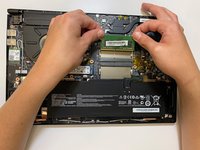
    6. MSI Modern 15 A10M RAM Replacement, Removing the RAM: step 6, image 1 of 3 MSI Modern 15 A10M RAM Replacement, Removing the RAM: step 6, image 2 of 3 MSI Modern 15 A10M RAM Replacement, Removing the RAM: step 6, image 3 of 3
      • Place your fingers on side of the RAM slot.

      • Push your fingers down on the side of the slot to release the RAM.

      • Remove the RAM from the slot.

      Ask FixBot

      Add Comment

    7. MSI Modern 15 A10M RAM Replacement, Inserting the RAM: step 7, image 1 of 3 MSI Modern 15 A10M RAM Replacement, Inserting the RAM: step 7, image 2 of 3 MSI Modern 15 A10M RAM Replacement, Inserting the RAM: step 7, image 3 of 3
      • Line up the new RAM stick with the RAM slot.

      • Insert the RAM into the slot.

      • Press down on the RAM to lock it in place.

      • Press down firmly on the RAM. There will be a pop sound when the RAM is locked in place.

      Ask FixBot

      Add Comment

Conclusion

To reassemble your device, follow these instructions in reverse order.

Cancel: I did not complete this guide.

2 other people completed this guide.

0 Guide Comments

Add Comment

View Statistics:

Past 24 Hours: 6

Past 7 Days: 47

Past 30 Days: 171

All Time: 5,577