Free Shipping on Domestic Orders $75+

MSI Modern 14 A10M Laptop Battery Replacement

What you need

    1. MSI Modern 14 A10M Laptop Battery Replacement, Prep Laptop for Shutdown: step 1, image 1 of 2 MSI Modern 14 A10M Laptop Battery Replacement, Prep Laptop for Shutdown: step 1, image 2 of 2
      • Shut down the laptop by pressing and holding Alt F4 on the desktop.

      Ask FixBot

      Add Comment

    2. MSI Modern 14 A10M Laptop Battery Replacement, Shutdown Laptop: step 2, image 1 of 1
      • Press Enter and wait for the lights on the laptop to turn off.

      Ask FixBot

      Add Comment

    3. MSI Modern 14 A10M Laptop Battery Replacement, Unplug Laptop: step 3, image 1 of 3 MSI Modern 14 A10M Laptop Battery Replacement, Unplug Laptop: step 3, image 2 of 3 MSI Modern 14 A10M Laptop Battery Replacement, Unplug Laptop: step 3, image 3 of 3
      • Unplug the charging cable and close the laptop.

      • There should be no external power through the system because of the risk of electric shock.

      Ask FixBot

      Add Comment

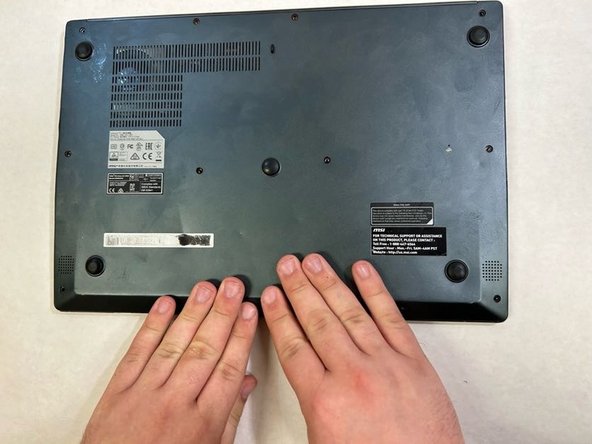
    4. MSI Modern 14 A10M Laptop Battery Replacement, Flip Laptop Over: step 4, image 1 of 1
      • Flip the laptop over onto a clear workspace so the back cover is visible.

      Ask FixBot

      Add Comment

    5. MSI Modern 14 A10M Laptop Battery Replacement, Select Correct Screwdriver Bit: step 5, image 1 of 3 MSI Modern 14 A10M Laptop Battery Replacement, Select Correct Screwdriver Bit: step 5, image 2 of 3 MSI Modern 14 A10M Laptop Battery Replacement, Select Correct Screwdriver Bit: step 5, image 3 of 3
      • Select the J1 bit from the iFixit repair kit and assemble the screwdriver.

      • The bit types should be labeled on the foam insert holding them.

      Ask FixBot

      Add Comment

    6. MSI Modern 14 A10M Laptop Battery Replacement, Back Cover Removal: step 6, image 1 of 2 MSI Modern 14 A10M Laptop Battery Replacement, Back Cover Removal: step 6, image 2 of 2
      • Unscrew the 12 screws from the back of the laptop cover.

      • Set the screws aside to make reassembly easier.

      Ask FixBot

      Add Comment

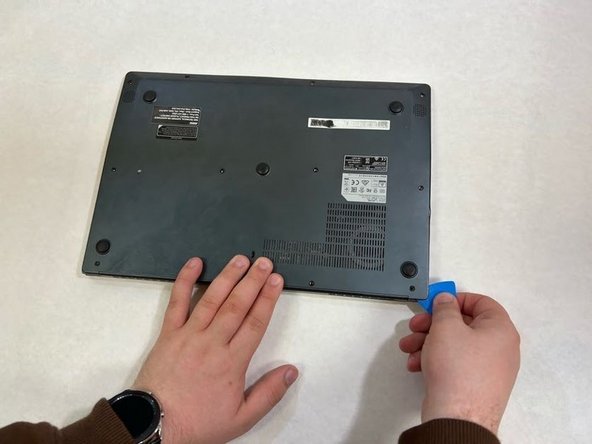
    7. MSI Modern 14 A10M Laptop Battery Replacement, Begin Prying Off Back Cover: step 7, image 1 of 2 MSI Modern 14 A10M Laptop Battery Replacement, Begin Prying Off Back Cover: step 7, image 2 of 2
      • Insert the Plastic Opening Pick from the iFixit repair kit until the corner of the cover pops off.

      • The top corner is the easiest place to insert the pick.

      Ask FixBot

      Add Comment

    8. MSI Modern 14 A10M Laptop Battery Replacement, Detach Back Cover Clasps: step 8, image 1 of 3 MSI Modern 14 A10M Laptop Battery Replacement, Detach Back Cover Clasps: step 8, image 2 of 3 MSI Modern 14 A10M Laptop Battery Replacement, Detach Back Cover Clasps: step 8, image 3 of 3
      • Slide the Opening Pick along the side to release the clasps from behind the back laptop cover until the entire back has been released from the laptop.

      Ask FixBot

      Add Comment

    9. MSI Modern 14 A10M Laptop Battery Replacement, Remove Back Cover: step 9, image 1 of 3 MSI Modern 14 A10M Laptop Battery Replacement, Remove Back Cover: step 9, image 2 of 3 MSI Modern 14 A10M Laptop Battery Replacement, Remove Back Cover: step 9, image 3 of 3
      • When the Opening Pick has unhinged the entire cover, lift the cover off the laptop and set it to the side to be used later.

      Ask FixBot

      Add Comment

    10. MSI Modern 14 A10M Laptop Battery Replacement, Exchange Screwdriver Bits: step 10, image 1 of 3 MSI Modern 14 A10M Laptop Battery Replacement, Exchange Screwdriver Bits: step 10, image 2 of 3 MSI Modern 14 A10M Laptop Battery Replacement, Exchange Screwdriver Bits: step 10, image 3 of 3
      • Switch the J1 bit to the 0 bit in the iFixit kit and assembly the screwdriver.

      Ask FixBot

      Add Comment

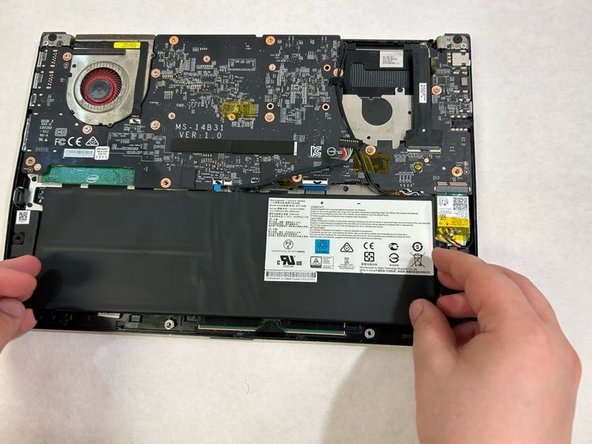
    11. MSI Modern 14 A10M Laptop Battery Replacement, Uncover Battery: step 11, image 1 of 3 MSI Modern 14 A10M Laptop Battery Replacement, Uncover Battery: step 11, image 2 of 3 MSI Modern 14 A10M Laptop Battery Replacement, Uncover Battery: step 11, image 3 of 3
      • Find the cover of the battery and unscrew the four screws from the cover of the battery. Remove the cover and set it aside.

      • The battery should be exposed now.

      Ask FixBot

      Add Comment

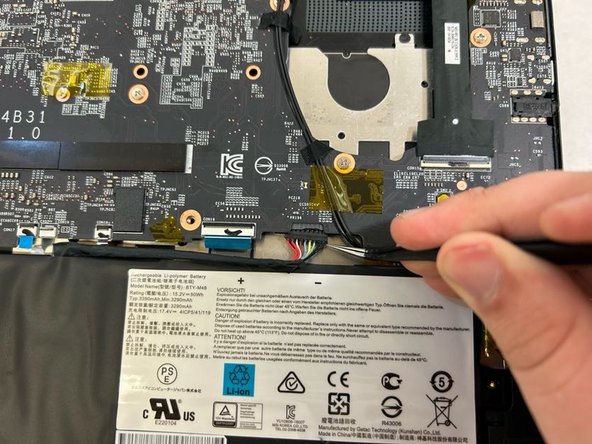
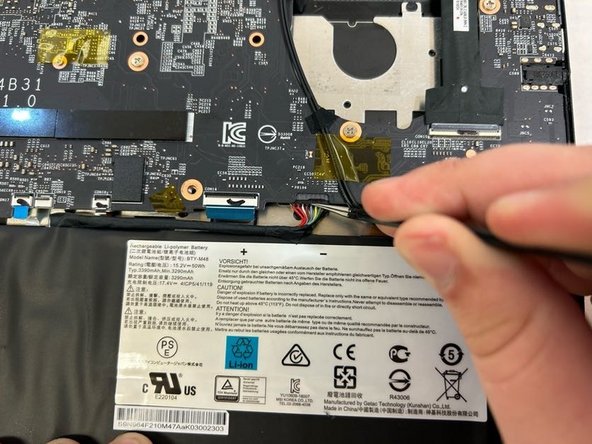
    12. MSI Modern 14 A10M Laptop Battery Replacement, Unplug Battery from Laptop: step 12, image 1 of 2 MSI Modern 14 A10M Laptop Battery Replacement, Unplug Battery from Laptop: step 12, image 2 of 2
      Tool used on this step:
      Tweezers
      $4.99
      Buy
      • Use the tweezers from the iFixit repair kit to unplug the battery connection from the computer so that the power source is no longer connected.

      Ask FixBot

      Add Comment

    13. MSI Modern 14 A10M Laptop Battery Replacement, Dispose of Old Battery: step 13, image 1 of 3 MSI Modern 14 A10M Laptop Battery Replacement, Dispose of Old Battery: step 13, image 2 of 3 MSI Modern 14 A10M Laptop Battery Replacement, Dispose of Old Battery: step 13, image 3 of 3
      • Remove the battery from the laptop and dispose of it properly.

      • Dispose of the battery at a hazardous waste collection point.

      Ask FixBot

      Add Comment

    14. MSI Modern 14 A10M Laptop Battery Replacement, Install New Battery: step 14, image 1 of 3 MSI Modern 14 A10M Laptop Battery Replacement, Install New Battery: step 14, image 2 of 3 MSI Modern 14 A10M Laptop Battery Replacement, Install New Battery: step 14, image 3 of 3
      • Place the new battery into the laptop where the old battery was.

      • Be sure to line up the battery to the screw holes.

      Ask FixBot

      Add Comment

    15. MSI Modern 14 A10M Laptop Battery Replacement, Plug in the New Battery: step 15, image 1 of 3 MSI Modern 14 A10M Laptop Battery Replacement, Plug in the New Battery: step 15, image 2 of 3 MSI Modern 14 A10M Laptop Battery Replacement, Plug in the New Battery: step 15, image 3 of 3
      • Use tweezers to insert the new battery connection to the computer.

      Ask FixBot

      Add Comment

    16. MSI Modern 14 A10M Laptop Battery Replacement, Secure Battery Cover: step 16, image 1 of 2 MSI Modern 14 A10M Laptop Battery Replacement, Secure Battery Cover: step 16, image 2 of 2
      • Grab the battery cover, place it onto the new battery, and screw the 4 screws into the back to secure the battery in place.

      Ask FixBot

      Add Comment

    17. MSI Modern 14 A10M Laptop Battery Replacement, Click Back Cover into Place: step 17, image 1 of 3 MSI Modern 14 A10M Laptop Battery Replacement, Click Back Cover into Place: step 17, image 2 of 3 MSI Modern 14 A10M Laptop Battery Replacement, Click Back Cover into Place: step 17, image 3 of 3
      • Line up the laptop's back cover and press down on the sides of the cover in place until the entire cover is flush with the laptop again.

      Ask FixBot

      Add Comment

    18. MSI Modern 14 A10M Laptop Battery Replacement, Exchange Screwdriver Bit: step 18, image 1 of 3 MSI Modern 14 A10M Laptop Battery Replacement, Exchange Screwdriver Bit: step 18, image 2 of 3 MSI Modern 14 A10M Laptop Battery Replacement, Exchange Screwdriver Bit: step 18, image 3 of 3
      • Switch back to the J1 bit from the iFixit repair kit and assemble the screwdriver.

      Ask FixBot

      Add Comment

    19. MSI Modern 14 A10M Laptop Battery Replacement, Reattach Back Cover: step 19, image 1 of 2 MSI Modern 14 A10M Laptop Battery Replacement, Reattach Back Cover: step 19, image 2 of 2
      • Reinsert the 12 screws using the J1 bit to secure the back cover in place.

      Ask FixBot

      Add Comment

    20. MSI Modern 14 A10M Laptop Battery Replacement, Open Laptop: step 20, image 1 of 3 MSI Modern 14 A10M Laptop Battery Replacement, Open Laptop: step 20, image 2 of 3 MSI Modern 14 A10M Laptop Battery Replacement, Open Laptop: step 20, image 3 of 3
      • Flip the laptop right side up and open the top.

      Ask FixBot

      Add Comment

    21. MSI Modern 14 A10M Laptop Battery Replacement, Plug in the Laptop: step 21, image 1 of 1
      • Plug the power source in to help the laptop when it is powered on.

      Ask FixBot

      Add Comment

    22. MSI Modern 14 A10M Laptop Battery Replacement, Power On the Laptop: step 22, image 1 of 2 MSI Modern 14 A10M Laptop Battery Replacement, Power On the Laptop: step 22, image 2 of 2
      • Press the power button of the laptop to verify that it is working by holding the power button in the top middle of the laptop keyboard until the screen comes on.

      Ask FixBot

      Add Comment

Conclusion

If the laptop fails to power on after completing the repair, be sure to go back and verify each step was done correctly.

Cancel: I did not complete this guide.

4 other people completed this guide.

Joseph Ward

Member since: 03/21/23

415 Reputation

1 Guide authored

0 Guide Comments

Add Comment

View Statistics:

Past 24 Hours: 8

Past 7 Days: 49

Past 30 Days: 136

All Time: 4,451