
MSI MS-1782 Wi-Fi Card Replacement

A'kia and 2 other contributors
Last updated on May 26, 2023
Views: 504
View statistics:
- Past 24 Hours:
- 1
- Past 7 Days:
- 13
- Past 30 Days:
- 68
- All Time:
- 504
Comments: 0
No one has left comments on this guide. Will you be first?
Go to guide commentsCompleted: 0 1
No one has marked this guide "completed." Will you be the first?
1 person has marked this guide "completed." It's you — great job!
Favorites: 0 1
No one has favorited (and subscribed to) this guide. Will you be the first?
1 person has favorited (and subscribed to) this guide — and that's you!
Introduction
Go to step 1 ↓This guide will show you how to replace the Wi-Fi card in a MSI MS-1782 laptop. If you are having trouble connecting to the Wi-Fi after exhausting all software fixes, use this guide to replace the Wi-Fi card. There are also steps you should do before the disassembly, like unplugging the battery.
What you need
Tools
-
-
Spudger4.9
-


-
-
-
Remove five 6.6 mm screws from the edges of the bottom cover using a JIS #1 screwdriver.
-
Remove one 5.6 mm screw from the center of the bottom cover using a JIS #1 screwdriver.
 Ask FixBot
-
-
-
Use an iFixit opening pick to unclip the bottom cover.
-
After unclipping the bottom case, pull from the back of the laptop upwards using the lip of the bottom case as a handle.
-
-
-
-
-
-
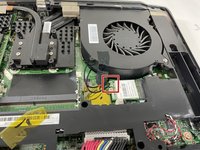
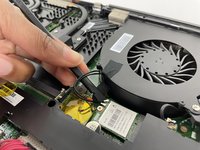
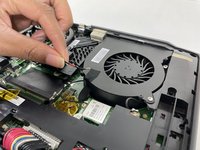
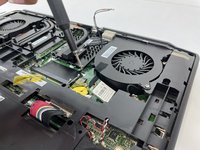
Use the flat end of a spudger to detach the two antenna cables from the Wi-Fi card.
-
-
-
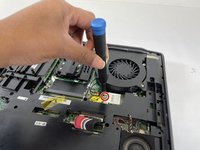
Remove the 5 mm screw holding the Wi-Fi card in place with a JIS #1 screwdriver.
-
-






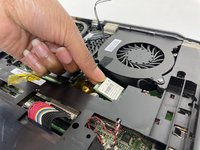
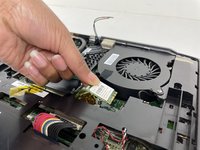
To reassemble your device, follow these instructions in reverse order and make sure you put the antenna wires back in the correct order.

Team

University of New Orleans, Team 4-4, McDonald Spring 2023 Member of University of New Orleans, Team 4-4, McDonald Spring 2023
UNO-MCDONALD-S23S4G4
3 Members
84 Guides authored
