Free Shipping on Domestic Orders $75+

MSI GT75VR 7RF Titan Pro RAM Card Replacement

What you need

    1. MSI GT75VR 7RF Titan Pro RAM Card Replacement, RAM Card: step 1, image 1 of 1
      • Unscrew each of the four screws using the Phillips #0 head on the back of the laptop case. The screws are 0.5 inches in length.

      Ask FixBot

      Add Comment

    2. MSI GT75VR 7RF Titan Pro RAM Card Replacement: step 2, image 1 of 2 MSI GT75VR 7RF Titan Pro RAM Card Replacement: step 2, image 2 of 2
      • Pop the back cover off of the laptop using the black nylon spudger.

      Ask FixBot

      Add Comment

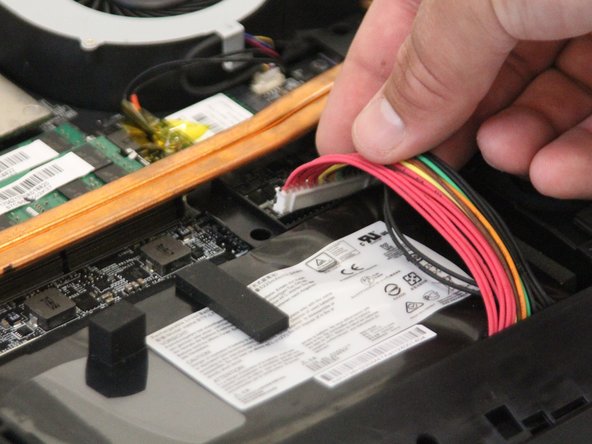
    3. MSI GT75VR 7RF Titan Pro RAM Card Replacement: step 3, image 1 of 1
      • Disconnect the battery cable.

      Ask FixBot

      Add Comment

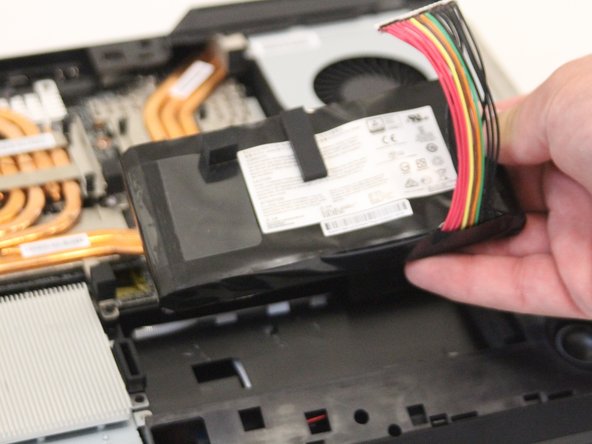
    4. MSI GT75VR 7RF Titan Pro RAM Card Replacement: step 4, image 1 of 2 MSI GT75VR 7RF Titan Pro RAM Card Replacement: step 4, image 2 of 2
      • Pry the battery pack up with the black nylon spudger.

      Ask FixBot

      Add Comment

    5. MSI GT75VR 7RF Titan Pro RAM Card Replacement: step 5, image 1 of 1
      • Pop the metal tabs on each side of the RAM using the black nylon spudger.

      Ask FixBot

      Add Comment

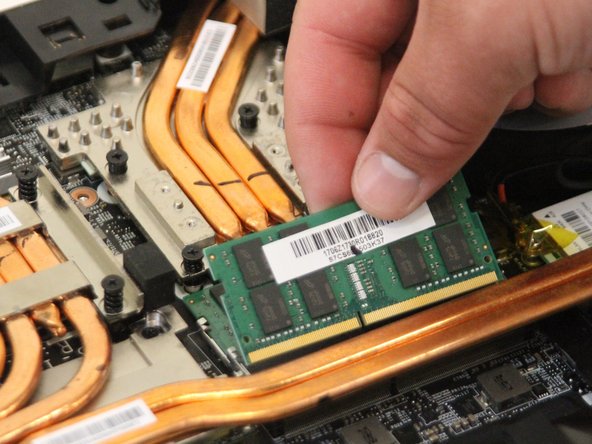
    6. MSI GT75VR 7RF Titan Pro RAM Card Replacement: step 6, image 1 of 1
      • Lift and remove RAM card by hand. Replace each RAM card and test them individually. If your computer encounters a RAM error with only one card inserted, you can confirm that card is corrupted.

      Ask FixBot

      Add Comment

Conclusion

To reassemble your device, follow these instructions in reverse order.

Cancel: I did not complete this guide.

Jack Crumpton

Member since: 08/31/18

241 Reputation

2 Guides authored

0 Guide Comments

Add Comment

View Statistics:

Past 24 Hours: 2

Past 7 Days: 21

Past 30 Days: 74

All Time: 1,143