
MSI GP60 2pe Leopard Battery Replacement

Zoey Calcagno and 3 other contributors
Last updated on Jan 3, 2019
Views: 1.7K
View statistics:
- Past 24 Hours:
- 1
- Past 7 Days:
- 23
- Past 30 Days:
- 77
- All Time:
- 1,664
Comments: 0
No one has left comments on this guide. Will you be first?
Go to guide commentsCompleted: 2 3
2 people have marked this guide "completed." Will you be next?
3 people have marked this guide "completed." Including you — great job!
Favorites: 0 1
No one has favorited (and subscribed to) this guide. Will you be the first?
1 person has favorited (and subscribed to) this guide — and that's you!
Introduction
Go to step 1 ↓Is your MSI GP60 2PE Leopard not turning on or not charging properly? Here's a guide to replace the battery. No tools are needed to replace the MSI GP60 2PE Leopard battery.
-
-
-
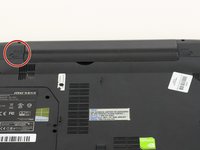
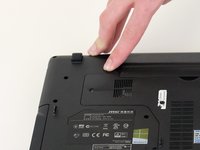
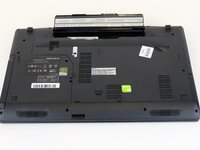
Find the unlock tab located on the upper right side of the device, then slide it to the right.
-
-
-
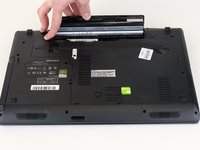
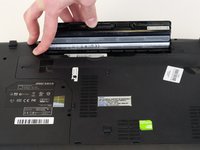
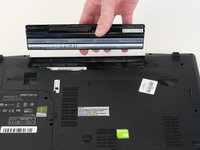
Slide and hold the release tab on the left side of the battery, so that you can remove the battery.
-
-

 Ask FixBot




To reassemble your device, follow these instructions in reverse order.
Cancel: I did not complete this guide.
2 other people completed this guide.

Team

Linn Benton Community College, Team S1-G4, Karnes Fall 2018 Member of Linn Benton Community College, Team S1-G4, Karnes Fall 2018
LBCC-KARNES-F18S1G4
4 Members
72 Guides authored
