
MSI GP60 2PE Leopard Wireless Card Replacement

Zoey Calcagno and 4 other contributors
Last updated on Jan 3, 2019
Views: 2.3K
View statistics:
- Past 24 Hours:
- 2
- Past 7 Days:
- 22
- Past 30 Days:
- 61
- All Time:
- 2,335
Comments: 1
1 comment on steps.
Completed: 2 3
2 people have marked this guide "completed." Will you be next?
3 people have marked this guide "completed." Including you — great job!
Favorites: 0 1
No one has favorited (and subscribed to) this guide. Will you be the first?
1 person has favorited (and subscribed to) this guide — and that's you!
Featured Student Guide
This guide has been the hard work of our awesome students and is found to be exceptionally cool by the iFixit staff.
Introduction
Go to step 1 ↓Is your wireless card not working? Here's a guide to replace it. Make sure you follow each step accordingly and carefully replace the wireless card.
What you need
Tools

-
-
-
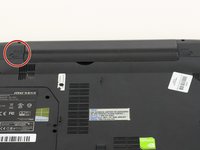
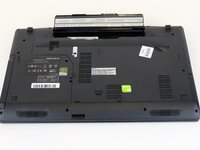
Find the unlock tab located on the upper right side of the device, then slide it to the right.
-
-
-
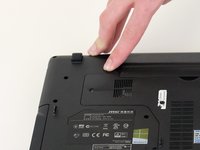
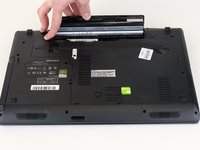
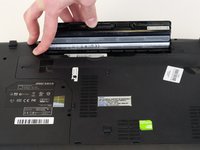
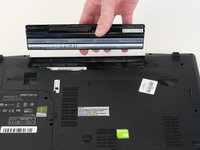
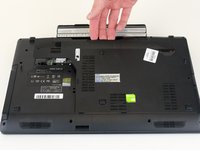
Slide and hold the release tab on the left side of the battery, so that you can remove the battery.
-
-
-
-
-
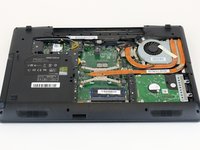
Remove the four 5mm screws from the back of the device using a Phillips #00 screwdriver.
-
-
-
-
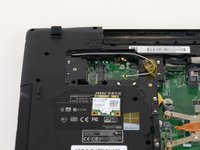
Using a Phillips #00 screwdriver, remove the one 2 mm screw that is holding the wireless card in place.
-
-
-
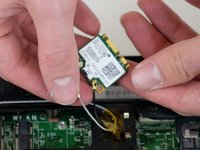
Remove the wires connecting to the wireless card by pinching around the base where they connect, then carefully disconnect them.
-

 Ask FixBot








To reassemble your device, follow these instructions in reverse order.
Cancel: I did not complete this guide.
2 other people completed this guide.

Team

Linn Benton Community College, Team S1-G4, Karnes Fall 2018 Member of Linn Benton Community College, Team S1-G4, Karnes Fall 2018
LBCC-KARNES-F18S1G4
4 Members
72 Guides authored
