Free Shipping on Domestic Orders $75+

MSI GP60 2PE Leopard RAM Replacement

What you need

  1. MSI GP60 2PE Leopard RAM Replacement, Battery: step 1, image 1 of 1
    • Flip MSI GP60 2PE Leopard, so that the back is facing up.

    Ask FixBot

    Add Comment

  2. MSI GP60 2PE Leopard RAM Replacement: step 2, image 1 of 1
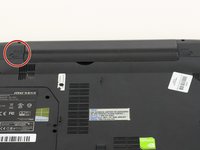
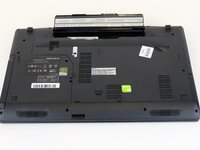
    • Find the unlock tab located on the upper right side of the device, then slide it to the right.

    Ask FixBot

    Add Comment

  3. MSI GP60 2PE Leopard RAM Replacement: step 3, image 1 of 3 MSI GP60 2PE Leopard RAM Replacement: step 3, image 2 of 3 MSI GP60 2PE Leopard RAM Replacement: step 3, image 3 of 3
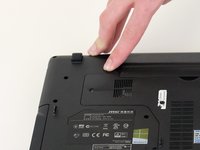
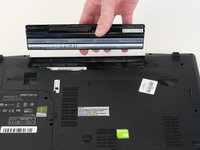
    • Slide and hold the release tab on the left side of the battery, so that you can remove the battery.

    Ask FixBot

    Add Comment

  4. MSI GP60 2PE Leopard RAM Replacement: step 4, image 1 of 3 MSI GP60 2PE Leopard RAM Replacement: step 4, image 2 of 3 MSI GP60 2PE Leopard RAM Replacement: step 4, image 3 of 3
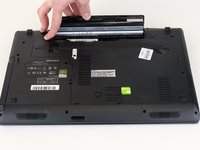
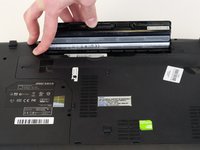
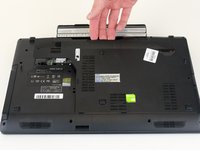
    • While holding the release tab, remove the battery slowly.

    Ask FixBot

    Add Comment

  5. MSI GP60 2PE Leopard RAM Replacement, Back Panel: step 5, image 1 of 1
    • Flip the device over so the back is facing up.

    Ask FixBot

    Add Comment

  6. MSI GP60 2PE Leopard RAM Replacement: step 6, image 1 of 2 MSI GP60 2PE Leopard RAM Replacement: step 6, image 2 of 2
    • Remove the four 5mm screws from the back of the device using a Phillips #00 screwdriver.

    • There is a screw located under the battery; lift the battery up to access it.

    Ask FixBot

    Add Comment

  7. MSI GP60 2PE Leopard RAM Replacement: step 7, image 1 of 2 MSI GP60 2PE Leopard RAM Replacement: step 7, image 2 of 2
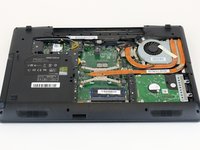
    • Once all four screws are removed, lift the back off.

    Ask FixBot

    Add Comment

  8. MSI GP60 2PE Leopard RAM Replacement, RAM: step 8, image 1 of 1
    • Press the tabs on the side of the RAM to remove it.

    Ask FixBot

    Add Comment

  9. MSI GP60 2PE Leopard RAM Replacement: step 9, image 1 of 1
    • Slide the RAM out of the slot carefully.

    Ask FixBot

    Add Comment

Conclusion

To reassemble your device, follow these instructions in reverse order.

Cancel: I did not complete this guide.

3 other people completed this guide.

0 Guide Comments

Add Comment

View Statistics:

Past 24 Hours: 2

Past 7 Days: 3

Past 30 Days: 36

All Time: 1,702