Free Shipping on Domestic Orders $75+

MSI GE72 6QF Apache Pro Keyboard Replacement

What you need

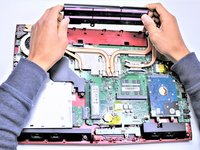
  1. MSI GE72 6QF Apache Pro Keyboard Replacement, Battery: step 1, image 1 of 2 MSI GE72 6QF Apache Pro Keyboard Replacement, Battery: step 1, image 2 of 2
    • Make sure the laptop is off and unplugged (not charging).

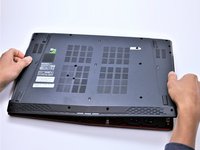
    • With the laptop closed and upside down, unscrew the nineteen 5.5mm Phillips #1 screws that keep the back cover in place.

    Ask FixBot

    Add Comment

  2. MSI GE72 6QF Apache Pro Keyboard Replacement: step 2, image 1 of 1
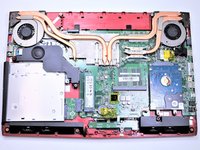
    • Slide the optical drive out of the laptop.

    Ask FixBot

    Add Comment

  3. MSI GE72 6QF Apache Pro Keyboard Replacement: step 3, image 1 of 1
    • Use a Phillips screwdriver to remove the three screws along the edge of the optical drive bay.

    Ask FixBot

    Add Comment

  4. MSI GE72 6QF Apache Pro Keyboard Replacement: step 4, image 1 of 2 MSI GE72 6QF Apache Pro Keyboard Replacement: step 4, image 2 of 2
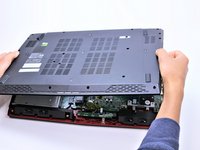
    • Using your fingers, gently loosen the edges of all four sides of the back cover.

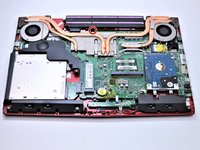
    • Gently pull off the back cover.

    Ask FixBot

    Add Comment

  5. MSI GE72 6QF Apache Pro Keyboard Replacement: step 5, image 1 of 2 MSI GE72 6QF Apache Pro Keyboard Replacement: step 5, image 2 of 2
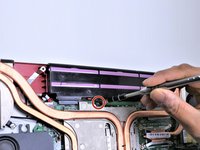
    • Unscrew the single 5.5mm Phillips #1 screw keeping the battery secure.

    Ask FixBot

    Add Comment

  6. MSI GE72 6QF Apache Pro Keyboard Replacement: step 6, image 1 of 2 MSI GE72 6QF Apache Pro Keyboard Replacement: step 6, image 2 of 2
    • Grab the battery with your fingers and gently pull it up and away from the rest of the laptop.

    Ask FixBot

    Add Comment

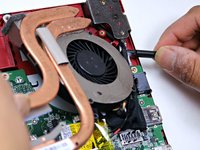
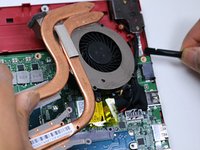
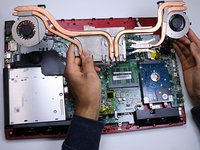
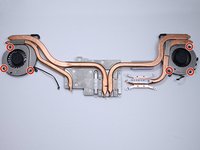
  7. MSI GE72 6QF Apache Pro Keyboard Replacement, Fan: step 7, image 1 of 3 MSI GE72 6QF Apache Pro Keyboard Replacement, Fan: step 7, image 2 of 3 MSI GE72 6QF Apache Pro Keyboard Replacement, Fan: step 7, image 3 of 3
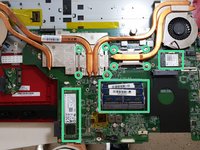
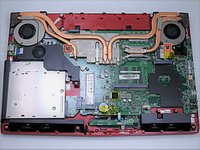
    • If you are replacing only the keyboard, you can skip to step 18, and then skip the WiFi adapter removal step. The CPU fan, m.2 SSD, RAM and WiFi adapter (marked in green) will all come off with the main board, giving you access to the keyboard.

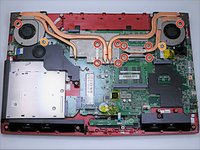
    • Use a Phillips #1 screwdriver to remove the ten 5.5mm screws.

    • Remove the last two 5.5mm Phillips #1 screws, and remove the washers around them.

    Ask FixBot

    Add Comment

  8. MSI GE72 6QF Apache Pro Keyboard Replacement: step 8, image 1 of 3 MSI GE72 6QF Apache Pro Keyboard Replacement: step 8, image 2 of 3 MSI GE72 6QF Apache Pro Keyboard Replacement: step 8, image 3 of 3
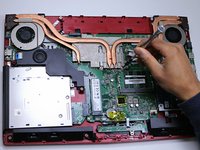
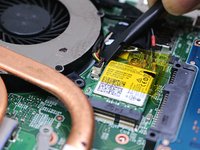
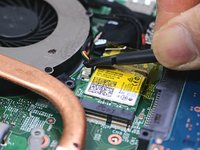
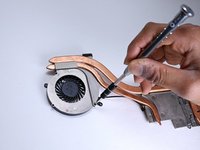
    • Unplug both of the fan power cords from the laptop using a spudger.

    Ask FixBot

    Add Comment

  9. MSI GE72 6QF Apache Pro Keyboard Replacement: step 9, image 1 of 2 MSI GE72 6QF Apache Pro Keyboard Replacement: step 9, image 2 of 2
    • Continue to use the spudger to carefully separate the wires of the power cord from the laptop.

    Ask FixBot

    Add Comment

  10. MSI GE72 6QF Apache Pro Keyboard Replacement: step 10, image 1 of 2 MSI GE72 6QF Apache Pro Keyboard Replacement: step 10, image 2 of 2
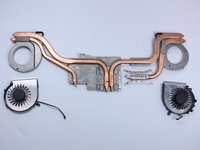
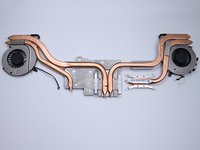
    • Fully remove the fans from the rest of the laptop.

    Ask FixBot

    Add Comment

  11. MSI GE72 6QF Apache Pro Keyboard Replacement: step 11, image 1 of 3 MSI GE72 6QF Apache Pro Keyboard Replacement: step 11, image 2 of 3 MSI GE72 6QF Apache Pro Keyboard Replacement: step 11, image 3 of 3
    • Using a Phillips #00 screwdriver, remove the six 5mm screws.

    • Separate the fans from the silver fan covers.

    Ask FixBot

    Add Comment

  12. MSI GE72 6QF Apache Pro Keyboard Replacement, Hard Drive: step 12, image 1 of 2 MSI GE72 6QF Apache Pro Keyboard Replacement, Hard Drive: step 12, image 2 of 2
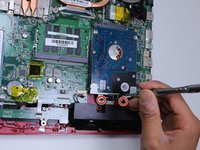
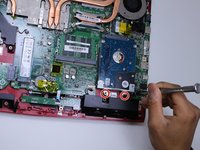
    • Remove the two 5.5mm screws with the Phillips #1 screwdriver.

    Ask FixBot

    Add Comment

  13. MSI GE72 6QF Apache Pro Keyboard Replacement: step 13, image 1 of 2 MSI GE72 6QF Apache Pro Keyboard Replacement: step 13, image 2 of 2
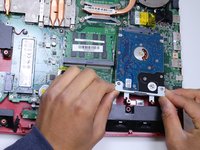
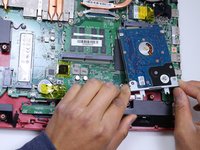
    • Gently pull out the hard drive by wiggling it from right to left with your hands until it is removed.

    Ask FixBot

    Add Comment

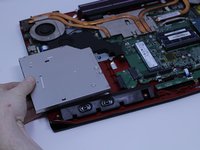
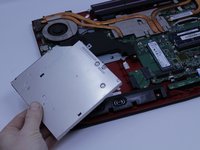
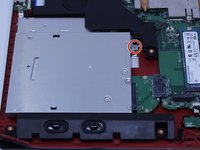
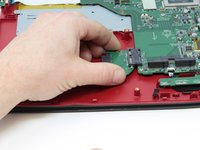
  14. MSI GE72 6QF Apache Pro Keyboard Replacement, Optical Drive: step 14, image 1 of 3 MSI GE72 6QF Apache Pro Keyboard Replacement, Optical Drive: step 14, image 2 of 3 MSI GE72 6QF Apache Pro Keyboard Replacement, Optical Drive: step 14, image 3 of 3
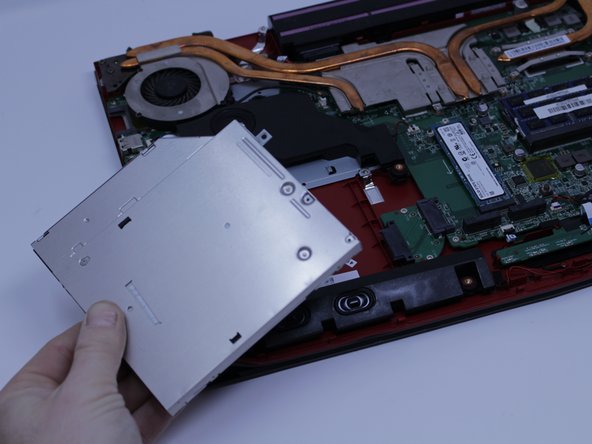
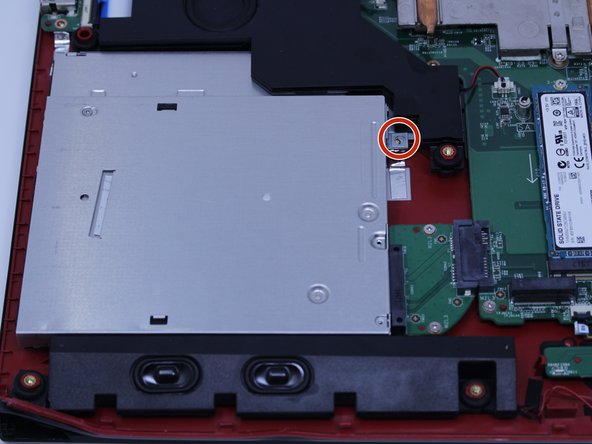
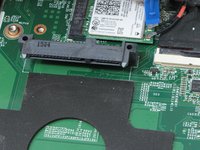
    • Carefully slide the Optical Drive off of the SATA connector.

    • The red marker shows the location for where the retaining screw comes through the back panel to hold the Optical Drive.

    Ask FixBot

    Add Comment

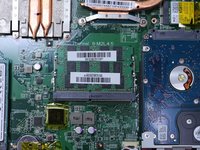
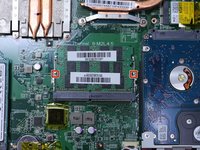
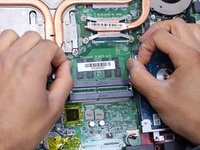
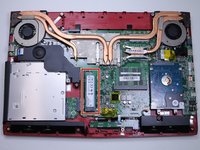
  15. MSI GE72 6QF Apache Pro Keyboard Replacement, RAM: step 15, image 1 of 2 MSI GE72 6QF Apache Pro Keyboard Replacement, RAM: step 15, image 2 of 2
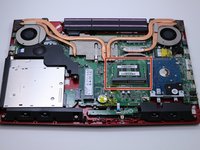
    • When you open the back cover, the RAM will be located as shown in the picture.

    Ask FixBot

    Add Comment

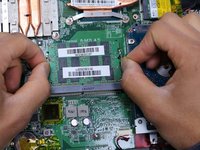
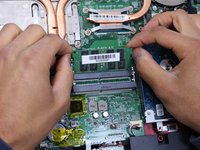
  16. MSI GE72 6QF Apache Pro Keyboard Replacement: step 16, image 1 of 3 MSI GE72 6QF Apache Pro Keyboard Replacement: step 16, image 2 of 3 MSI GE72 6QF Apache Pro Keyboard Replacement: step 16, image 3 of 3
    • Press the hinges on the sides of the RAM chip as shown in the picture, in order to unlock it.

    • Carefully, slide it out at a 45 degree angle.

    • Don't press on the hinges too hard.

    • Be careful about the angle at which you're sliding out the chip.

    Ask FixBot

    Add Comment

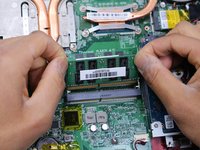
  17. MSI GE72 6QF Apache Pro Keyboard Replacement: step 17, image 1 of 3 MSI GE72 6QF Apache Pro Keyboard Replacement: step 17, image 2 of 3 MSI GE72 6QF Apache Pro Keyboard Replacement: step 17, image 3 of 3
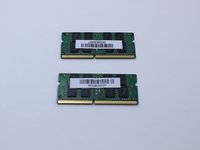
    • Similarly, press on the hinges on the sides of the other RAM chip, in order to unlock it.

    • Some laptop models might not come with two RAM chips, so if that is your case, you can skip this step.

    Ask FixBot

    Add Comment

  18. MSI GE72 6QF Apache Pro Keyboard Replacement, SSD: step 18, image 1 of 2 MSI GE72 6QF Apache Pro Keyboard Replacement, SSD: step 18, image 2 of 2
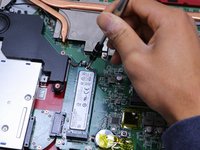
    • Remove the single 5.5mm Phillips #1 screw attaching the SSD to the laptop.

    Ask FixBot

    Add Comment

  19. MSI GE72 6QF Apache Pro Keyboard Replacement: step 19, image 1 of 2 MSI GE72 6QF Apache Pro Keyboard Replacement: step 19, image 2 of 2
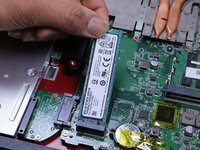
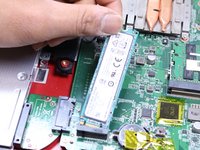
    • Pull out the SSD by gently wiggling it from side to side until it comes out.

    • If the old SSD you removed contains the operating system, then the new SSD must also contain an operating system.

    Ask FixBot

    Add Comment

  20. MSI GE72 6QF Apache Pro Keyboard Replacement, Motherboard: step 20, image 1 of 3 MSI GE72 6QF Apache Pro Keyboard Replacement, Motherboard: step 20, image 2 of 3 MSI GE72 6QF Apache Pro Keyboard Replacement, Motherboard: step 20, image 3 of 3
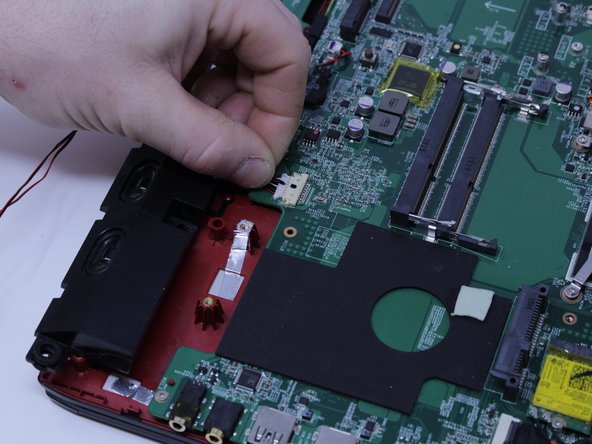
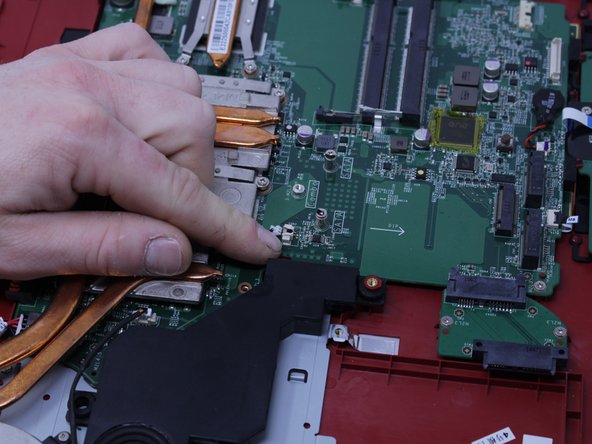
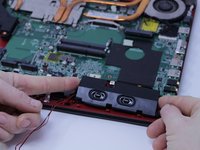
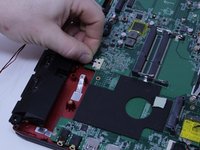
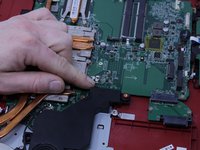
    • Pull upward to lift the front speakers and sub-woofer out of place.

    • Carefully slide out the connectors for both of the speaker systems.

    Ask FixBot

    Add Comment

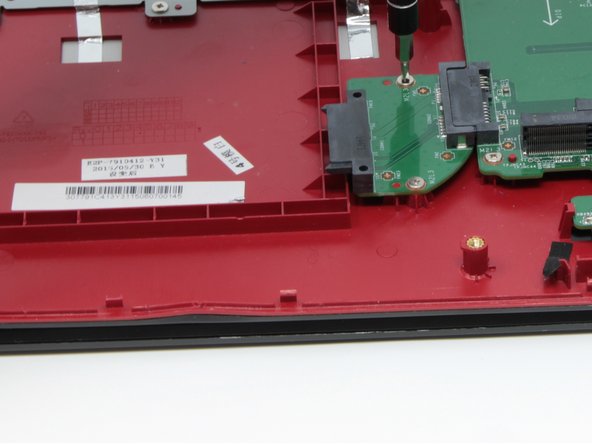
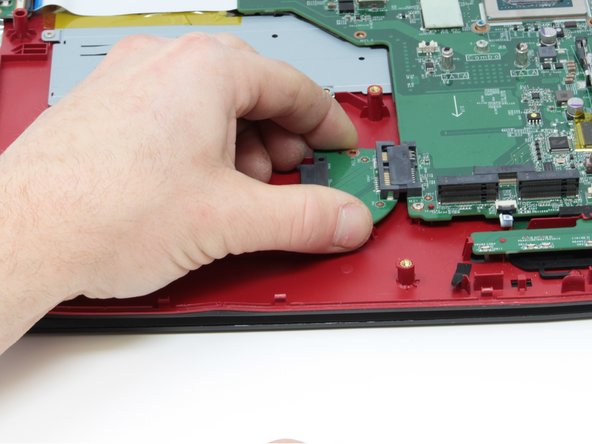
  21. MSI GE72 6QF Apache Pro Keyboard Replacement: step 21, image 1 of 3 MSI GE72 6QF Apache Pro Keyboard Replacement: step 21, image 2 of 3 MSI GE72 6QF Apache Pro Keyboard Replacement: step 21, image 3 of 3
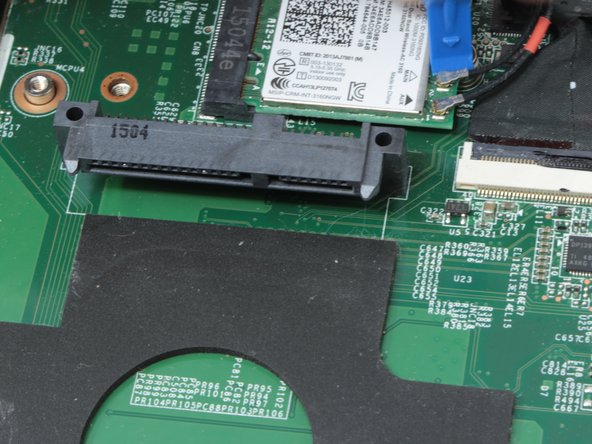
    • Use the Phillips #0 Screwdriver to remove the two 4mm screws that are holding the SATA connector in place.

    Ask FixBot

    Add Comment

  22. MSI GE72 6QF Apache Pro Keyboard Replacement: step 22, image 1 of 3 MSI GE72 6QF Apache Pro Keyboard Replacement: step 22, image 2 of 3 MSI GE72 6QF Apache Pro Keyboard Replacement: step 22, image 3 of 3
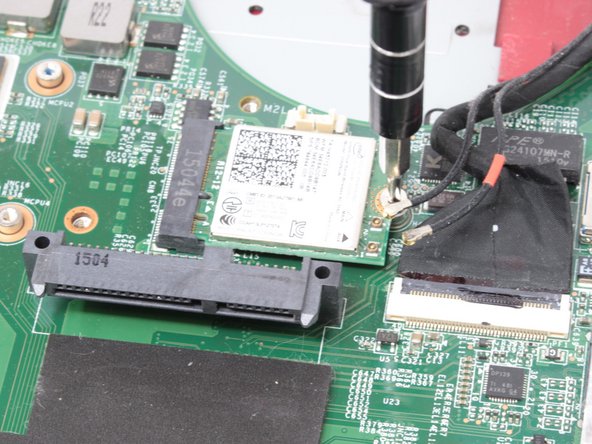
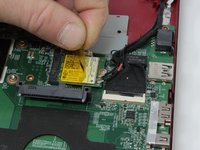
    • Remove the WIFI card by disconnecting the two coax cables and removing the retaining screw.

    • Try to preserve the tape that covers the WIFI card so it can be reapplied.

    Ask FixBot

    Add Comment

  23. MSI GE72 6QF Apache Pro Keyboard Replacement: step 23, image 1 of 3 MSI GE72 6QF Apache Pro Keyboard Replacement: step 23, image 2 of 3 MSI GE72 6QF Apache Pro Keyboard Replacement: step 23, image 3 of 3
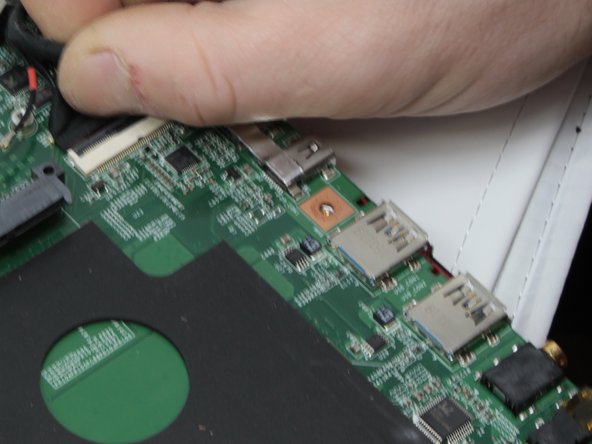
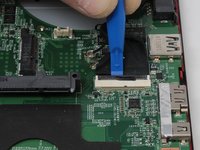
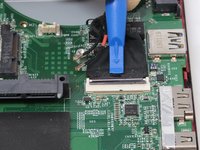
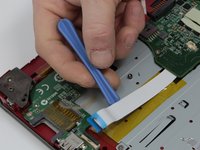
    • Use the plastic opening tool to pry up the connector that holds the display cable so it can be disconnected.

    • The connector for the display cable flips upward, but be careful because it is fragile enough to break.

    Ask FixBot

    Add Comment

  24. MSI GE72 6QF Apache Pro Keyboard Replacement: step 24, image 1 of 2 MSI GE72 6QF Apache Pro Keyboard Replacement: step 24, image 2 of 2
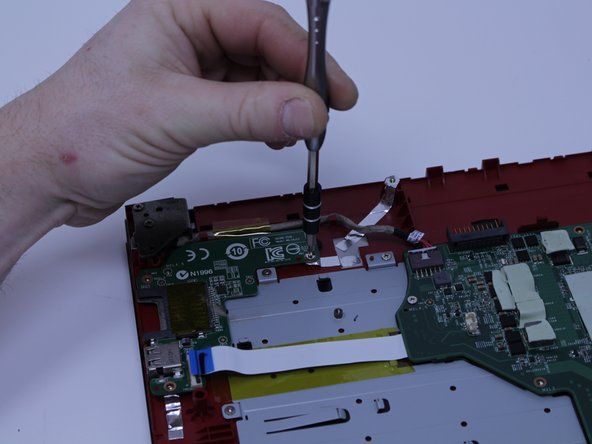
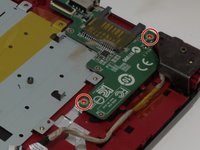
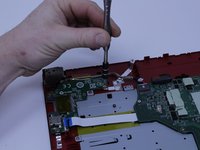
    • Remove the SD card reader by unscrewing the two 3 mm screws that hold it in place.

    Ask FixBot

    Add Comment

  25. MSI GE72 6QF Apache Pro Keyboard Replacement: step 25, image 1 of 3 MSI GE72 6QF Apache Pro Keyboard Replacement: step 25, image 2 of 3 MSI GE72 6QF Apache Pro Keyboard Replacement: step 25, image 3 of 3
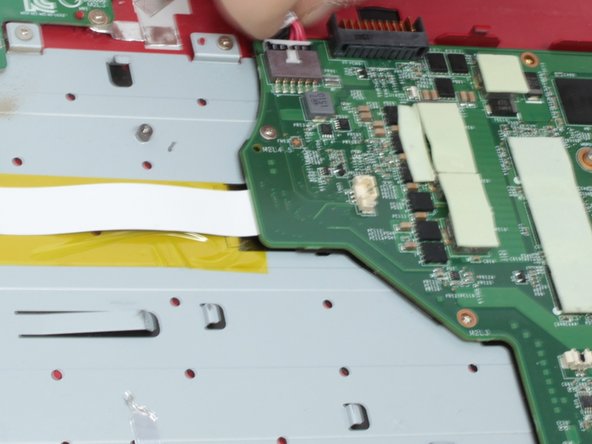
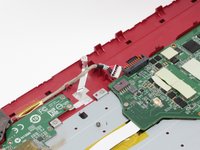
    • Remove the power and USB connectors that are connected to the left side of the motherboard by pulling them from the motherboard and SD card reader respectively.

    • The power connector pulls out without the chance of breaking, but the USB connector is another fragile flip-up style connector.

    Ask FixBot

    Add Comment

  26. MSI GE72 6QF Apache Pro Keyboard Replacement: step 26, image 1 of 1
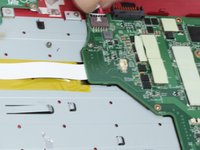
    • Disconnect the motherboard from the mouse key control board by pulling the connector out.

    Ask FixBot

    Add Comment

  27. MSI GE72 6QF Apache Pro Keyboard Replacement: step 27, image 1 of 2 MSI GE72 6QF Apache Pro Keyboard Replacement: step 27, image 2 of 2
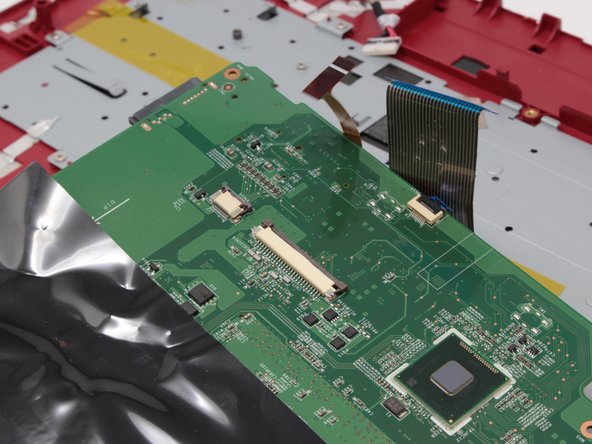
    • Disconnect the keyboard from the motherboard by carefully sliding the connectors out of the connections on the motherboard

    Ask FixBot

    Add Comment

  28. MSI GE72 6QF Apache Pro Keyboard Replacement: step 28, image 1 of 3 MSI GE72 6QF Apache Pro Keyboard Replacement: step 28, image 2 of 3 MSI GE72 6QF Apache Pro Keyboard Replacement: step 28, image 3 of 3
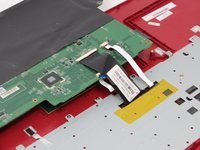
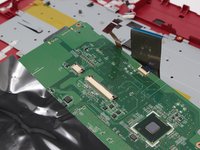
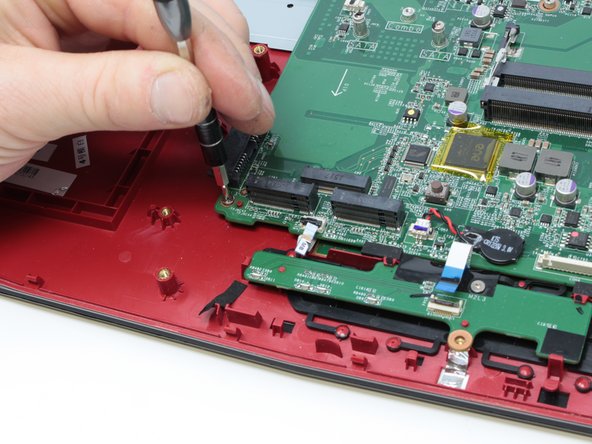
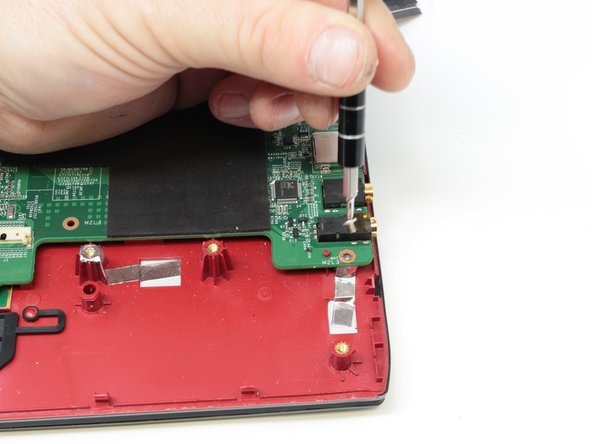
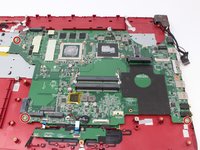
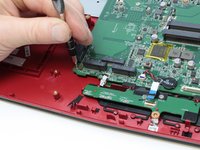
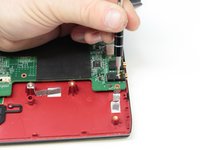
    • Use the Phillips #0 screwdriver to remove the three 3.8 mm standoff screws that retain the motherboard and carefully remove it.

    Ask FixBot

    Add Comment

  29. MSI GE72 6QF Apache Pro Keyboard Replacement, Keyboard: step 29, image 1 of 2 MSI GE72 6QF Apache Pro Keyboard Replacement, Keyboard: step 29, image 2 of 2
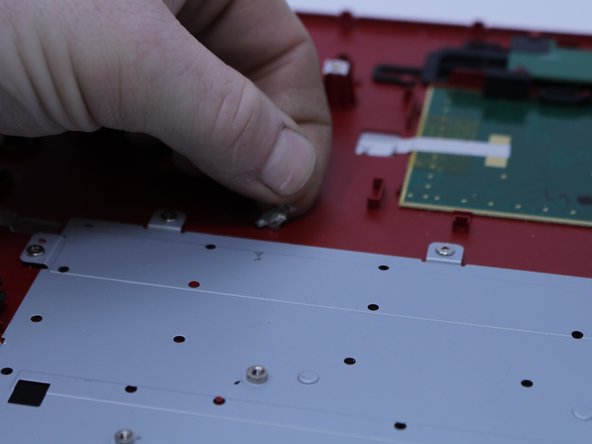
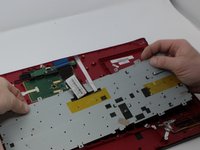
    • Peel the silver tape off of the keyboard back plate.

    Ask FixBot

    Add Comment

  30. MSI GE72 6QF Apache Pro Keyboard Replacement: step 30, image 1 of 3 MSI GE72 6QF Apache Pro Keyboard Replacement: step 30, image 2 of 3 MSI GE72 6QF Apache Pro Keyboard Replacement: step 30, image 3 of 3
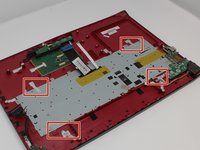
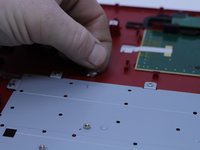
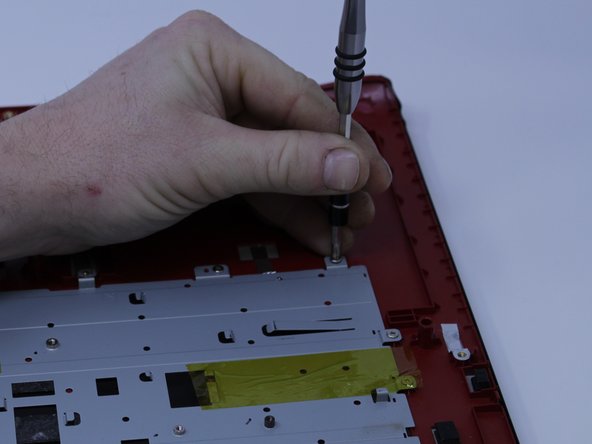
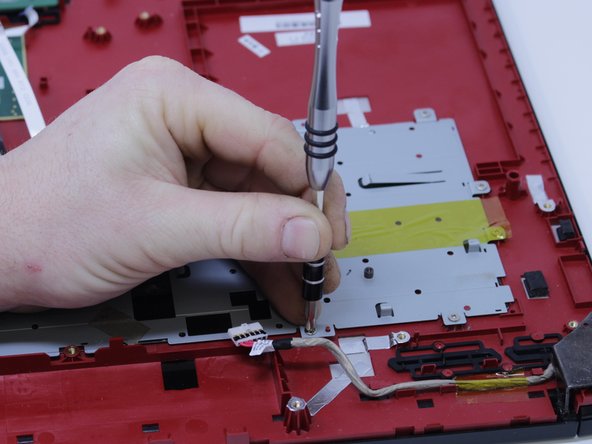
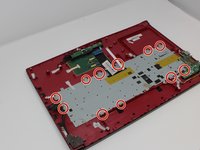
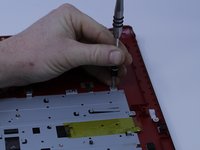
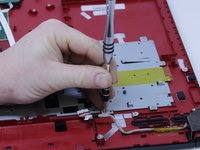
    • Remove the thirteen 3 mm screws that fasten the keyboard in place.

    Ask FixBot

    Add Comment

  31. MSI GE72 6QF Apache Pro Keyboard Replacement: step 31, image 1 of 2 MSI GE72 6QF Apache Pro Keyboard Replacement: step 31, image 2 of 2
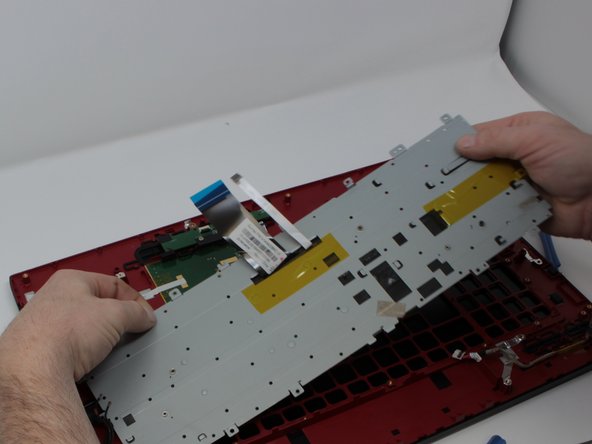
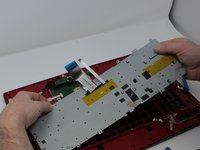
    • Carefully lift and slide the keyboard out.

    Ask FixBot

    Add Comment

  32. MSI GE72 6QF Apache Pro Keyboard Replacement: step 32, image 1 of 1
    • Peel the yellow tape off of the back plate to free the keyboard so it can be separated from the plate.

    • Preserve this piece of tape so that it can be used when swapping in the new keyboard.

    Ask FixBot

    Add Comment

Conclusion

To reassemble your device, follow these instructions in reverse order.

Cancel: I did not complete this guide.

9 other people completed this guide.

4 Guide Comments

1) Remove a single CD/DVD tray screw when the bottom cover is still on.

2) Remove the CD/DVD tray.

3) Remove the rear trim.

4) Remove the bottom cover from the CD/DVD side to the USB side, as the bottom cover has a frame that goes around the USB ports.

Otherwise, TY for your effort.

frankjward69 - Reply Share
will this work for ge73 raider 8rf? i bought a keyboard to replace and have no instructions

M. Jaram - Reply Share

Someone please correct the time on this guide. There’s no way this is a 10 minute job!!

Plus the replacement keyboard (not bought yet) doesn’t seem to have the screw mount holes around the frame? Are there some steps missing to transplate the backing plate from the old keyboard to the new? Or should the new come with a backing plate with the required screw holes?

Cool_Breeze - Reply Share
Took around 3 hours in total to change out keyboard, SSD and RAM. The only difference was that in my case there were no screws in step 30 holding in the original keyboard and it was held in place by the tape only. Also the keyboard was stuck to the metal plate by 30+ black plastic pieces so it was almost impossible to take out the original keyboard without forcefully bending the plate and keyboard out of the frame. Had to add in replacement screws to hold in the new keyboard as I could not reapply the original tape to hold it in properly. Apart from that the only problem was dealing with the small connectors that were extremely fidgety with large hands.

kaskanoidas - Reply Share
Add Comment

View Statistics:

Past 24 Hours: 4

Past 7 Days: 16

Past 30 Days: 74

All Time: 18,465