Free Shipping on Domestic Orders $75+

Logitech Zone Wireless 2 ES for Business Ear Pad Replacement

  1. Logitech Zone Wireless 2 ES for Business Ear Pad Replacement, Power off the headset: step 1, image 1 of 1
    • Power off the headset and unplug all cables.

    Ask FixBot
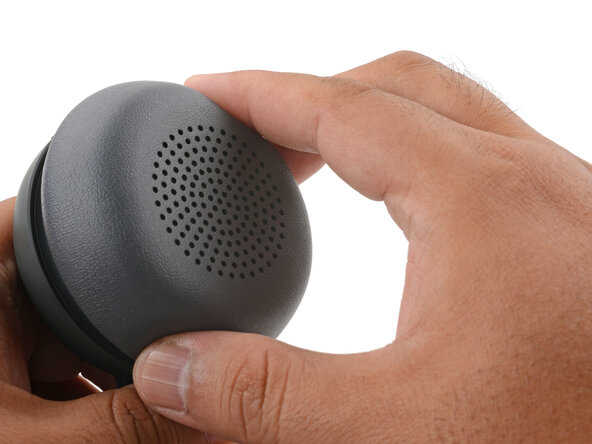
  2. Logitech Zone Wireless 2 ES for Business Ear Pad Replacement, Remove the ear pad: step 2, image 1 of 3 Logitech Zone Wireless 2 ES for Business Ear Pad Replacement, Remove the ear pad: step 2, image 2 of 3 Logitech Zone Wireless 2 ES for Business Ear Pad Replacement, Remove the ear pad: step 2, image 3 of 3
    • If you're replacing the battery, you only need to remove the ear pad from the side that doesn't have the boom mic.

    • With one hand, firmly hold the ear cup steady.

    • With your free hand, twist the ear pad counter-clockwise until it feels loose.

    • Remove the ear pad.

    Ask FixBot
  3. Logitech Zone Wireless 2 ES for Business Ear Pad Replacement, Reassembly note: step 3, image 1 of 3 Logitech Zone Wireless 2 ES for Business Ear Pad Replacement, Reassembly note: step 3, image 2 of 3 Logitech Zone Wireless 2 ES for Business Ear Pad Replacement, Reassembly note: step 3, image 3 of 3
    • To install the ear pad:

    • Align the ear pad's notches to the tabs on the ear cup.

    • Press the pad onto the cup.

    • Twist the pad clockwise until it locks in place.

    Ask FixBot
Conclusion

Repair didn’t go as planned? Try some basic troubleshooting, or ask our Answers community for help.

Arthur Shi

Member since: 01/03/18

335,762 Reputation

848 Guides authored

0 Guide Comments

Add Comment

View Statistics:

Past 24 Hours: 0

Past 7 Days: 5

Past 30 Days: 28

All Time: 132