Free Shipping on Domestic Orders $75+

Logitech Zone Wireless 2 ES for Business Battery Replacement

What you need

  1. Logitech Zone Wireless 2 ES for Business Battery Replacement, Power off the headset: step 1, image 1 of 1
    • Power off the headset and unplug all cables.

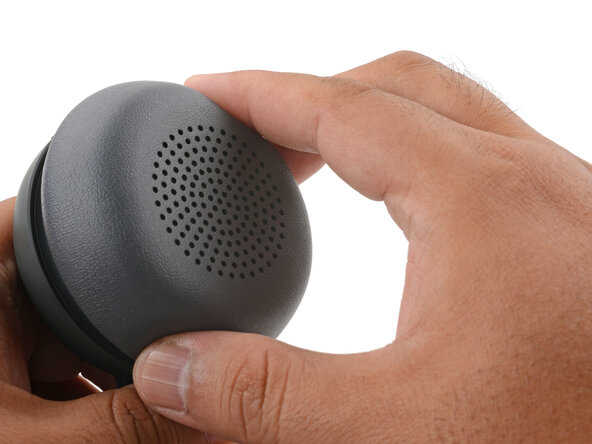
  2. Logitech Zone Wireless 2 ES for Business Battery Replacement, Remove the ear pad: step 2, image 1 of 3 Logitech Zone Wireless 2 ES for Business Battery Replacement, Remove the ear pad: step 2, image 2 of 3 Logitech Zone Wireless 2 ES for Business Battery Replacement, Remove the ear pad: step 2, image 3 of 3
    • If you're replacing the battery, you only need to remove the ear pad from the side that doesn't have the boom mic.

    • With one hand, firmly hold the ear cup steady.

    • With your free hand, twist the ear pad counter-clockwise until it feels loose.

    • Remove the ear pad.

  3. Logitech Zone Wireless 2 ES for Business Battery Replacement, Reassembly note: step 3, image 1 of 3 Logitech Zone Wireless 2 ES for Business Battery Replacement, Reassembly note: step 3, image 2 of 3 Logitech Zone Wireless 2 ES for Business Battery Replacement, Reassembly note: step 3, image 3 of 3
    • To install the ear pad:

    • Align the ear pad's notches to the tabs on the ear cup.

    • Press the pad onto the cup.

    • Twist the pad clockwise until it locks in place.

  4. Logitech Zone Wireless 2 ES for Business Battery Replacement, Remove the speaker housing screws: step 4, image 1 of 1
    • Use a Phillips screwdriver to remove the four 7.2 mm‑long screws securing the speaker housing.

    • Be careful not to drop the screws in the speaker grille. You can cover the grille with some tape to prevent accidental drops.

  5. Logitech Zone Wireless 2 ES for Business Battery Replacement, Move the speaker housing: step 5, image 1 of 3 Logitech Zone Wireless 2 ES for Business Battery Replacement, Move the speaker housing: step 5, image 2 of 3 Logitech Zone Wireless 2 ES for Business Battery Replacement, Move the speaker housing: step 5, image 3 of 3
    • Don't try to fully remove the speaker housing, as a cable connects it to the ear cup.

    • Use your fingers to lift and swing the speaker housing out of the ear cup.

    • Lay the speaker housing by the ear cup, making sure not to strain the flex cable.

    • During reassembly, make sure all cables are fully seated in their sockets and aren't pinched by the housing.

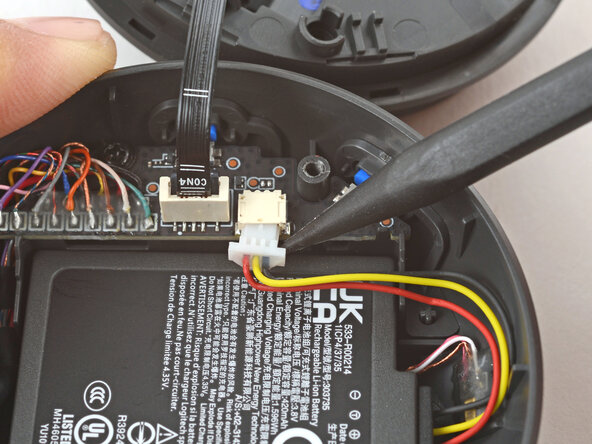
  6. Logitech Zone Wireless 2 ES for Business Battery Replacement, Disconnect the battery: step 6, image 1 of 3 Logitech Zone Wireless 2 ES for Business Battery Replacement, Disconnect the battery: step 6, image 2 of 3 Logitech Zone Wireless 2 ES for Business Battery Replacement, Disconnect the battery: step 6, image 3 of 3
  7. Logitech Zone Wireless 2 ES for Business Battery Replacement, Remove the battery: step 7, image 1 of 2 Logitech Zone Wireless 2 ES for Business Battery Replacement, Remove the battery: step 7, image 2 of 2
    • Use your fingers to remove the battery from the ear cup.

    • During reassembly, it may be easier to reconnect the battery before laying it in place.

Conclusion

To reassemble your device, follow these instructions in reverse order.

Repair didn’t go as planned? Try some basic troubleshooting, or ask our Answers community for help.

Reuse or Recycle—Never put discarded electronic parts in household waste. Visit Logitech Recycling to find your nearest recycling points, including the option to mail back old devices to Logitech for free if there’s no convenient solution in your area. You can also take your e-waste to any R2 or e-Stewards certified recycler. And don’t let good working parts or repaired devices die a slow death in your sock drawer—pass them along to someone who can use them.

Share your experience—Leave a comment here or send your feedback directly to Logitech at repair@logitech.com to help shape future repair guides and product design.

Arthur Shi

Member since: 01/03/18

335,352 Reputation

848 Guides authored

0 Guide Comments

Add Comment

View Statistics:

Past 24 Hours: 1

Past 7 Days: 4

Past 30 Days: 39

All Time: 205