
Logitech Webcam Pro 9000 USB Connection Replacement

Cory Davis and 9 other contributors
Last updated on May 7, 2024
Views: 2.7K
View statistics:
- Past 24 Hours:
- 1
- Past 7 Days:
- 14
- Past 30 Days:
- 87
- All Time:
- 2,664
Comments: 1
1 guide comment.
Go to guide commentsCompleted: 0 1
No one has marked this guide "completed." Will you be the first?
1 person has marked this guide "completed." It's you — great job!
Favorites: 5 6
5 people have favorited (and subscribed to) this guide. Will you be next?
6 people have favorited (and subscribed to) this guide — including you!
Better Introduction
Improve this guide by completing or revising its introduction.
Missing Details
Some of this guide's details are missing. Help users by adding tools, difficulty, or time.
What you need
Tools
-
-
Spudger4.9


-
-
-
Remove the two 8 mm Phillips #0 screws on the back cover.
 Ask FixBot
-
-
-
Remove the four 6mm Phillips #0 screws connecting the motherboard and front cover.
-
-
-
-
Tool used on this step:Tweezers$4.99
-
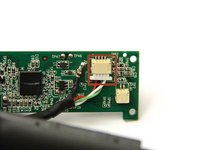
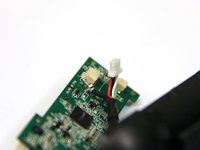
Use tweezers to grasp the white wire connector on the back of the motherboard.
-
Wiggle the connector back and forth to remove it from the socket.
-
-
-
-
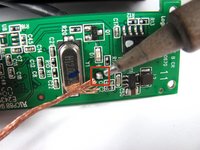
Desolder the joint on the front of the motherboard to completely detach the USB cable.
-
-




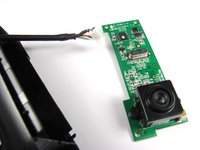
To reassemble your device, follow these instructions in reverse order.

Team

Cal Poly, Team 12-34, Amido Spring 2013 Member of Cal Poly, Team 12-34, Amido Spring 2013
CPSU-AMIDO-S13S12G34
4 Members
96 Guides authored
