Free Shipping on Domestic Orders $75+

Logitech UE MegaBoom Motherboard Replacement

What you need

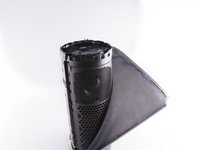
    1. Logitech UE MegaBoom Motherboard Replacement, Outer Mesh: step 1, image 1 of 3 Logitech UE MegaBoom Motherboard Replacement, Outer Mesh: step 1, image 2 of 3 Logitech UE MegaBoom Motherboard Replacement, Outer Mesh: step 1, image 3 of 3
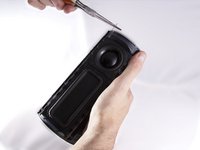
      • Locate the ends of the speaker.

      • Put a plastic opening tool in-between the rubber end and the mesh.

      • Apply a upward force in order to pry open the end.

      • Apply this procedure to the other side as well.

      • Will take force.

      • Using metal tools may permanently mar your device.

      Ask FixBot

      Add Comment

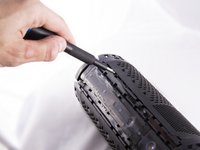
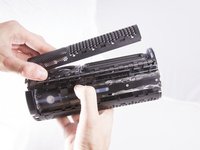
    2. Logitech UE MegaBoom Motherboard Replacement: step 2, image 1 of 3 Logitech UE MegaBoom Motherboard Replacement: step 2, image 2 of 3 Logitech UE MegaBoom Motherboard Replacement: step 2, image 3 of 3
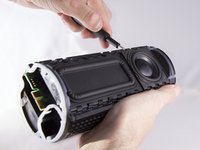
      • Take the Jimmy and pry up the rubber strip that has the volume buttons on it.

      • You will hear clicks as it pries up, don't worry.

      • Remove all the rubber you pried off.

      Ask FixBot

      Add Comment

    3. Logitech UE MegaBoom Motherboard Replacement: step 3, image 1 of 2 Logitech UE MegaBoom Motherboard Replacement: step 3, image 2 of 2
      Tool used on this step:
      Tweezers
      $4.99
      Buy
      • Use tweezers to lift end of plastic retainer on edge of mesh out of its channel.

      • Work the plastic retainer out of the channel all the way around the speaker.

      • Be gentle, it is easy to damage the fabric.

      • Repeat for other side.

      Ask FixBot

      Add Comment

    1. Logitech UE MegaBoom Motherboard Replacement, Battery: step 4, image 1 of 1
      • Pull on white strip to remove battery.

      Ask FixBot

      Add Comment

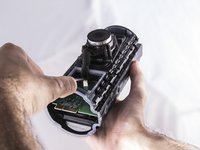
      • Remove inner plastic gasket on circuit board.

      • Remove 2nd plastic gasket around outer circuit board edge, under rubber gasket.

      Ask FixBot

      Add Comment

      • Gently pry circuit board up out of recess.

      Ask FixBot

      Add Comment

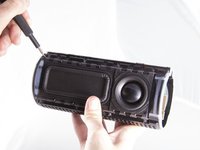
    1. Logitech UE MegaBoom Motherboard Replacement, Speaker: step 7, image 1 of 2 Logitech UE MegaBoom Motherboard Replacement, Speaker: step 7, image 2 of 2
      • Insert a opening tool between the grating and the body of the speaker

      • Pry up allowing the tabs to pop out of place.

      • There will be an audible sound when the tabs have begun to pop out of place.

      • Apply the same procedure to the grating covering the second speaker.

      Ask FixBot

      Add Comment

    2. Logitech UE MegaBoom Motherboard Replacement: step 8, image 1 of 2 Logitech UE MegaBoom Motherboard Replacement: step 8, image 2 of 2
      • Use a opening tool to push the thin metal rod located on the side of the speaker out.

      • Using needle nose pliers grasp the rod and pull the rod out of the speaker until fully removed.

      • Remove the remaining three rods.

      • One is located on the same side and two are located on the other speaker.

      Ask FixBot

      Add Comment

    3. Logitech UE MegaBoom Motherboard Replacement: step 9, image 1 of 3 Logitech UE MegaBoom Motherboard Replacement: step 9, image 2 of 3 Logitech UE MegaBoom Motherboard Replacement: step 9, image 3 of 3
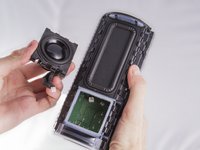
      • Insert a opening tool between the speaker and the base

      • Pry up allowing the speaker tabs to pop out of place

      • Find and disconnect the wire from the motherboard by pulling in an upward motion.

      • Apply the same procedure to the second speaker.

      Ask FixBot

      Add Comment

    1. Logitech UE MegaBoom Motherboard Replacement, Motherboard: step 10, image 1 of 1
      • Grasp the mother board by the wider edge and pull towards yourself.

      • This should not require much force.

      Ask FixBot

      Add Comment

Conclusion

To reassemble your device, follow these instructions in reverse order.

Cancel: I did not complete this guide.

2 other people completed this guide.

Oscar Ambriz

Member since: 09/27/17

978 Reputation

6 Guides authored

Team

Cal Poly, Team S9-G2, Banghart Fall 2017 Member of Cal Poly, Team S9-G2, Banghart Fall 2017

CPSU-BANGHART-F17S9G2

4 Members

84 Guides authored

0 Guide Comments

Add Comment

View Statistics:

Past 24 Hours: 2

Past 7 Days: 12

Past 30 Days: 55

All Time: 5,826