
Logitech M170 Battery Replacement

Last updated on Dec 18, 2025
Views: 458
View statistics:
- Past 24 Hours:
- 8
- Past 7 Days:
- 23
- Past 30 Days:
- 104
- All Time:
- 458
Comments: 0
No one has left comments on this guide. Will you be first?
Go to guide commentsCompleted: 0 1
No one has marked this guide "completed." Will you be the first?
1 person has marked this guide "completed." It's you — great job!
Favorites: 0 1
No one has favorited (and subscribed to) this guide. Will you be the first?
1 person has favorited (and subscribed to) this guide — and that's you!
OEM Guide
iFixit collaborated with the manufacturer to make this guide.
Logitech
Logitech and iFixit are working together to help people repair their Logitech devices.
Introduction
Go to step 1 ↓Follow this guide to replace a dead AA battery in your Logitech M170 wireless mouse.
It’s natural for batteries to lose capacity as they age. If your mouse dies quickly and doesn't hold a charge, it may be time to replace the battery.
What you need
Parts

-
-
-
Before starting, slide the power switch on the bottom of your mouse to the left, so it's in the OFF position.
 Ask FixBot
-
-
-
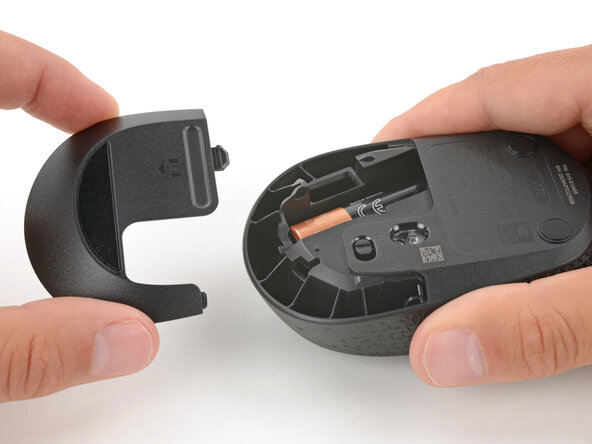
Press down on the battery cover and slide it away from the mouse to remove it.
-
-
-
-
Use your fingers to lift the end of the battery and slide it out of its recess.
-
-




To reassemble your device, follow these instructions in reverse order.
Repair didn’t go as planned? Try some basic troubleshooting, or ask our Answers community for help.
Reuse or Recycle—Never put discarded electronic parts in household waste. Visit Logitech Recycling to find your nearest recycling points, including the option to mail back old devices to Logitech for free if there’s no convenient solution in your area. You can also take your e-waste to any R2 or e-Stewards certified recycler. And don’t let good working parts or repaired devices die a slow death in your sock drawer—pass them along to someone who can use them.
Share your experience—Leave a comment here or send your feedback directly to Logitech at repair@logitech.com to help shape future repair guides and product design.

