Free Shipping on Domestic Orders $75+

Logitech Harmony Ultimate Motherboard Replacement

Views: 3.1K

View statistics:

Past 24 Hours:
4
Past 7 Days:
25
Past 30 Days:
87
All Time:
3,132
Comments: 6

6 comments on steps.

Completed: 1

1 person has marked this guide "completed." Will you be next?

Favorites: 1

1 person has favorited (and subscribed to) this guide. Will you be next?

Time Required: 10 - 15 minutes
Difficulty: Moderate
Logitech Harmony Ultimate Motherboard Replacement

Introduction

Go to step 1 ↓

The motherboard controls everything that the remote does. If the remote is powering on but there are complications, then the motherboard is a likely culprit. When removing the motherboard, ensure that the you have a Phillips screwdriver to remove 4 screws on the actual motherboard. Also, caution is necessary when removing the flap, as it can be damaged if not properly removed.

What you need

Tools

    1. Logitech Harmony Ultimate Motherboard Replacement, Battery: step 1, image 1 of 1
      • Remove the single 6 mm Phillips #0 screw located beneath the sticker near the USB charging port.

      Ask FixBot

      Add Comment

    2. Logitech Harmony Ultimate Motherboard Replacement: step 2, image 1 of 2 Logitech Harmony Ultimate Motherboard Replacement: step 2, image 2 of 2
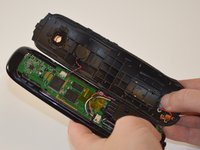
      • Use a plastic opening tool to release tabs that hold the front panel and back panel together. There are three tabs on each side of the device that need to separate for the device to open.

      • The use of a plastic opening tool is recommended to avoid damaging the remote. Use stronger tools as a last resort.

      • Be careful on the right side (looking at the back side) not to hit the screen ribbon cable. If that is hit and breaks, the touchscreen will not work properly. (example shown in the image)

      Ask FixBot

      Add Comment

    3. Logitech Harmony Ultimate Motherboard Replacement: step 3, image 1 of 2 Logitech Harmony Ultimate Motherboard Replacement: step 3, image 2 of 2
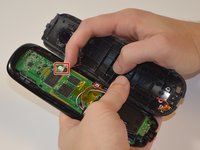
      • Disconnect the wires running from the back cover to the motherboard.

      Ask FixBot

      Add Comment

    4. Logitech Harmony Ultimate Motherboard Replacement: step 4, image 1 of 1
      • Remove the four 6mm Phillips #0 screws from the battery case.

      Ask FixBot

      Add Comment

    5. Logitech Harmony Ultimate Motherboard Replacement: step 5, image 1 of 1
      • The battery is still connected to the device via wiring. To free the battery completely, remove the dark plastic piece from the slot with the plastic opening tool. Slowly rotate the dark plastic piece and the battery clockwise until then can be removed from underneath the small circuit board with the USB port.

      • Removing the dark plastic piece from the motherboard takes some patience, as the remote is designed so that the battery will not dislocate under extreme conditions. The small circuit board with the USB port remains connected to the motherboard by six 10 mm pins.

      Ask FixBot

      Add Comment

    6. Logitech Harmony Ultimate Motherboard Replacement: step 6, image 1 of 1
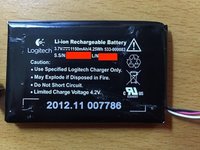
      • Lift the battery and its case out of the remote.

      • The battery should still be connected to the case with adhesive.

      Ask FixBot

      Add Comment

    7. Logitech Harmony Ultimate Motherboard Replacement: step 7, image 1 of 2 Logitech Harmony Ultimate Motherboard Replacement: step 7, image 2 of 2
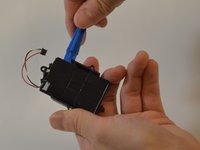
      • Use the plastic opening tool to separate the battery from the case.

      Ask FixBot

      Add Comment

    1. Logitech Harmony Ultimate Motherboard Replacement, Motherboard: step 8, image 1 of 2 Logitech Harmony Ultimate Motherboard Replacement, Motherboard: step 8, image 2 of 2
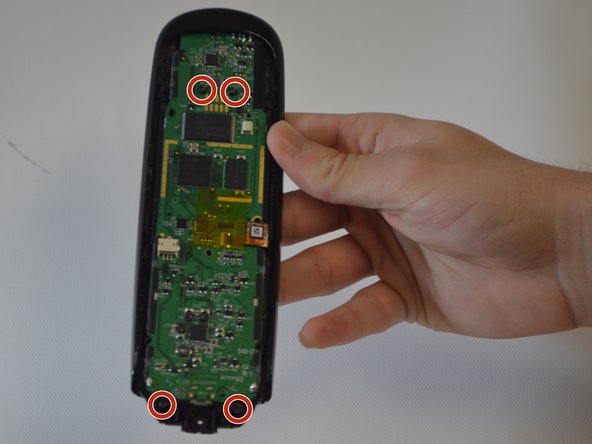
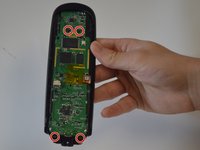
      • Remove the four 6mm Phillips #0 screws from the motherboard.

      Ask FixBot

      Add Comment

    2. Logitech Harmony Ultimate Motherboard Replacement: step 9, image 1 of 2 Logitech Harmony Ultimate Motherboard Replacement: step 9, image 2 of 2
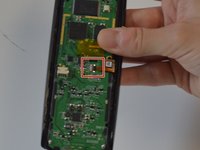
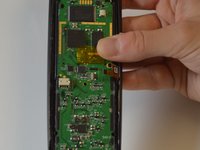
      • There is a flap that connects to the motherboard from the plastic casing. Use fingernails to safely release the flap by flipping the small black buckle upwards.

      • The flap and buckle are underneath the clear yellow piece of tape.

      • Be very careful as damaging this flap could permanently damage your controller.

      Ask FixBot

      Add Comment

    3. Logitech Harmony Ultimate Motherboard Replacement: step 10, image 1 of 1
      • The motherboard is now safe to remove by sliding and lifting it backwards out of place.

      Ask FixBot

      Add Comment

Conclusion

To reassemble your device, follow these instructions in reverse order.

Cancel: I did not complete this guide.

One other person completed this guide.

Aaron Diaz

Member since: 08/31/15

728 Reputation

3 Guides authored

Team

USF Tampa, Team 8-1, Eyestone Fall 2015 Member of USF Tampa, Team 8-1, Eyestone Fall 2015

USFT-EYESTONE-F15S8G1

5 Members

60 Guides authored

0 Guide Comments

Add Comment

View Statistics:

Past 24 Hours: 4

Past 7 Days: 25

Past 30 Days: 87

All Time: 3,132